A Practical Guide to 3D Asset Libraries and Reuse
Troubleshoot 3D asset libraries by symptom: why teams rebuild owned assets, and how metadata, previews, versioning and license records make reuse work.
 MediaScaleUp Editorial Team
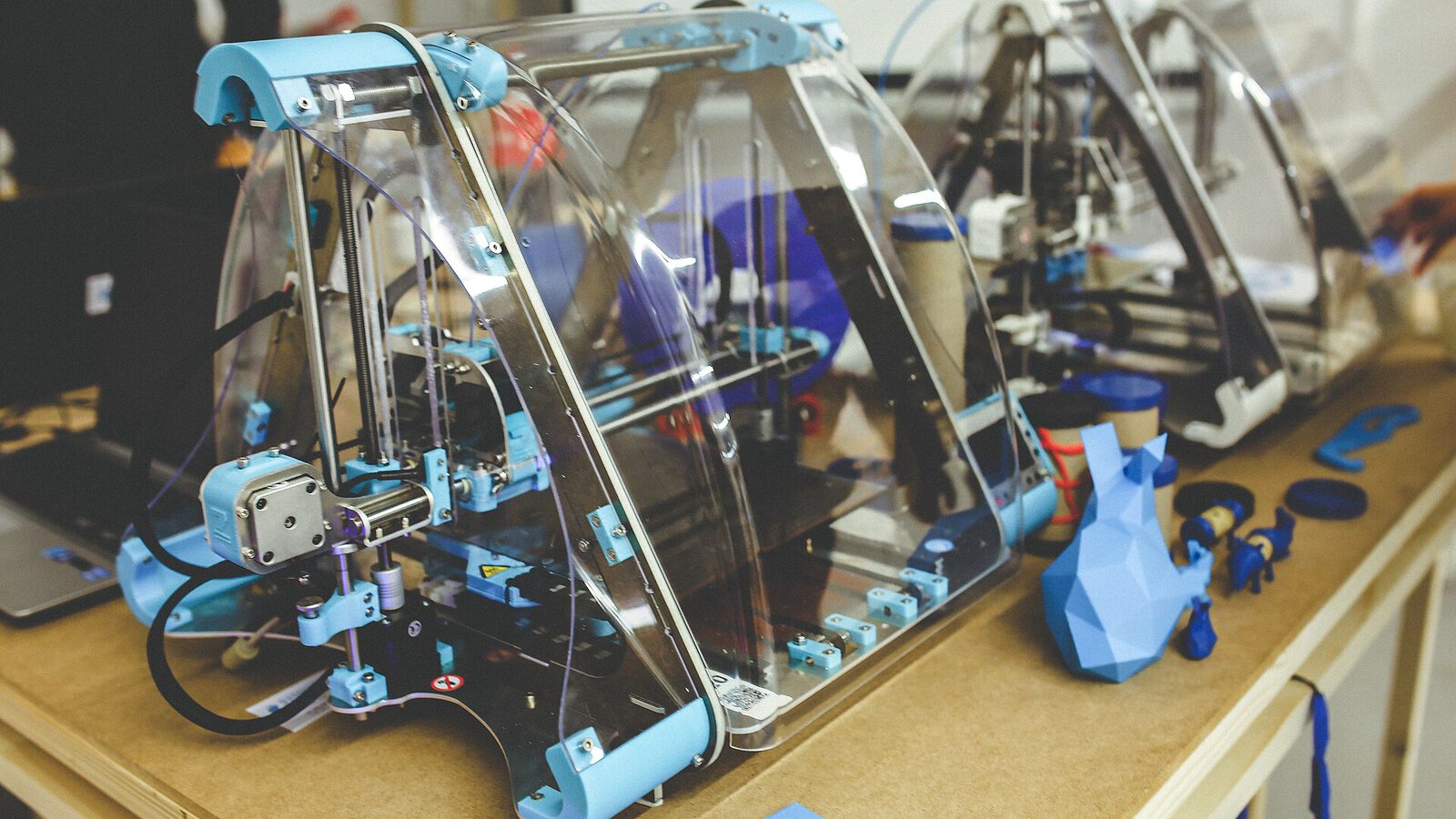
A 3D asset library is the organized collection of models, materials, textures, lighting rigs and environments that a studio or in-house team can find and drop into new work instead of building from scratch. Getting 3D asset libraries and reuse right is less about software than about discipline: consistent scale and orientation, searchable metadata, rendered previews, clear versions and a written record of what each purchased asset is licensed for. When those pieces are missing, the library still exists on a server somewhere, but in practice nobody uses it.
This matters to anyone paying for 3D work. Product brands producing hundreds of SKUs, agencies turning around campaign renders, architecture and interior teams reusing furniture, and e-commerce teams feeding AR viewers all face the same pattern: most teams rebuild assets they already own because nobody could find them, or because the copy they found was the wrong size, the wrong version or of uncertain license. The fix is almost always cataloging and standards, not more modeling.
This guide is written as a troubleshooting manual. Each section starts from a symptom you can observe in your own pipeline, explains how to confirm it, walks through the usual causes, gives the fix, and ends with how to stop it from coming back. Use the overview table first to find the problem you recognize, then jump to that section.
Diagnosing a 3D Asset Library: Symptoms at a Glance
Library problems rarely announce themselves as library problems. They show up as missed deadlines, duplicated effort, renders that look subtly different from one project to the next, or an uncomfortable question from legal. The table below maps the most common symptoms to their usual root cause and the first fix to try. Most teams find they have two or three of these at once, and they tend to compound: a library without previews gets browsed less, so it gets maintained less, so it accumulates broken assets, so people trust it less.
| Symptom you notice | Most likely cause | First fix |
|---|---|---|
| Artists model objects the studio already owns | Assets live only in project folders; no central catalog | Harvest finished assets into one library with an ingest step |
| Search returns nothing, or hundreds of irrelevant hits | Missing or inconsistent metadata and tags | Define a small controlled vocabulary and required fields |
| People scroll folders, give up and rebuild | No rendered previews | Batch-render standardized thumbnails for every asset |
| Imported models are huge, tiny or lying on their side | Inconsistent scale, units, up-axis and pivots | Normalize scale and orientation on ingest, then validate |
| An update to a shared asset breaks existing scenes | No versioning; files overwritten in place | Immutable published versions with change notes |
| No one can say whether a model may be used for a client | License terms not stored with purchased assets | Attach license records to every third-party asset |
| The same material renders differently on every job | Materials copied and tweaked per project | Maintain a referenced master material library |
| The library is large but mostly unusable | No review or retirement process | Periodic audit; deprecate and archive what fails |
Before fixing anything, gather a little evidence. Pick three to five recent projects and list every asset that was created new. For each one, ask whether something equivalent already existed anywhere on your storage. That short exercise usually tells you which of the symptoms above is costing you the most, and it gives you a baseline to measure improvement against later.
Symptom: Your Team Keeps Rebuilding Assets You Already Own
This is the most expensive symptom and the most common one. It looks like a modeler spending a day on a generic office chair, a bottle, a potted plant or a set of kitchen cabinets that someone else built last quarter. Often the rebuild is only discovered afterward, when two nearly identical assets turn up side by side.
How to recognize it
- Search your storage for common object names (chair, sofa, bottle, lamp) and count the near-duplicates across project folders.
- Ask artists where they look first when they need an asset. If the answer is "I ask whoever worked on the last similar project," you do not have a library; you have institutional memory.
- Check time logs or task boards for modeling tasks on generic props. Any recurring generic object is a candidate for reuse.
Likely causes
The root cause is usually structural: finished assets are stored in project folders and nowhere else. Once a project closes, its folder gets archived, renamed or moved to cold storage, and everything inside becomes invisible. A second cause is that there is no defined moment at which an asset is promoted from "something I made for this job" to "something the studio owns and maintains." Without that moment, nothing ever enters the library on purpose. A third, quieter cause is trust. If artists have previously pulled a library asset that turned out to be broken, badly scaled or unlicensed, they learn that rebuilding is safer than reusing.
The fix
Create a single library location that is separate from project folders and make promotion into it an explicit step at the end of every project. The first pass is a harvest: go through recently closed projects, identify assets with reuse value, and copy them into the library through the same ingest routine you will use going forward. Do not try to harvest everything. Prioritize objects that appear across projects, hero assets that took significant time, and anything purchased.
Make the library the default starting point. Some teams add a line to their project kickoff checklist: "Search the library for every asset on the shot list before scheduling modeling." That one line changes behavior more than any software purchase. If you are building a library around a product range specifically, the planning decisions are different enough to deserve their own treatment; our guide to planning a 3D product library covers SKU-driven structure and variant handling.
Quick fix: Before any new modeling task is scheduled, require a two-minute library search and a note on the task saying what was checked. It costs almost nothing and it surfaces both reuse opportunities and gaps in your catalog.
How to prevent it
Add a project wrap-up step where the lead nominates assets for the library, and give someone ownership of ingesting them within a week of project close. Track reuse: when a project uses a library asset, record it. Over a few months, that record shows which categories earn their keep and where the library still has holes.
Symptom: Library Search Returns Nothing Useful
A team has centralized its assets, but searching still fails. Typing "chair" returns nothing because the file is called SM_Seat_03_final_v2. Or typing "wood" returns four hundred results with no way to narrow them. Either way, people fall back to browsing folders by memory, and the library's advantage disappears.
How to recognize it
Ask three colleagues to find the same asset using the library search, without telling them its name. If they use different search terms and at least one of them fails, your metadata is the problem. Another tell is folder depth: when a library relies on deeply nested folders to carry meaning (Furniture/Seating/Office/Modern/Task), the folders are doing the job that metadata should be doing, and they only support one way of looking at the collection.
Likely causes
- No required fields. Metadata is what makes a library searchable, but if tagging is optional it will be skipped under deadline pressure.
- Free-form tags. One artist tags "sofa," another "couch," a third "settee." Each is reasonable; together they break search.
- Names carrying all the meaning. File names are important, but they cannot hold category, style, polygon budget, material type, license status and source at once.
The fix
Define a short metadata schema with a handful of required fields and a controlled vocabulary for each. A workable starting schema for most studios looks like this:
| Field | Example values | Why it matters |
|---|---|---|
| Category | Furniture, Lighting, Props, Vehicles, Environment | Primary browsing axis |
| Subcategory | Seating, Tables, Storage | Narrows large categories |
| Detail level | Hero, Mid, Background, Real-time | Prevents dropping a heavy hero model into a background |
| Target pipeline | Offline render, Real-time, AR/web | Signals material and geometry assumptions |
| Source | In-house, Purchased, Client-supplied | Triggers license checks |
| License reference | Record ID or "In-house" | Links to stored terms |
| Owner | Person or team responsible | Someone to ask when it breaks |
| Status | Approved, Work in progress, Deprecated | Stops people using unvetted assets |
Keep synonyms in the vocabulary rather than in the tags: the library tool or a simple lookup maps "couch" and "settee" to "sofa" so artists can type whatever comes naturally. Pair this with a naming standard so file names are predictable even outside the library tool. Our article on naming conventions for 3D assets goes through prefix schemes, separators and version suffixes in detail.
How to prevent it
Enforce required fields at ingest: an asset cannot be marked Approved until they are filled. Review the vocabulary every few months and fold in terms people actually search for. If your library tool logs searches, the queries that return zero results are the most useful list you have; each one is either a missing asset or a missing synonym.
Symptom: Artists Browse, Give Up and Build It Anyway
Sometimes search works, but the results page is a wall of file names or generic icons. Artists have to open each candidate in their 3D application to see what it actually looks like, which can take a minute or more per file for heavy scenes. After opening three or four wrong ones, most people stop looking.
How to recognize it
Look at your library through the eyes of a new hire. If you cannot tell a mid-century armchair from a modern one without opening the file, you have this problem. Libraries with no previews are one of the most common mistakes, and they undermine everything else, because a rendered thumbnail is what makes browsing usable.
Likely causes
Previews are usually skipped because they are treated as a nice-to-have that someone will do later. Hand-made previews also tend to be inconsistent: different angles, backgrounds and lighting make it hard to compare assets side by side, and a flattering beauty render can hide problems a neutral one would show.
The fix
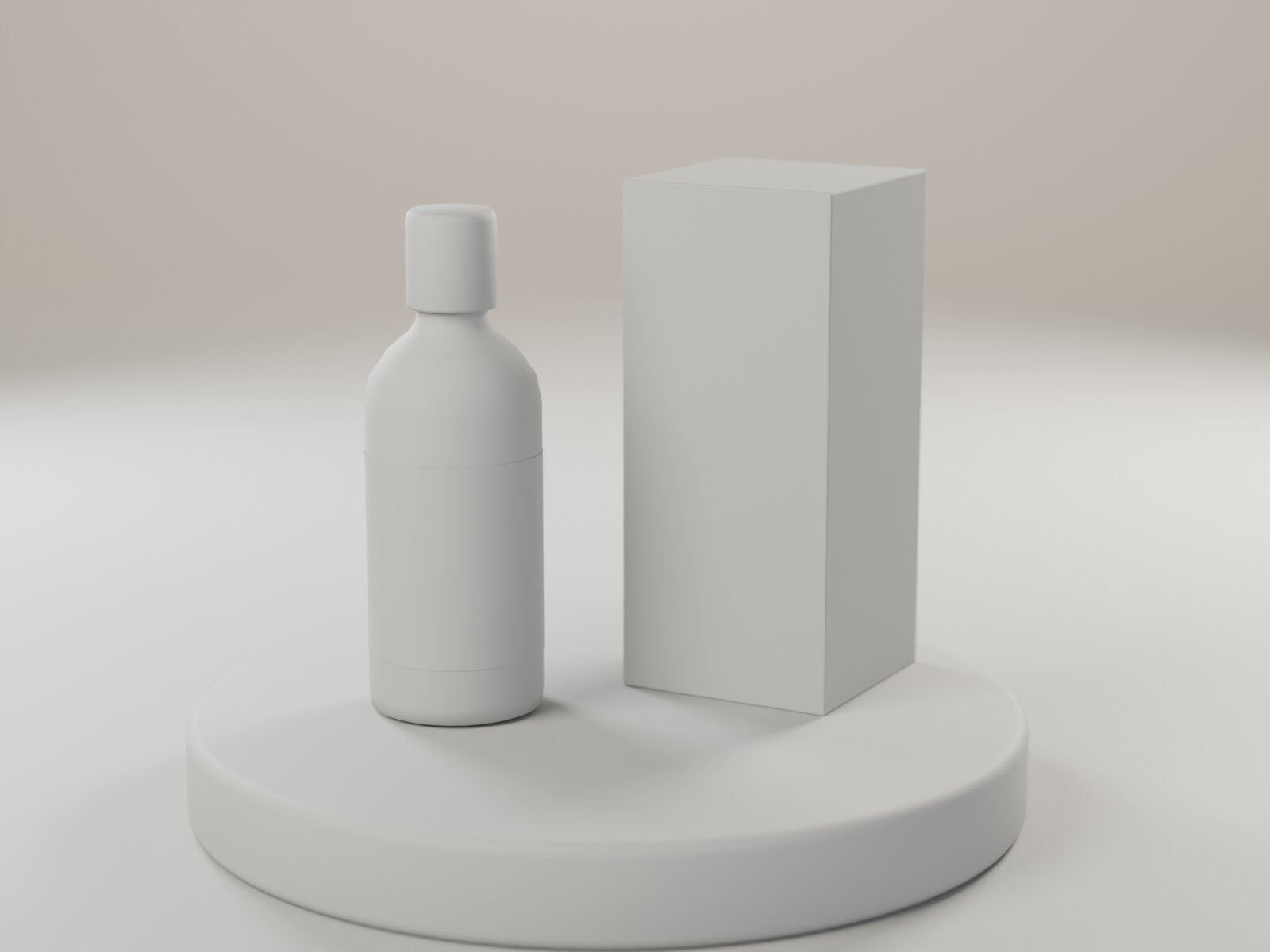
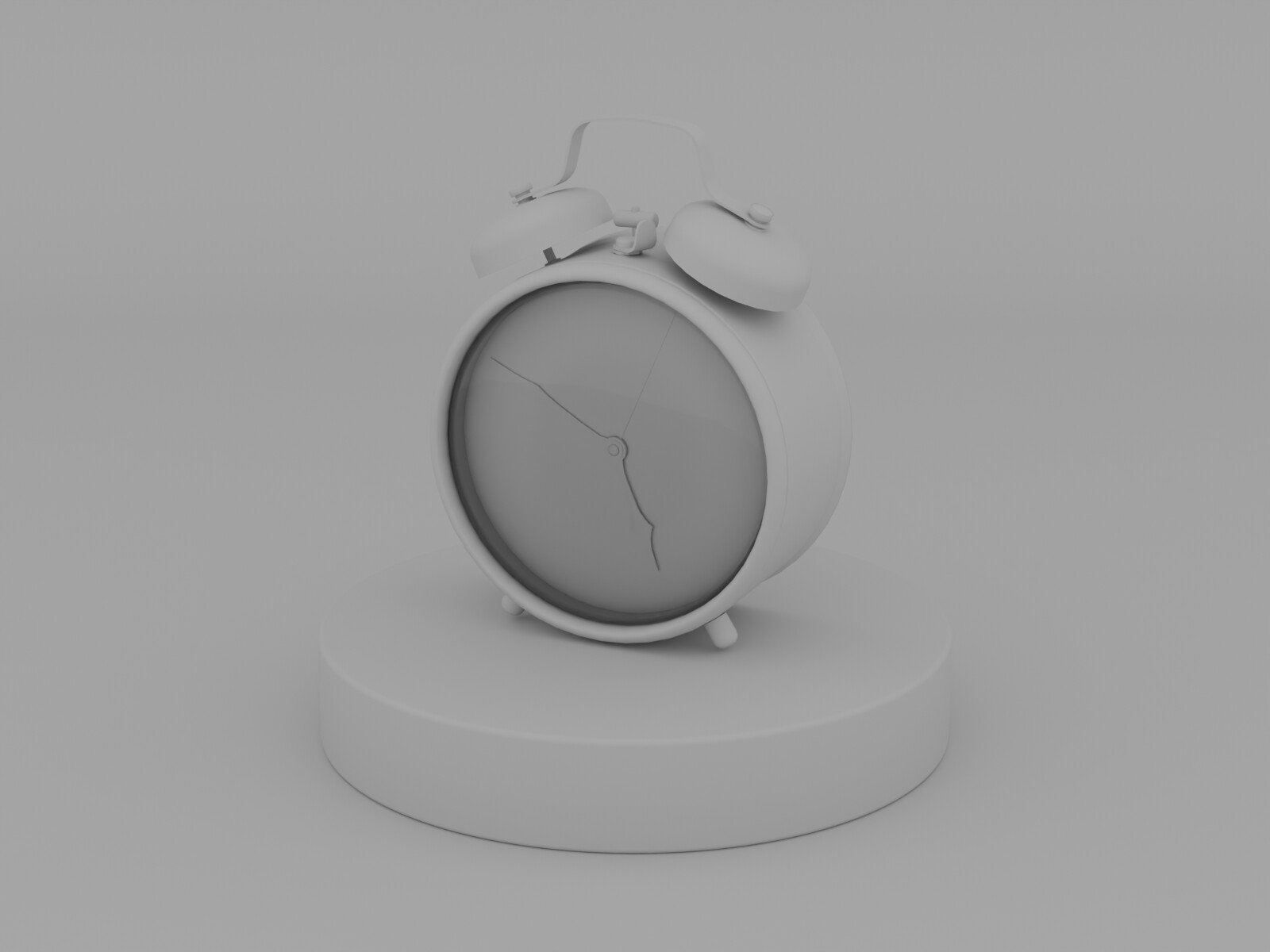
Automate preview generation with a fixed preview scene: a neutral gray or white backdrop, a standard three-quarter camera angle, consistent lighting and a scale reference such as a simple human silhouette or a one-meter cube. Most 3D applications can be scripted to open an asset, frame it, render a thumbnail and save it next to the asset with a predictable name. Where possible, render two images: a small thumbnail for grids and a larger turntable or multi-angle sheet for detail views. For materials, render a standard shader ball; for lighting rigs, render the same test object under each rig so rigs can be compared directly. The same principle applies to lighting presets: render one reference object under each preset so they can be compared at a glance.
Quick fix: Build one preview scene and a batch script that renders every asset through it overnight. Consistent, slightly plain previews beat beautiful, inconsistent ones, because people browse by comparison.
How to prevent it
Make preview generation part of ingest, not a separate task. If the asset changes, the preview is regenerated with the new version. Keep the preview scene itself under version control so changes to the lighting or camera are deliberate and can be applied to the whole library in one pass.
Symptom: Assets Arrive at the Wrong Scale or Facing the Wrong Way
An artist drags a library chair into a room and it is either the size of a building or the size of a coin. Or it lies on its back, or it faces the wall, or its pivot sits a meter off to the side so it rotates around empty space. Each problem takes only a few minutes to fix by hand, but multiplied across dozens of assets per scene, and repeated by every artist on every project, it adds up quickly. Worse, hand fixes are inconsistent, so the same chair ends up at slightly different sizes in different renders.
How to recognize it
Import ten random library assets into an empty scene set to your studio's standard units. Place them all at the origin. If they are not all sitting on the ground plane, facing the same direction, at plausible real-world sizes, you have inconsistent scale and orientation across the library.
Likely causes
- Different applications, different conventions. Some tools default to Y-up and others to Z-up, and unit defaults vary between centimeters, meters and inches. Assets carry those conventions with them unless someone converts them.
- Purchased assets from many vendors. Each marketplace seller uses their own habits.
- Unapplied transforms. A model can look correct in its source file because an object-level scale or rotation is compensating, and then behave oddly when exported or referenced.
- Pivots left wherever the modeling tool put them.
The fix
Decide on a studio standard and normalize every asset to it on ingest. A typical standard specifies real-world scale in a single unit, a single up-axis, a defined front direction, the pivot at the base center of the object (or at a logical mounting point for wall and ceiling items), transforms applied or frozen, and the asset positioned at the origin. If you deliver to real-time or web pipelines, it helps to align with the conventions of the interchange format you ship most. The glTF specification published by the Khronos Group, for instance, uses meters with Y up, so a library that already matches that convention needs less conversion at export.
Then validate automatically. A simple script can check the bounding box against expected ranges for the category (a dining chair taller than two meters or shorter than half a meter is almost certainly wrong), confirm the pivot position, and flag non-identity transforms. Our guide to validating 3D assets covers which checks are worth automating and which still need a human.
How to prevent it
Write the standard down in a single page that every artist and vendor receives. Run validation on ingest so nothing enters the library without passing. For purchased assets, budget time for normalization as part of the purchase; a model is not ready to use just because it has been downloaded.
Symptom: Updating a Shared Asset Breaks Existing Scenes
Someone improves a library asset, perhaps fixing topology or swapping a texture, and saves it over the original. The next morning, three active projects that referenced it look different. One of them is mid-approval with a client who signed off on the old version. Nobody can say what changed or roll it back cleanly.
How to recognize it
Ask: if a library asset changed yesterday, could you tell which projects use it, what exactly changed, and how to get the previous version back? If any of those answers is "not easily," you are exposed. A related sign is file names like chair_final_FINAL_v3_fixed, which are what versioning looks like when there is no system for it.
Likely causes
Assets change, and consumers need to know which version they have. The usual failure is overwriting in place, combined with live references from project scenes to the library path. That combination means every edit is instantly published to every consumer, with no review and no record.
The fix
Separate working files from published versions. Artists work on an asset in a working area; when it is ready, it is published to the library as a new, numbered, read-only version with a short change note. Projects reference a specific version, not "latest," unless they deliberately opt in to updates. When a new version is published, owners of projects using older versions can decide whether to update. This is the same principle software teams use for dependencies, and it scales well.
The storage mechanism can vary: a production asset manager, a version control system with support for large binary files, or a disciplined folder structure with version numbers and a changelog. What matters is that published versions are immutable and each change is recorded. For a full comparison of approaches, see version control for 3D assets.
How to prevent it
Make library folders read-only for everyone except the publishing process. Require a change note with every publish, even a single line. Track which projects use which versions so you can notify them. And pair updates with a quick review: a quick side-by-side render of old and new versions catches most regressions before they propagate.
Symptom: Nobody Can Say Whether a Purchased Model Is Cleared for Client Work
A render for a client campaign is ready to deliver, and someone asks where the car in the background came from. It was pulled from the library. The library says it was purchased. Nobody knows from where, under what license, by which account, or whether the terms allow commercial use, use in advertising, redistribution of the model file, or use in an interactive product.
How to recognize it
Filter the library for assets whose source is "Purchased" or "Unknown." For each, try to locate the license terms within five minutes. Every asset you cannot resolve is a liability sitting in the library looking exactly like a safe one.
Likely causes
Purchased assets carry terms that restrict reuse, but the terms live on a marketplace page, in an email receipt or in the memory of the person who bought them. When the asset is copied into the library, the license stays behind. Terms also differ in ways that matter: some licenses permit use in rendered images but not redistribution of the model file itself, which becomes relevant the moment you deliver source files or ship a model inside an AR experience or configurator. Others restrict use by seat, by project count or by the type of end product.
Watch out: Delivering a purchased model file to a client, or embedding it in an app, web viewer or game, is a different use from rendering it into an image. Check the specific terms before either, and never assume a license covers a use it does not name.
The fix
Store license terms with purchased assets. For each third-party asset, keep a license record containing the vendor, the product page or item ID, the purchase date, the purchasing account, a copy of the license text as it stood at purchase, and a plain-language summary of what is and is not allowed. Link the record from the asset's metadata. For assets you cannot trace, either repurchase them properly, replace them with in-house equivalents, or mark them Restricted so they are not used in deliverables. Client-supplied assets need the same treatment; they are usually licensed for that client's work only. Our article on licensing 3D models and assets explains the common license types and the questions to ask before buying.
How to prevent it
Route all asset purchases through one account or one person, so receipts and terms land in one place. Make the license reference a required field for any asset whose source is not "In-house." Add a license check to your delivery process, especially when the deliverable includes source files, as described in our guide to delivering 3D assets.
Symptom: The Same Material Looks Different on Every Project
The studio's oak, brushed steel or white gloss plastic looks slightly different in each project. Clients notice when product renders from different months sit side by side on a website. Artists spend time re-tuning materials that were already right once.
How to recognize it
Render the same asset with its material from three different projects under the same lighting. If the results differ in color, roughness or scale of texture, your materials have drifted.
Likely causes
- Copy-and-tweak workflows. Materials are embedded in each scene and adjusted locally, so every project holds its own fork.
- Inconsistent color management. Textures read with the wrong color space shift in ways that look like material changes.
- Texture scale not standardized. A wood grain authored at one real-world scale on one model and another scale on the next.
- Renderer differences. A material tuned for an offline renderer will not look identical in a real-time engine or web viewer without deliberate translation.
The fix
Maintain a master material library that assets reference rather than copy, with each material previewed on a standard shader ball under standard lighting. Define texture resolution and real-world texel density standards, and document color space for every texture type. Open standards help here: the Academy Software Foundation hosts projects such as MaterialX and OpenColorIO that give studios a shared way to describe materials and manage color across tools. For work that ships to real-time and web, map your materials to the targets you actually deliver; our guide to glTF material extensions explains which effects survive that translation. The broader question of building and governing a material set is covered in material libraries and standards.
How to prevent it
Treat materials as library assets in their own right, with versions, owners and previews. When a project needs a variation, create a named variant in the library instead of editing locally. Re-render the shader ball sheet whenever the lighting or renderer version changes, so drift is visible.
Symptom: The Library Is Big but Mostly Unusable
Years of harvesting have produced thousands of assets. Search works, previews exist, but a large share of what comes up is outdated, low quality, broken, duplicated or tied to a single client. Artists learn to ignore large parts of the library, and the useful assets get buried.
How to recognize it
Take a random sample of fifty assets and grade each one: usable as is, usable with minor work, or not worth using. If more than a small minority land in the last bucket, the library needs pruning. Other signs include multiple near-identical versions of the same object with no indication of which is preferred, and assets built for renderers or software versions you no longer use.
Likely causes
Libraries grow by addition only. Nobody is responsible for removing things, and deleting feels risky, so nothing is ever retired. Ingest standards may also have been looser in the past, so older assets fall short of current expectations.
The fix
Review the library periodically and retire what is unusable. Retiring does not have to mean deleting: move deprecated assets to an archive that is excluded from default search but still available if an old project needs to be reopened. For duplicates, pick a preferred version, mark the others Deprecated with a pointer to the preferred one, and merge metadata. For assets that are close to usable, decide whether upgrading them is worth the time compared with replacing them.
How to prevent it
Schedule the review, for example twice a year, and assign it. Use reuse records to decide what stays: assets that have not been used in a long time and fall short of the current standard are the first candidates for archiving. Keep ingest standards strict so the backlog of substandard assets does not grow again.
Worked Example: Rescuing a Furniture Library for an Interiors Team
The following is an illustrative scenario built to show the arithmetic of a cleanup, not a real client project. Imagine an interiors visualization team of six artists. Over several years they have accumulated around 1,500 furniture and decor models, scattered across roughly 80 closed project folders plus one shared "library" folder that contains about 300 of them. There are no previews, tags are inconsistent, and about a third of the models were purchased from various marketplaces.
Step one: triage
The team samples 100 models. In this example, they find the grading below. They extrapolate cautiously to the full set, knowing the sample is only a guide.
| Grade | Sample count (of 100) | Projected across 1,500 | Action |
|---|---|---|---|
| Usable after normalization | 40 | about 600 | Ingest: normalize, tag, preview |
| Duplicate of a better model | 25 | about 375 | Archive, point to preferred version |
| Purchased, license untraceable | 10 | about 150 | Mark Restricted; replace if needed |
| Low quality or obsolete | 25 | about 375 | Archive |
Step two: estimate the effort
Suppose normalizing, tagging and checking a model takes about 15 minutes once a scripted preview and validation pipeline exists, and building that pipeline takes one technical artist around a week. Six hundred models at 15 minutes each is 150 hours, or roughly four working weeks for one person, which the team spreads across two people part-time over two months. Triage of duplicates and obsolete assets is faster, perhaps a few minutes each, since the decision is simply to archive.
Step three: estimate the payoff
Before the cleanup, the team estimates from task logs that each project involves modeling about ten generic furniture pieces, at an average of three hours each. If the cleaned library covers even half of those, each project saves around 15 hours. At two projects a month, that is 30 hours a month, so the roughly 190 hours of cleanup (150 for ingest plus about 40 for pipeline and triage) pays back in about six months, and keeps paying afterward. The exact numbers will differ for every team; the point is that the calculation is simple enough to do before committing, using your own logs.
The same arithmetic also tells you when a cleanup is not worth it. If your projects rarely repeat object types, or if your assets are mostly one-off hero pieces, reuse savings will be small and you should focus on lighter-weight cataloging rather than a full normalization program.
Preventing Problems in 3D Asset Libraries and Reuse: The Ingest Routine
Almost every symptom in this manual traces back to what happens at the moment an asset enters the library. A consistent ingest routine is the single most effective prevention measure. It should be short enough that people actually follow it and automated wherever a script can do the work.
- Nominate At project wrap-up, the lead lists assets with reuse value and flags anything purchased or client-supplied.
- Check the license For third-party assets, confirm terms and create the license record before anything else. If terms cannot be confirmed, stop here and mark the asset Restricted.
- Normalize Convert to studio units and up-axis, set the front direction, place the pivot, apply transforms and center at the origin.
- Clean and connect materials Replace local materials with references to the master material library where possible and confirm texture color spaces and paths.
- Validate Run automated checks for scale range, transforms, missing textures, naming and polygon budget for the target detail level.
- Tag Fill every required metadata field using the controlled vocabulary.
- Preview Render standardized thumbnails and detail views through the preview scene.
- Publish Save as a numbered, read-only version with a change note, and set status to Approved.
Alongside the ingest routine, a short recurring checklist keeps the library healthy between audits.
- Every library asset has a rendered preview that matches its current version.
- Every purchased or client-supplied asset links to a stored license record.
- All assets share one unit system, one up-axis, one front direction and a consistent pivot rule.
- Required metadata fields are filled and use the controlled vocabulary.
- Published versions are read-only and each has a change note.
- Projects reference specific versions, and you can list which projects use each asset.
- Zero-result searches are reviewed and turned into new assets or new synonyms.
- A library review is on the calendar, with an owner, and deprecated assets are archived rather than left in search.
- No finished asset lives only in a project folder.
Choosing the right level of tooling
You do not need an enterprise asset manager to follow this routine. A small team can run it with a well-structured shared drive, a spreadsheet or lightweight database for metadata, a few scripts for validation and previews, and strict folder permissions. Built-in tools can take you further than people expect; Autodesk, for example, documents asset library and content browser features in its applications on the Autodesk site, and similar features exist in other packages. Dedicated production asset management systems start to pay off when you have many concurrent projects, multiple sites or vendors publishing into the same library, or a need for automated dependency tracking. Choose the tool after you have defined the routine, not before; a tool without a routine simply becomes a more expensive place to lose assets.
Planning for more than one output
Libraries increasingly serve several destinations at once: offline stills, animation, real-time configurators and AR on the web. Record which outputs each asset is prepared for, and keep derived versions (a decimated real-time mesh, a baked texture set) linked to their source rather than stored as unrelated files. The trade-offs between those targets are discussed in choosing real-time or offline rendering, and they affect how much of each asset is truly reusable across outputs.
When to Bring In Outside Help With Your Asset Library
Most of the fixes in this manual are within reach of an in-house team with a technical artist and a few weeks of focused time. There are three situations where outside help usually makes sense.
- Assets are routinely rebuilt rather than reused. If you can see from your own logs that the same types of objects are being modeled repeatedly, and your team has no capacity to step back and fix the underlying system, an outside team can run the harvest and set up the ingest routine while your artists keep delivering.
- License terms for existing assets are unclear. Untangling years of purchases is tedious, detail-oriented work, and mistakes carry real risk when deliverables reach clients. A structured audit identifies what is safe, what needs repurchasing and what needs replacing.
- A library needs organizing at volume. Normalizing, tagging and previewing hundreds or thousands of assets is a production job in its own right. Scripted pipelines plus dedicated operators get through it faster than artists fitting it between client work.
When evaluating help, ask how they will leave the system behind: the standards document, the validation and preview scripts, the metadata schema and the ingest routine should all be yours to keep. A cleaned library without the process that keeps it clean will drift back within a year. If you would like a team to take this on, our 3D design and development services cover asset library audits, normalization at volume and the pipeline work that keeps a library usable.
Verdict Reuse fails for predictable reasons: assets that cannot be found, cannot be trusted, cannot be compared or cannot be legally used. Fix findability with metadata and previews, fix trust with standards, validation and versioning, and fix legal risk with stored license records. The modeling is rarely the bottleneck; the cataloging is.
Where this comes from
- Academy Software Foundation — Asset management standards
- Khronos Group — Asset interchange
- Autodesk — Asset library documentation
The figures and practices above come from the sources listed.
Working on something like this?
We take on 3D Design & Development work for teams who want it done once, properly. Tell us what you are building and we will tell you honestly whether we are the right studio for it. Start a project.
Where to go next
Spotted something wrong? Report an error on this page. We correct on the page and say what changed.