How to Get Transcoding and Proxy Workflows Right
Compare native editing, camera proxies, ingest proxies and full-resolution intermediates, with a scored framework and safe relink and export checks.
 MediaScaleUp Editorial Team
Transcoding and proxy workflows are how an edit stays responsive when the camera files are too heavy for the machine cutting them. You create lighter copies of the footage, edit with those, and then relink to the original camera files for grading and export. Done well, a 4K or 6K project cuts on an ordinary laptop as smoothly as a 1080p one. Done carelessly, the relink fails at the worst moment, or a master goes out the door built from low-resolution stand-ins and nobody notices until the client does.
This guide is written for the people who have to choose: producers and marketing leads commissioning video, in-house editors setting up a team process, and freelancers who inherit other people's drives. There is no single correct setup. Editing native camera files, using proxies recorded by the camera, generating proxies inside the editing application or with a batch transcoder, and transcoding everything to a full-resolution edit codec each suit different projects. The sections below set out those four options, the criteria that decide between them, a scored comparison, and a recommendation for each common situation.
One principle runs through all of it. A proxy is a lower-resolution stand-in matched frame for frame to the original, and the relink back to that original depends on identical timecode, identical frame count and identical file naming. Every rule in this article exists to protect those three things.
What Transcoding and Proxy Workflows Actually Solve
Modern cameras record in codecs designed for the camera, not the edit. Long-GOP formats such as H.264 and H.265 (HEVC) store most frames as differences from neighboring frames, which keeps file sizes small on the card but forces the computer to reconstruct each frame from its neighbors every time you scrub, play backward or jump to a cut point. Raw formats go the other way: every frame is complete, but the files are enormous and each one has to be debayered and color processed before you see it. Either way, the processor or graphics card is doing heavy work on every frame, and at 4K and above that work often exceeds what an editing workstation, let alone a laptop, can do in real time.
Transcoding addresses this by converting footage into a codec that is easier to decode. There are two distinct reasons to do it, and confusing them causes most of the bad decisions in this area:
- Transcoding for performance creates lighter working copies (proxies) that stand in for the originals during editing. The originals stay the masters, and the project relinks to them before finishing.
- Transcoding for standardization converts everything to a single high-quality intermediate codec at full resolution, which then becomes the working master. This is useful when a project mixes many cameras and frame formats, but it trades storage and time for simplicity.
A proxy workflow is therefore a round trip: ingest, generate proxies, edit, relink, finish. A full-resolution transcode is a one-way conversion. The decision framework later in this article turns largely on which of those shapes fits your project, your hardware and your team. For a wider view of where this sits among other post-production choices, see our overview of the video editing workflow decisions that matter most.
A note on terminology: Different applications use different words for similar things. Premiere Pro calls them proxies and attaches them to clips. DaVinci Resolve distinguishes proxy media from optimized media. Older broadcast workflows call the proxy edit the "offline" and the finishing stage the "online." The mechanics are the same: a lighter copy for cutting, the original for finishing.
The Four Options on the Table
Almost every real project falls into one of four approaches. Each has a legitimate place, and each has a characteristic way of going wrong.
Option 1: Edit the camera originals natively
You import the camera files and cut them directly, with no transcoding. Modern editing applications decode common camera codecs with hardware acceleration, and on a well-specified machine this can be perfectly responsive. There is no relink, because there is nothing to relink. The cost is that performance depends entirely on the codec and the hardware, and it tends to collapse when you stack multicam angles, add effects or move the project to a less powerful computer.
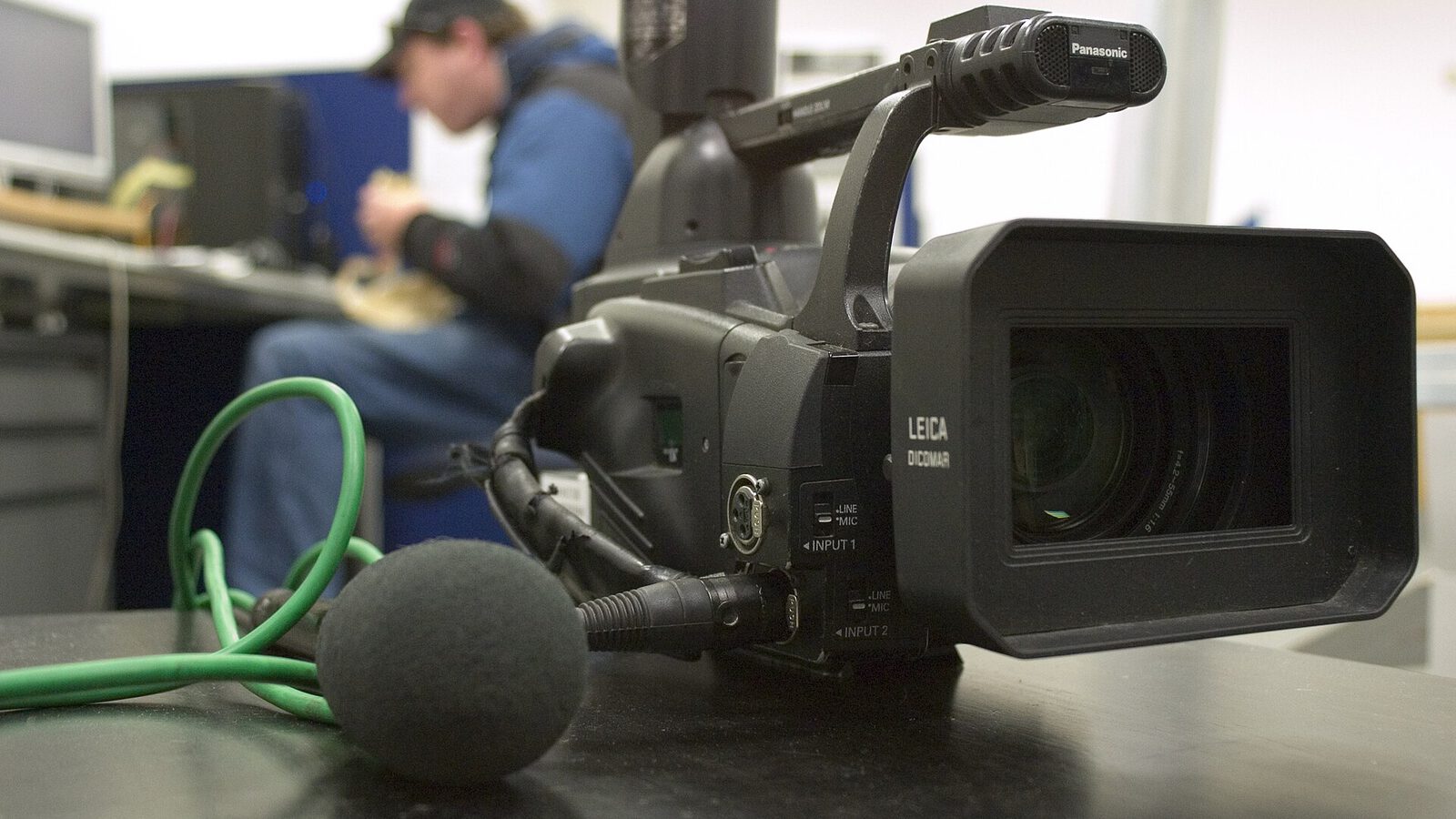
Option 2: Proxies recorded by the camera
Many cinema and mirrorless cameras can record a small proxy file alongside the main recording. The proxy exists the moment the shot ends, so there is no transcode time at all. The catch is that camera proxies follow the camera's own naming and folder conventions, some cameras write them to a separate folder or card, and not every camera records audio, timecode or the full clip duration into the proxy in the way your editing software expects.
Option 3: Proxies generated at ingest by the editing application or a batch transcoder
This is the classic proxy workflow. At ingest you generate proxies in a light, edit-friendly codec, most commonly ProRes Proxy or DNxHR LB, either inside the editing application or with a separate batch tool. The edit runs on the proxies; before grading and export, the project switches back to the originals. It is the most flexible option and the one most studios standardize on, but it is also the one where the relink rules matter most.
Option 4: A full-resolution intermediate transcode
Instead of lightweight proxies, everything is converted at ingest to a full-resolution intermediate, such as ProRes 422 or DNxHR HQ, and those files become the working masters. There is no relink at the end because the transcodes are the finishing media. The price is large files, long transcode times, and a generation of re-encoding between the camera and the final export.
The Criteria That Decide Between Them
Choosing well means weighing a small number of factors honestly. These are the six that decide most projects.
- Source codec: Long-GOP and raw formats benefit most from proxies; intraframe codecs often edit natively.
- Hardware: The weakest machine that will touch the project sets the baseline, not the strongest.
- Relink risk: Every workflow that swaps media later adds a point where timecode, frame count or naming can break.
- Storage budget: Proxies add a small fraction of the original footprint; full-resolution intermediates can exceed it.
- Turnaround: Transcode time is paid up front, before the first cut, and grows with shoot volume.
- Team size: Shared and remote editing favors small, portable proxies with strict naming.
Source codec and resolution
The codec matters more than the resolution. A 4K file in an intraframe codec such as ProRes 422 is often easier to edit than a 1080p file in heavily compressed long-GOP H.265, because every frame decodes independently. When you assess a project, look at the codec, the bit depth and the chroma subsampling as well as the frame size. Ten-bit 4:2:2 HEVC from recent mirrorless cameras is a common trouble case: hardware decoding support for it varies between computers, so a file that plays smoothly on one machine may stutter on another.
The weakest machine in the chain
Plan for the slowest computer that will open the project. If the lead editor has a powerful desktop but an assistant or a remote reviewer will be cutting selects on a laptop, native editing may work for one and fail for the other. Proxies level the field.
Relink and conform risk
Native editing has none. Full-resolution intermediates have a little, in the sense that you must be sure the transcodes carry the right timecode and metadata if you ever need to go back to the camera files. Camera proxies and ingest proxies both have real relink risk, and that risk is almost entirely a matter of discipline: renamed files and inconsistent folder structures are where proxy workflows break.
Storage, turnaround and team
Proxies are small, which makes them cheap to duplicate onto laptops and shuttle drives. Full-resolution intermediates can be larger than the camera originals, particularly when the source is compressed long-GOP. Transcode time scales with footage volume and has to be scheduled. And the more people who touch the media, the more a strict naming and folder convention pays for itself. Our guide to video file storage planning covers how to budget drives and backups around these choices.
Scoring the Four Approaches Side by Side
The scorecard below rates each option from 1 (weak) to 5 (strong) against the criteria above. The scores are editorial judgments based on typical projects, not measurements; a very fast workstation or an unusual camera can shift any of them. Use the table to narrow the field, then read the pros and cons of the options still standing.
| Criterion | Native originals | Camera proxies | Ingest proxies | Full-res intermediate |
|---|---|---|---|---|
| Editing responsiveness on modest hardware | 2 | 4 | 5 | 3 |
| Setup and transcode time | 5 | 5 | 3 | 1 |
| Relink safety | 5 | 2 | 4 | 4 |
| Storage efficiency | 5 | 4 | 4 | 1 |
| Portability for remote or shared editing | 1 | 4 | 5 | 2 |
| Consistency with mixed cameras | 2 | 2 | 4 | 5 |
| Finishing quality risk | 5 | 3 | 4 | 4 |
Two patterns stand out. First, ingest proxies score well across the board, which is why they are the default for most professional work; their weakness is the up-front transcode time, which is a scheduling problem rather than a quality one. Second, camera proxies look attractive on speed but score poorly on relink safety, because you inherit whatever conventions the camera manufacturer chose. That does not rule them out, but it means they need checking before anyone starts cutting.
Relink safety for ingest proxies scores a 4 rather than a 5 for a reason: the process is reliable when the rules are followed and fragile when they are not. The score describes a disciplined team. An undisciplined one would rate it much lower.
Editing Native Camera Files: When Skipping Transcoding Works
Native editing has become far more viable as editing applications have added hardware decoding for common camera codecs. If your footage is an intraframe format, or a long-GOP format your machine decodes in hardware, and the project is short with a single editor on a single machine, native is often the most efficient choice. There is nothing to generate, nothing to relink, and nothing to get out of sync.
The test is simple and worth doing on the actual hardware before committing. Load a representative clip, put it on a timeline in the project's delivery settings, and try the operations that stress playback: play at full resolution, scrub quickly, play backward, jog frame by frame, and stack three or four layers with a basic color correction. If playback holds at full frame rate without dropped frames, native will probably work. If it only holds at reduced playback resolution, you can still cut, but you should expect the experience to worsen as the timeline grows.
Pros
- No transcode time, so editing can start as soon as footage is copied and verified.
- No relink step, which removes an entire category of finishing errors.
- No extra storage beyond the originals and their backups.
- The editor always sees full-quality images, which helps judge focus and detail.
Cons
- Performance depends on codec support in the specific computer and software version.
- Multicam, effects and long timelines can overwhelm playback even on capable machines.
- Moving the project to a laptop or a remote editor means moving the full camera files.
- Mixed camera formats can behave inconsistently on the same timeline.
Native editing fails most often not at the start of a project but in the middle, when the cut has grown, a second camera has been added, or someone else needs to open it. If there is a reasonable chance of any of those, it is worth generating proxies at ingest anyway and simply not using them until needed. Most editing applications let you toggle between proxy and original playback at any time, so having proxies available costs storage and transcode time but not flexibility.
Camera-Recorded Proxies: Fast, but Check the Fine Print
When a camera records a proxy alongside each clip, you get lightweight editing media with no transcode wait. On a fast-turnaround shoot, such as same-day event highlights, that can be decisive. The editor can start cutting while the rest of the cards are still being offloaded.
The risks are specific and can be checked in advance. Before you rely on camera proxies for a real project, record a short test on the actual camera with the actual settings and confirm the following:
- Frame rate and duration. The proxy must have the same frame rate and exactly the same frame count as the original. A proxy at a different frame rate to the source will not relink cleanly, and even a single-frame difference in length can cause offsets.
- Timecode. Check that the proxy carries the same start timecode as the original. Some cameras write it; some do not.
- Audio. Some cameras omit audio from proxies or record fewer channels. If your editing software expects matching audio channels, a mismatch can block the attach or leave you with a silent edit.
- Naming and location. Note how the camera names proxies and where it writes them. If the proxy name differs from the original by a suffix, confirm your software can match them, or plan a consistent rename of the proxies (never the originals) before import.
- Aspect ratio. Anamorphic or sensor-crop modes can produce proxies with a different shape to the original, which some applications refuse to attach.
Pros
- Zero transcode time; editing can begin as cards are offloaded.
- Small files that move easily to laptops and remote editors.
- No extra processing load on the edit machines during ingest.
Cons
- Naming, folder layout, audio and timecode depend on the camera, not on your process.
- Proxies can be lost or separated from originals if they sit on a different card or folder.
- Quality and codec are fixed by the camera and may be poor for judging focus or performance.
- Mixed-camera shoots produce proxies in several formats with several conventions.
Camera proxies are a good tool on single-camera or matched-camera shoots where the crew has tested them. They are a poor foundation for a multi-camera production using several different bodies, because you end up with as many proxy conventions as camera models. In that situation, generating your own proxies at ingest usually costs less time than troubleshooting the relinks.
Ingest Proxies: The Standard Proxy Workflow Done Properly
Generating proxies at ingest is the default for most professional work because it puts the whole process under your control: you choose the codec, the resolution, the naming and the folder structure, and you apply them identically to every camera. The two most common proxy codecs are ProRes Proxy and DNxHR LB. Both are intraframe, both decode easily on ordinary hardware, and both are widely supported across editing applications. ProRes is the natural choice on Mac-centric teams; DNxHR is often preferred in Avid and cross-platform environments. Our guides to choosing between the Apple ProRes flavors and the decisions that matter with Avid DNxHR go deeper on the codec families themselves.
Choosing a proxy resolution
Proxy resolution is a trade-off between playback speed and how much the editor can judge from the image. For 4K UHD sources, half resolution (1920 x 1080) is a common choice because it is sharp enough to judge focus and performance on a laptop screen while decoding easily. Quarter resolution (960 x 540) is lighter again and suits very large projects, remote editors on slower connections, or older machines. Whatever you choose, keep the aspect ratio identical to the source, including for anamorphic or unusual sensor modes, because many applications will not attach a proxy whose shape differs from the original.
Generating them inside the editing application
Both major editing platforms can create proxies during ingest. Premiere Pro can create and attach proxies as part of its ingest settings and lets you toggle between proxy and original playback with a single button; Adobe's Help Center documentation on the Premiere Pro proxy workflow sets out the matching requirements, including frame rate, duration and audio channels. DaVinci Resolve can generate proxy media inside a project and also offers a standalone proxy generator, and Blackmagic Design's documentation on proxy and media management explains how Resolve links and prioritizes proxy files. In-application generation has the advantage that the software attaches the proxies for you, which removes most naming errors.
Generating them with a batch transcoder
A dedicated batch transcoder is useful when an assistant or ingest station prepares media for several editors, or when you need the same proxies to work across more than one application. Tools range from the export applications bundled with editing suites to command-line encoders; the FFmpeg transcoding documentation covers its ProRes and DNxHR encoders, which make it a common choice for scripted, repeatable ingest. The price of that flexibility is that you are responsible for everything the editing software would otherwise handle: output names that exactly match the source names, a folder tree that mirrors the originals, the same frame rate with no conversion, the source timecode carried into the proxy, and the same audio channel layout. Always test a batch recipe on a handful of clips and prove the relink in your editing application before running it on a full shoot.
Pros
- The most responsive editing experience on modest hardware and on laptops.
- You control codec, resolution, naming and folder structure for every camera.
- Small files make shared, remote and multi-machine editing practical.
- Originals stay untouched as the finishing masters, so no quality is lost.
Cons
- Transcode time has to be scheduled before editing can start in earnest.
- The relink depends on discipline; renamed or moved originals break it.
- There is a real risk of exporting a master from proxy media by accident.
- Batch tools require care to preserve timecode, frame rate and audio layout.
Full-Resolution Intermediates: Transcode Once, Edit and Finish from the Same Files
The fourth option replaces the camera originals in the working project with full-resolution transcodes in a high-quality intraframe codec, typically ProRes 422, ProRes 422 HQ, DNxHR SQ or DNxHR HQ depending on the source and the delivery. It is sometimes called a mezzanine workflow, and it was the norm for many broadcast and documentary operations long before proxies became easy.
The case for it is consistency. When a project mixes a cinema camera, two mirrorless cameras, a drone, phone footage and archival clips, converting everything to one codec and one frame rate at ingest means the timeline behaves predictably and every downstream step, from graphics to color to audio, sees the same kind of file. It also removes the end-of-project relink, which some teams value above everything else. Archive-heavy productions often benefit, because archival clips arrive in a wide spread of codecs, frame rates and scan qualities that are easier to manage once they share one format.
The case against it is cost and generation loss. Full-resolution intermediates are large, often larger than long-GOP camera originals by a wide margin, and transcoding every hour of footage at full resolution takes time that proxies do not. It also introduces an encoding generation between camera and master. With ProRes 422 HQ or DNxHR HQ that generation is visually negligible for most work, but it is still there, and for raw footage it means baking in decisions such as debayer settings or color space that you would otherwise leave open until the grade.
Pros
- One codec and frame format across every source, which simplifies mixed-camera projects.
- No end-of-project relink, because the transcodes are the finishing media.
- Predictable performance in editing, graphics and grading applications.
Cons
- Large storage footprint, often exceeding the camera originals.
- Long transcode time before editing can begin, growing with shoot volume.
- An extra encoding generation, and for raw footage, decisions baked in early.
- Files are too heavy to move easily to laptops or remote editors.
A hybrid is common in practice: transcode only the awkward sources, such as variable-frame-rate phone clips or unusual codecs, to a full-resolution intermediate, and treat everything else with ingest proxies. Variable frame rate footage in particular is worth conforming to a constant frame rate at ingest, because it is a frequent cause of audio drift and relink trouble. If a clip needs a format change to be usable at all, that is a job for a proper codec transcoding service rather than an improvised export.
A Worked Example: Planning a Three-Camera 4K Shoot
The following is an illustrative project, not a real client engagement, built to show how the numbers inform the decision. The figures are planning approximations; actual data rates vary with frame rate, frame size, image content and codec version, so check the current specifications for your cameras and codecs before buying drives.
A company commissions a two-day interview and b-roll shoot for a series of product videos. Three cameras record 4K UHD at 25 frames per second: two in a 10-bit long-GOP codec for interviews and one in a higher-bitrate intraframe mode for product b-roll. The crew expects around 12 hours of footage in total. One editor will cut on a recent laptop, a second will cut social versions remotely, and a colorist will finish on a workstation.
Comparing the storage picture
| Media set | Approximate footprint for 12 hours | Who needs a copy |
|---|---|---|
| Camera originals (mixed long-GOP and intraframe) | Roughly 1 to 2.5 TB, depending on camera modes | Primary storage, plus at least one backup |
| Ingest proxies, ProRes Proxy or DNxHR LB at 1920 x 1080 | Roughly 200 to 300 GB | Both editors, on portable drives |
| Full-resolution intermediate, ProRes 422 HQ at 3840 x 2160 | Roughly 3 to 3.5 TB | Primary storage, plus a backup, if chosen |
Two things fall out immediately. The proxies are small enough that each editor can carry the entire project on a single inexpensive portable drive, which makes remote editing straightforward. The full-resolution intermediate, by contrast, would more than double the storage requirement and would have to be shipped or synchronized to the remote editor in full, which rules it out for this team.
Scoring it against the criteria
Native editing fails on the weakest-machine test: the long-GOP 10-bit footage stutters on the laptop once three angles are synced. Camera proxies are available on two of the three bodies but not the third, and the two that do produce them use different naming conventions. Ingest proxies score best: an assistant generates them on the first evening of the shoot, the folder tree mirrors the originals exactly, and both editors are cutting on the morning of day two.
Planning the transcode time
Transcode speed depends heavily on the hardware and the source codec, so time a sample rather than guessing. In this example the assistant transcodes a 10-minute clip from each camera at the start of day one and extrapolates. If those tests suggest that 12 hours of footage will take several hours to process, the ingest station runs overnight after each shooting day, which is exactly why proxies should be generated at ingest as a repeatable process rather than when an editor first complains about playback.
Finishing
At picture lock the project is switched to the originals and handed to the colorist. Before the grade begins, the colorist spot-checks the relink against the proxy cut, and before delivery the team confirms from the export's metadata and a visual check that the master was rendered from the 4K originals and not from the 1080p proxies.
Verdict For a multi-camera shoot with a laptop editor and a remote editor, ingest proxies are the clear choice: small enough to share, consistent across mixed cameras, and safe as long as the originals are never renamed or moved. Full-resolution intermediates would cost more storage and time than they save.
The Relink: Where Proxy Workflows Succeed or Fail
Every proxy workflow ends with the project reconnecting to the original media. The editing application matches each proxy to its original using some combination of file name, timecode, duration, frame rate and sometimes reel name or clip metadata. If those match, the relink is instant and invisible. If any of them has changed, the application either refuses to relink, relinks the wrong clip, or relinks with an offset, which is the most dangerous outcome because it can look correct at a glance.
What breaks it
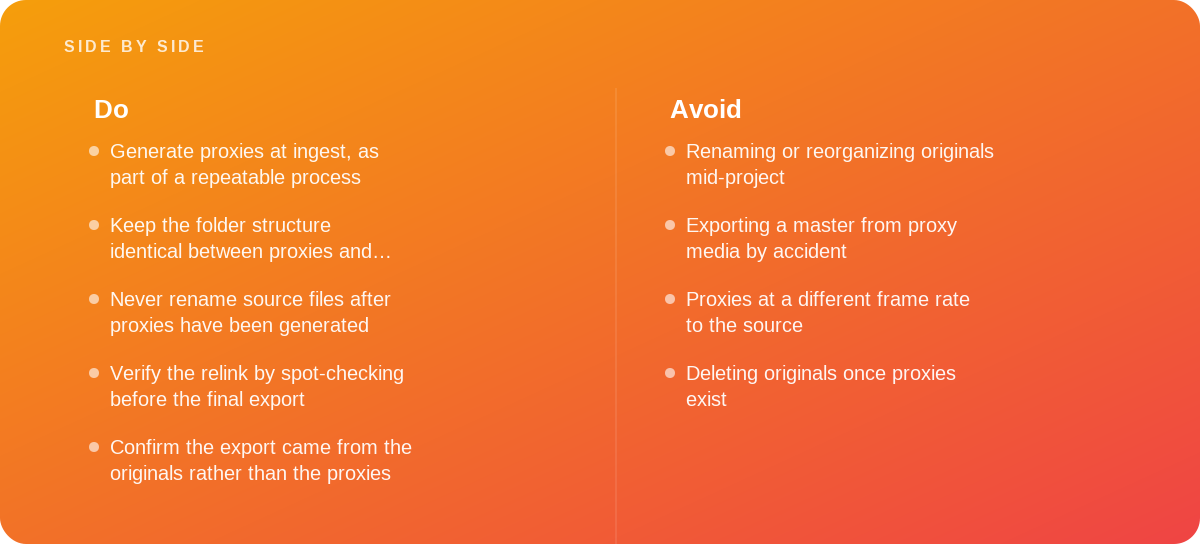
- Renaming or reorganizing originals mid-project. Tidying up a drive by renaming clips to something more readable, or moving them into new folders by scene, is the single most common cause of relink failure. Decide on names and structure at ingest and never change them afterward.
- Proxies at a different frame rate to the source. A transcode preset that converts 23.976 to 25 or 29.97 produces proxies with a different frame count. The cut made on them cannot map correctly back to the originals.
- Trimmed or partial transcodes. A proxy that starts a few frames later than the original, or stops short, produces offsets across the entire clip.
- Missing timecode. A batch transcode that starts every proxy at 00:00:00:00 instead of carrying the source timecode will relink by name only, and may fail entirely in applications that match on timecode.
- Deleting originals once proxies exist. Proxies are not an archive. Without the originals there is nothing to finish from, and the project is stuck at proxy quality.
How to relink safely
- Lock picture first. Relink at picture lock, not midway through the edit, so you do it once and check it once.
- Duplicate the project. Keep the proxy version untouched as a reference and relink in a copy.
- Relink to the originals. Switch to original media using the application's proxy toggle or relink command, pointing at the unchanged original folder tree.
- Spot-check against the proxy cut. Compare a sample of edits in both versions, especially short shots, speed changes and the first and last frames of clips, and confirm the images and sync match.
- Check the media report. Look for any clips still flagged as offline, still pointing at proxy files, or showing reduced resolution.
- Grade and finish from the originals. Only once the relink is verified should grading, noise reduction or upscaling begin.
- Confirm the source of the export. Before delivery, verify that the master was rendered from the originals, not the proxies.
The relink is closely related to the conform, the process of rebuilding an edit against finishing media for color and online work. When a project moves between applications, for example from an offline edit in one tool to a grade in another, the same identical-timecode, identical-frame-count and identical-naming rules apply, with the added complexity of an interchange file. Our guide to conforming and online editing covers that handoff in detail.
Avoiding the Proxy Master: Checks Before Every Export
Exporting a master from proxy media by accident is the most embarrassing failure in this area, because it usually passes every casual check. A 1080p proxy scaled up to a 4K export timeline produces a file with the right resolution, the right length and the right audio. It simply looks soft, and on a phone preview nobody notices. The client, the broadcaster or the platform's quality control eventually will.
Some applications have settings that decide whether proxies are used for export; some default to originals, and some can be switched. Do not rely on memory or on defaults, because a single changed preference or a project moved to a different machine can reverse it. Build the check into the delivery process instead.
- Proxy playback is switched off and the viewer shows originals before export begins.
- The media management or clip list shows no clips pointing at proxy folders.
- The export settings confirm source media rather than proxies are used for rendering.
- A frame from a detailed shot, viewed at 100 percent, shows full-resolution detail.
- File size and bit rate of the master are consistent with a full-resolution render.
- Any graphics, titles and effects were rendered against the originals, not cached proxy renders.
- The master has been reviewed on a large screen, not only on a laptop or phone.
If a master has already been delivered from proxies, the fix is usually straightforward as long as the originals still exist: relink, verify and re-export. It is a strong reason never to delete or overwrite the camera originals until the project is delivered, accepted and archived.
Designing an Ingest Process That Makes the Right Choice Automatic
The difference between teams that never have relink trouble and teams that have it on every project is rarely the software. It is whether ingest is a written, repeatable process or something improvised each time. A good ingest process makes the correct transcoding and proxy decisions once, and then applies them the same way to every card.
The core of a repeatable ingest
- Verified copies first. Offload cards with checksum verification to at least two destinations before anything else happens. Transcoding comes after the originals are safe.
- A fixed folder convention. For example, project, shoot day, camera, card, with the camera's original clip names untouched. The proxy tree mirrors this exactly under a parallel top-level folder.
- A fixed proxy preset. One codec, one resolution, same frame rate as source, source timecode carried through, same audio channel layout. Save it as a named preset so nobody rebuilds it from memory.
- A test relink per camera. On day one, take one clip from each camera through the whole round trip before transcoding the rest.
- A log. Record what was ingested, when, by whom, and with which preset, so problems can be traced later.
On-set decisions affect all of this. A viewing LUT used for monitoring can be baked into proxies so the editor sees something close to the intended look, while the originals remain untouched log footage for the grade; our guide to on-set monitoring and LUTs explains how to carry that look through consistently. If you bake a LUT into proxies, label the proxy folder clearly so nobody mistakes the look for the final grade.
When several editors share media, whether in one building or across locations, the ingest convention becomes the thing that holds the project together. Everyone must see the same folder tree and the same names, even if one person is working from proxies on a portable drive and another from originals on shared storage. Our article on what actually works in collaborative editing covers project sharing and media locking in more depth.
Which Workflow to Choose, Situation by Situation
With the options and criteria in hand, most projects fall into one of a handful of situations. Use the recommendations below as a starting point, then adjust for your own hardware and team.
Short, single-editor projects on capable hardware
If the footage decodes smoothly on the edit machine, the project is short, and nobody else will open it, edit natively. Generate proxies only if playback testing shows a problem. This keeps things simple and avoids a relink step you do not need.
Fast-turnaround events and same-day edits
Camera proxies can save hours when every minute counts, provided the crew has tested them on the same camera and settings beforehand. If the cameras are mixed or untested, start cutting natively on the fastest machine and generate ingest proxies in the background for anyone else.
Multi-camera shoots, laptops and remote editors
Ingest proxies, generated to a written preset with a mirrored folder tree, are the right answer almost every time. They make the project portable, level the performance across machines, and keep the originals pristine for finishing.
Heavily mixed sources, archive and variable frame rate footage
Standardize the problem sources with a full-resolution intermediate at a constant frame rate, and use ingest proxies for the rest. Converting everything is only worth it when the project is so mixed that a single working format saves more time than it costs in storage.
Raw and high-end finishing
Use ingest proxies for editing and leave the raw originals untouched for the grade, so debayer and color decisions stay open. Plan the conform and relink as a formal step, with time budgeted for checking before the colorist starts. Detail-sensitive finishing work, such as video noise reduction, must always be done on the originals.
Verdict When in doubt, generate ingest proxies in ProRes Proxy or DNxHR LB as part of a repeatable ingest process, keep the folder structure identical to the originals, never rename source files, and verify both the relink and the export source before delivery. It is the most forgiving choice across the widest range of projects.
When to Bring in Outside Help
Most teams can run a solid proxy workflow in-house once the process is written down. There are three situations where outside help usually saves time and money.
- A project will not relink. When clips come back offline, relink to the wrong takes or drift out of sync, the cause is usually in the metadata: timecode, frame count, reel names or file names. Diagnosing it quickly takes familiarity with how each application matches media, and the fix sometimes means re-transcoding proxies or rebuilding an interchange file rather than relinking by hand.
- A master has been delivered from proxy media. The originals need to be found, the relink verified, and the master re-rendered and re-checked, often under deadline pressure and with the client already waiting.
- A large shoot needs an ingest process designed before it starts. Multi-day, multi-camera or multi-location productions benefit from a written ingest plan, tested presets and a relink test per camera before the first card is offloaded. Designing that in advance is far cheaper than repairing a project in post.
Our video editing and production team handles ingest design, proxy generation, conform and finishing, and can step in at any of those points, whether that means building a process for an upcoming shoot or rescuing a project that has lost its link to the original media.
Where this comes from
- Blackmagic Design — Proxy and media management
- Adobe Help Center — Proxy workflow in Premiere Pro
- FFmpeg — Transcoding documentation
The figures and practices above come from the sources listed.
Working on something like this?
We take on Video Editing & Production work for teams who want it done once, properly. Tell us what you are building and we will tell you honestly whether we are the right studio for it. Start a project.
Where to go next
Spotted something wrong? Report an error on this page. We correct on the page and say what changed.