Screen Recording and Product Demos, Done Properly
What to ask for when commissioning screen recording and product demos: capture standards, cost drivers, supplier questions, quote comparison and red flags.
 MediaScaleUp Editorial Team
Screen recording and product demos are the videos that show software being used: a two-minute tutorial inside a help center, a guided walkthrough on a pricing page, a thirty-second clip that answers one support question, or a sales demo that follows a prospect's actual workflow. They look simple to produce because the raw material is free. Anyone with a laptop can hit record. That is exactly why so many of them are hard to watch, with text too small to read, a cursor that drifts around the screen, and a narrator who says "um, let me just find that" while a page loads.
This handbook is written for the person commissioning the work: a product marketer, a customer education lead, a founder or a support manager who needs a set of demos made properly and wants to know what to ask for, what drives the cost, how to compare suppliers and how to judge what comes back. It is also useful if you are deciding whether to keep production in-house, because the same standards apply whoever presses record.
The central point is one the reference guidance makes plainly: the usual faults in screen recordings are all avoidable at capture. Almost nothing an editor does afterward can rescue a recording made at the wrong resolution, with real customer data on screen, or with narration baked into the capture. Most of what separates a good supplier from a cheap one is how seriously they treat the minutes before anyone presses record.
What you are actually buying when you commission a product demo
A finished screen demo is the product of four distinct pieces of work, and quotes vary so widely mainly because suppliers bundle, skip or underprice different parts of them. Knowing the four lets you read any proposal and see what is really included.
Planning and scripting
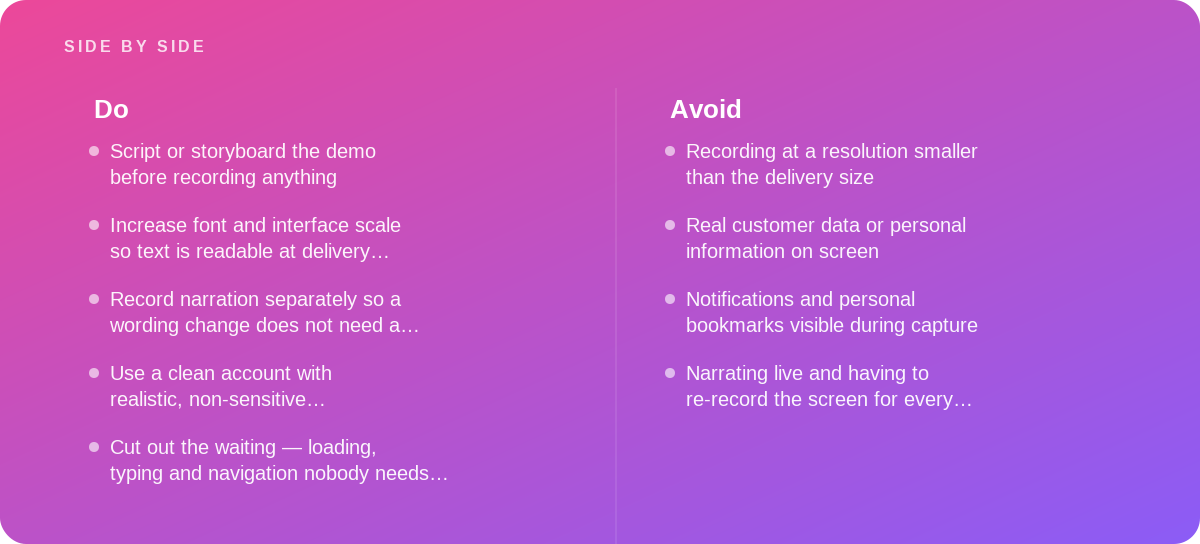
Someone has to decide what the viewer needs to achieve by the end of the video, which path through the interface gets them there fastest, and what will be said at each step. The good practice is to script or storyboard the demo before recording anything. For a tutorial, that means a click-by-click shot list paired with the narration line for each step. For a marketing walkthrough, it means a story: the problem, the moment the product solves it, and the result. A supplier who skips this stage is not saving you money; they are moving the cost into re-records and revision rounds.
Environment preparation and capture
Before capture, the recording environment has to be set up: a clean account, realistic but non-sensitive demonstration data, notifications switched off, personal bookmarks and browser extensions hidden, and interface and font sizes increased so text is readable at the size the video will actually be watched. Capture itself should happen at the resolution you will deliver, or higher, with cursor movement that is slow and deliberate and click highlighting turned on where the tool allows it.
Narration and sound
Narration should be recorded separately from the screen wherever possible. When voice and picture are captured together, every verbal stumble means recording the screen again, and every later wording change from legal or product means starting over. Separate narration can be recorded by a professional voice artist, a subject expert from your team or synthetic voice, each with different cost and credibility trade-offs.
Editing, graphics and delivery
The edit removes the waiting: loading spinners, typing, and navigation nobody needs to watch. It adds zooms and pans to guide the eye, callouts and labels, title cards, brand elements, captions and chapter markers, and then exports the right formats for each place the video will live. If demos sit inside larger productions, such as a hero video that mixes filmed footage with interface shots, the editing brief overlaps with the broader decisions covered in our practical guide to product video production.
- Capture rule Record at the resolution you will deliver, or higher.
- Readability Increase interface and font sizes before recording, not afterward.
- Cursor Move deliberately and highlight clicks where the tool allows.
- Scaling Downscaling in the edit is acceptable; upscaling is not.
- Audio Record narration separately from the screen capture where possible.
Define the deliverable before you request a quote
Suppliers can only quote accurately against a clear specification, and vague requests produce quotes that cannot be compared. Before you contact anyone, write a one-page brief that answers the following, even roughly.
Which kind of demo, and for whom
Screen videos fall into a few broad types, and each has different production needs:
- Task tutorials teach one job, such as "export an invoice" or "add a team member." They should be short, tightly scoped and easy to find. Viewers are usually mid-task and impatient.
- Product walkthroughs show the shape of the product to a prospect or new user. They need a narrative and more polish, and they are often used on landing pages or in onboarding emails.
- Support clips sit inside help articles and answer one question. They can be silent with captions, and they must be cheap to remake because the interface will change.
- Feature launch demos accompany a release. They have a fixed deadline, often need to show a build that is not yet live, and may be localized for several markets on the same day.
Say which type you need, who the viewer is and what they should be able to do afterward. "A three-minute walkthrough for trial users that ends with them creating their first project" is a brief. "A demo of the product" is not.
Where it will be watched and at what size
Delivery size decides capture size. A tutorial embedded at 800 pixels wide in a help center is a different job from a walkthrough played full screen on a 4K monitor during a sales call. List every placement: help center, landing page, in-app help panel, YouTube, social feeds, sales decks. If the video will sit near the top of a conversion page, the autoplay, length and file-weight decisions in our article on video for landing pages apply directly.
Volume, versions and lifespan
State how many videos, how many languages, how many aspect ratios and how long you expect each to stay accurate. Ten tutorials that will need updating every quarter call for a very different production approach from one launch video that will be retired in six months. This single fact, how fast your product changes, is the one most often left out of briefs and the one that most affects the right choice of supplier.
What drives the cost of screen recording and product demos
There is no standard price for a screen demo, and any figure quoted without a specification is meaningless. What you can do is understand the variables, so you can see why two quotes differ and decide which of the differences matter to you.
Scripting depth
A supplier that writes the script from a discovery call and a product login is doing substantially more work than one that records a script you supply. If your team writes the script, make sure the supplier still reviews it for flow on screen; lines that read well on paper often run longer or shorter than the action they describe.
Environment setup and demo data
Building a clean demo account with believable data can take longer than recording. Populating dashboards, charts and lists so they look like a real business, without using any real customer's information, is skilled work. If your product needs weeks of simulated activity to show meaningful reports, budget for it explicitly or have your own team prepare the account.
Narration choice
Professional voice talent costs more per finished minute than an internal presenter, and synthetic voice costs less again, but each carries trade-offs in credibility, pronunciation of product terms and ease of updating. Recording narration separately keeps all three options open and means a changed sentence costs a short pickup rather than a full re-record.
Motion and graphics
Straight cuts with simple zooms are quick. Animated callouts, custom lower thirds, branded transitions and highlight masks that follow elements around the interface take much longer per minute. Where a demo must show the interface on a device or a monitor inside filmed footage, that is compositing work, and a supplier offering screen replacement will quote it separately from the edit.
Localization and versions
Each additional language can mean new narration, new captions, translated on-screen callouts and, if the interface itself is localized, a full re-capture in that language. Each additional aspect ratio means reframing. These multiply quickly, so ask for them to be priced as separate line items.
Revisions and maintenance
How many revision rounds are included, and what counts as a revision rather than a change of scope? And when the product changes, what does it cost to update a video? A supplier that keeps your project files, scripts and demo environment notes organized can update a single step for a fraction of the cost of rebuilding the video.
Capture standards to write into your brief
Most suppliers will agree to whatever technical standard you name, but many will not raise these points unprompted. Writing them into the brief makes them contractual rather than hoped for.
Resolution and scaling
The rule is simple: record at the resolution you will deliver, or higher. Downscaling a 4K capture (3840 by 2160 pixels) to a 1080p deliverable (1920 by 1080) keeps text crisp and gives the editor room to zoom into a region without losing sharpness. Going the other way, upscaling a small capture to fill a larger frame, produces soft, smeared text that no sharpening filter fully repairs. If you want the editor to zoom into parts of the screen, capture at a multiple of the delivery size so that the zoomed area still has at least as many pixels as the final frame.
Be specific about pixel dimensions rather than labels. High-density laptop displays can capture at a different pixel size from the one the operating system reports, and browser windows are rarely a standard size unless someone sets them deliberately. Ask for the browser or application window to be set to exact dimensions that match your target aspect ratio.
| Delivery target | Minimum capture size | If the editor will zoom 2x | Notes |
|---|---|---|---|
| Help center embed, around 800 px wide | 1280 by 720 | 1920 by 1080 or larger | Increase interface scale so body text stays legible at embed width. |
| Full HD player, 1920 by 1080 | 1920 by 1080 | 3840 by 2160 | The most common deliverable; capture at 4K if zooms are planned. |
| 4K presentation or large display | 3840 by 2160 | Crop-in not recommended | Plan framing at capture instead of relying on zooms. |
| Vertical 9:16 social cut | 1080 by 1920 region | Capture a larger landscape master | Reframing a landscape capture needs spare resolution around the area of interest. |
Readability at delivery size
Increase interface and font sizes before recording. Browser zoom of 125 to 150 percent, or an application's own display-scale setting, often makes the difference between a tutorial that can be followed on a laptop and one that forces viewers to pause and squint. The test is the delivery size, not the recording monitor: text that looks fine on a 27-inch screen can be unreadable in a small embed on a phone.
Cursor behavior
The cursor is the viewer's guide. It should move deliberately, pause briefly on each target before clicking, and never wander while the narrator talks. Many capture tools can highlight clicks, enlarge the pointer or smooth cursor movement; ask the supplier which they use. Adobe's documentation for its capture and editing tools, available through the Adobe Help Center, covers the cursor and click-highlight settings for the applications it supports, and most comparable tools have equivalents.
A clean, safe environment
Every recording should use a dedicated demo account, with notifications, chat applications and email clients closed, the desktop cleared, and personal bookmarks, browser extensions and autofill suggestions hidden. Demonstration data should be realistic and non-sensitive. Invented company names, plausible numbers and placeholder people make a product look alive without exposing anyone.
Red flag: a supplier who asks for a login to your production account "to save time." Real customer data or personal information on screen is one of the most serious and most common mistakes in screen recording, and once a video is published and shared it cannot be fully recalled.
- Insist on a separate demo tenant or a sandbox with synthetic data.
- Ask how the supplier checks every frame for names, emails, account numbers and internal URLs before delivery.
- In regulated sectors, involve compliance before capture, not after; our guide to financial services video decisions covers why.
Questions to ask a supplier before you commit
Sample reels show what a supplier can do on a good day. The answers to specific questions show how they work on an ordinary one. Ask these in writing so the replies can be compared, and pay as much attention to how precisely they answer as to what they say.
- At what resolution will you capture, and how does that relate to our delivery sizes?
- How will you set interface and font scaling so text is readable at our smallest embed size?
- Will you script or storyboard each demo before recording, and who approves the script?
- Will narration be recorded separately from the screen capture, and in what format will you keep it?
- Who provides the demo account and data, and how do you make sure no real customer information appears?
- Which capture and editing tools do you use, and will we receive the project files?
- How do you handle cursor highlighting, zooms and callouts, and can we see an example at our delivery size?
- How many revision rounds are included, and what counts as a change of scope?
- What does it cost, in time and money, to update one step when our interface changes?
- How do you handle captions, transcripts and localized versions?
- How will you name, version and store the source files so we can find them next year?
- Who on your team will actually do the capture and edit, and will that stay the same across the series?
The last question matters more than it seems. Many small studios subcontract capture or editing, which is fine if the standards travel with the work. If the answer involves a pool of freelancers, ask how briefs, templates and quality checks are shared; the same principles apply as in our advice on working with freelance crews.
How to compare quotes like for like
Quotes for the same brief can differ several-fold, and the cheapest is often cheapest because it quietly leaves out scripting, demo data, separate narration or maintenance. The only fair comparison is line by line against the same scope. Ask every supplier to break the quote into the same stages and to state their assumptions.
| Criterion | What a strong quote states | What a weak quote leaves out | Weight |
|---|---|---|---|
| Scope | Number of videos, target length, languages, aspect ratios | A single "per video" price with no length or version count | High |
| Scripting | Who writes, how many drafts, who approves | Assumes you supply a finished script without saying so | High |
| Capture standard | Capture resolution, window size, interface scaling | No mention of resolution or readability | High |
| Demo environment | Who builds the account and data, and how privacy is checked | Silent on data, implying your live account | High |
| Narration | Voice source, separate recording, pickup policy | Live narration during capture | Medium |
| Graphics | Callout style, zooms, brand templates, captions | "Professional editing" with no detail | Medium |
| Revisions | Number of rounds and a definition of scope change | "Unlimited revisions" or no mention | Medium |
| Maintenance | Cost and turnaround to update a step | No plan for product changes | High if your product changes often |
| Handover | Project files, narration stems, scripts, naming scheme | Final MP4 only | Medium |
A worked example of reading two quotes
The following is an illustrative scenario, not a real project, and the hours are assumptions chosen to show the arithmetic rather than market rates. A software company needs twelve task tutorials of two to three minutes each, delivered at 1920 by 1080 for its help center, in English and Spanish, with captions. The interface changes in a meaningful way roughly every quarter.
Supplier A quotes a lower total. Reading the line items, it assumes the company provides finished scripts and a demo account, records narration live during capture, delivers final MP4 files only, and includes one revision round. Spanish versions are "priced on request."
Supplier B quotes a higher total. It includes script drafting from a kickoff session, builds a demo account with synthetic data over an estimated two days, captures at 3840 by 2160 for zoom headroom, records narration separately, includes two revision rounds, and prices the Spanish versions as a line item. It also states that updating a single step in one video after an interface change takes about two hours of editing plus a short narration pickup, and it hands over project files and narration stems.
Now model the first year. Suppose, for illustration, that each quarterly release changes one or two steps in half of the twelve videos. That is six videos needing updates four times a year, or twenty-four updates in both languages, forty-eight in total. With Supplier B's stated process, each update is a small, bounded job. With Supplier A, where narration is baked into the capture and no project files exist, each update is effectively a new recording of the whole video, and each Spanish version starts from nothing. In this scenario the cheaper quote becomes the more expensive programme within the first two quarters, and the output is less consistent, because every re-record drifts in pacing and tone from the original.
The lesson is not that the higher quote is always right. If you need a single launch video that will be retired in six months, Supplier A's approach may be perfectly adequate. The lesson is to model the whole life of the videos, not the first delivery.
Red flags in proposals, samples and first drafts
Some warning signs show up before you sign anything; others only appear in the first draft. Both are worth knowing.
In the proposal
- No mention of capture resolution or readability, which usually means neither will be planned.
- A fixed "per minute" price that does not change with scripting, localization or graphics complexity.
- A promise of unlimited revisions, which usually signals either a very narrow definition of revision or a supplier who has not thought about scope.
- No answer to the maintenance question, or an answer that amounts to "we'll re-record it."
- Reluctance to hand over project files or narration recordings at the end of the engagement.
In the samples
Watch samples at the size you will actually publish them, including on a phone. Look for text that is soft or blocky (a sign of upscaling or heavy compression), cursors that circle while the narrator talks, visible browser tabs or bookmarks, pauses where a page loads, and zooms that jump without easing. Ask whether a sample was made for a real client under a brief like yours, or produced as a showcase with unlimited time.
Red flag: soft, fuzzy interface text in a supplier's sample or your first draft. It almost always means the capture was smaller than the delivery frame and was scaled up, and it cannot be fixed in the edit.
- Ask for the capture dimensions of the source file.
- If the capture was undersized, the only real fix is to record again at the correct size.
- Agree the capture standard in writing before the next video is recorded.
In the first draft
The first draft is where process problems become visible. Live narration with verbal stumbles cut around, jump cuts that skip a click the viewer needed to see, notification banners in the corner, and scripts that were clearly written after recording to fit whatever happened on screen all point to a supplier who is recording first and thinking later. Raise these at the first round, and ask how the process will change, rather than fixing each video one by one.
Narration, captions and accessible demos
Accessibility is not an add-on for screen demos; it is part of whether they work at all. Many people watch tutorials with the sound off, at work or on a phone, and some viewers depend on captions or transcripts entirely.
Captions and transcripts
The W3C Web Accessibility Initiative publishes guidance on accessible multimedia, and the Web Content Accessibility Guidelines expect captions for prerecorded audio and an alternative for information that is shown only visually. For a screen demo, that means accurate captions for the narration, and narration that names what is being clicked rather than saying "click here, then here." A transcript alongside a help-center video also makes the steps searchable and easy to skim.
Writing narration that works for everyone
Good demo narration states the goal of each step, names the control by its visible label and describes the result: "Choose Export, then select CSV. The file downloads to your default folder." That sentence works whether the viewer is watching, listening or reading captions, and it survives translation better than vague pointing language.
Voice and pacing
Because narration is recorded separately, it can be paced to the edit instead of forcing the edit to follow a live performance. Aim for a steady, unhurried delivery that leaves a beat after each action for the viewer to find the control on their own screen. Practical guidance on instructional video from usability researchers such as the Nielsen Norman Group consistently favors tightly focused, task-oriented content, which is another argument for short, single-task tutorials over long tours of every feature.
Put simply, a screen recording is only as good as the ten minutes before anyone presses record: the script, the demo account, the font size and a quiet desktop.
Planning for product change, localization and a growing library
The reference guidance names three situations where it makes sense to bring in outside help: when a product changes faster than demos can be remade, when recordings must be localized, and when a library of tutorials needs a consistent format. All three are about the life of the videos after launch, and they should shape how you commission even the first one.
Designing for updates
Structure tutorials as a sequence of short segments, each covering one step, with its own narration line. When one screen changes, only that segment needs a new capture and perhaps a new sentence of narration. Keep the demo account in a known state, documented in a short setup note, so the same data appears in the update as in the original. Ask the supplier to keep an edit decision list or project file that makes it obvious which segment covers which step.
Localization
If your interface is translated, a localized demo usually needs a fresh capture in that language, because viewers need to see the labels they will actually click. If the interface stays in English, you may only need translated narration and captions. Either way, keeping narration separate and on-screen callouts in editable templates reduces the cost of each additional language. Agree a glossary of product terms up front so that translators and voice talent use the same words as the interface.
Consistency across a library
Once a library passes a handful of videos, inconsistency becomes visible: different intro cards, different callout colors, different narrators, different zoom styles. A shared template for titles, callouts, lower thirds and end cards, together with a short style note on pacing and narration tone, keeps the series coherent even when several editors work on it. Our guide to editing for brand consistency covers how to set those rules so they survive handover.
Storing and finding source material
Screen captures at 4K generate large files quickly, and narration stems, scripts and project files need to stay findable for as long as the videos are published. Agree a naming convention that includes the product version and language, and decide where the archive will live. The practical side of that is covered in our article on video file storage planning.
Be wary of any supplier who proposes narrating live while recording the screen "to keep it natural." It feels efficient on day one, but every stumble means recording the screen again, and every later change to wording, pronunciation or translation means rebuilding the whole video. When a reshoot-style fix is unavoidable, the planning principles in our guide to pickup shoots and reshoots apply just as well to screen captures.
How to judge the finished screen recording and product demo
Acceptance should be based on a short list of checks you agreed in advance, not on a general feeling that the video looks good. Run these on every delivered file, at the real delivery size and on at least one phone.
- Check readability at delivery size. Play the video in its actual embed or player, not full screen on a large monitor. Every label the narration mentions should be readable without pausing.
- Scan every frame for sensitive information. Look for names, email addresses, account numbers, internal URLs, browser tabs, bookmarks and notification banners. Scrub slowly through transitions, where stray frames hide.
- Follow the tutorial yourself. Give the video to someone who has not used the feature and ask them to complete the task using only the video. Note every moment they hesitate or rewind.
- Check that the waiting has been cut. Loading, typing and navigation should be trimmed or sped up, without skipping a click the viewer needs to see.
- Review cursor and zoom behavior. The cursor should arrive at each target before the narration names it, and zooms should ease in and out rather than jump.
- Verify captions and transcript. Captions should match the narration word for word, use product terms exactly as they appear in the interface, and be timed to the speech.
- Confirm the technical specification. Check frame size, frame rate, codec and file size against what each placement needs, and confirm you have received the agreed project files and narration stems.
On codecs, most help centers and landing pages are best served by widely supported H.264 files, with more efficient formats as optional extras where your platform supports them; HEVC can shrink files at the same quality, but playback support is less universal, so test it on the browsers and devices your viewers actually use before relying on it. Screen content with large flat areas and sharp text compresses differently from camera footage, so check that text edges stay clean at the bitrate chosen.
What "good" looks like
A finished demo that passes these checks has a clear goal stated in the first few seconds, moves at the pace of a competent user rather than a nervous one, shows every step that matters and nothing that does not, reads cleanly at its real size, and can be updated one step at a time when the product changes. It will rarely be longer than it needs to be; most single-task tutorials land comfortably under three minutes once the waiting has been removed.
Keeping demos in-house or bringing in a production partner
Plenty of teams produce perfectly good screen recordings internally, especially short support clips. The standards in this handbook are the same either way; the question is whether your team has the time and consistency to meet them at the volume you need.
Pros
- In-house: product knowledge is immediate, and a quick support clip can be made the same day a question arises.
- In-house: no demo-account handover or access management with a third party.
- Partner: consistent templates, pacing and narration across a large library.
- Partner: capacity to update many videos quickly after a release and to handle localization.
Cons
- In-house: demo work tends to slip behind the team's main job, so libraries go stale.
- In-house: standards drift as different people record in different ways.
- Partner: needs a clear brief, a demo environment and a named internal reviewer to work well.
- Partner: poor handover terms can leave you unable to update videos without them.
A common and effective split is for your team to own scripts, product accuracy and the demo account, while a production partner owns capture standards, editing, narration, captions and templates. That keeps the knowledge where it belongs and the craft where it is practiced every day. If you are weighing a partner for this kind of work, our product demonstration service is built around exactly this division, and the wider video editing and production services cover the filmed, composited and branded elements that often sit around a screen demo, such as split-screen layouts that show a presenter alongside the interface.
Verdict Commission screen recording and product demos on the quality of the process, not the sample reel. Write the capture standards into the brief, insist on a clean demo account, separate narration and handed-over project files, compare quotes line by line against the whole life of the videos, and judge the result at its real delivery size. A supplier who answers those points precisely will usually produce demos that are readable, safe and cheap to keep current; one who cannot answer them will cost more the first time the product changes.
Where this comes from
- Adobe Help Center — Screen capture and editing
- Nielsen Norman Group — Instructional video guidelines
- W3C Web Accessibility Initiative — Accessible multimedia
The figures and practices above come from the sources listed.
Working on something like this?
We take on Video Editing & Production work for teams who want it done once, properly. Tell us what you are building and we will tell you honestly whether we are the right studio for it. Start a project.
Where to go next
Spotted something wrong? Report an error on this page. We correct on the page and say what changed.