Image Asset Management, Done Properly
A practical checklist for image asset management: naming at ingest, tagging, versioning, rights and expiry tracking, 3-2-1 backups and restore tests.
 MediaScaleUp Editorial Team

Image asset management is the unglamorous discipline of storing, naming, tagging and versioning images so that the right file can be found in seconds and the wrong file never gets published. It covers everything that happens to a picture after the shutter fires and before it is retired: where it lands, what it is called, what it is allowed to be used for, which copy is the master, and how many copies exist if a drive dies tomorrow.
It matters to anyone whose business runs on pictures: ecommerce teams with thousands of SKUs, marketing departments reusing campaign imagery across channels, agencies juggling client libraries, publishers, real estate firms and in-house studios. The real cost of a disorganized library is rarely the storage bill. It is the reshoot booked because nobody could find the original, the unretouched version that went live on a product page, and the licensed stock image that kept running on a landing page two years after the license expired.
This guide is built as a checklist. The master list comes first, so you can audit your current setup in five minutes. Each section after that takes one item, explains why it earns its place, and shows how to do it well, with the trade-offs a practitioner actually runs into.
- One written naming convention, applied automatically at ingest
- A folder structure that separates masters, working files and deliveries
- Keywords and descriptive metadata added at ingest, while context is known
- Metadata embedded in the file, not only stored in a catalog
- A versioning rule that makes the current approved file unambiguous
- License terms, credits and expiry dates stored with every asset
- Archive masters kept in durable, open formats
- Three copies, on two media types, with one off-site
- Scheduled restore tests that prove the backups work
- A catalog or DAM sized to the library and the team, not to a sales demo
- A retention and audit rhythm that retires dead assets and expired rights
Item 1: A Naming Convention That Starts at Ingest
File names are the one piece of metadata that survives everything. They survive being emailed, uploaded to a marketplace, dragged onto a USB stick, stripped by a social platform and restored from a backup made by software that no longer exists. Embedded metadata can be lost; catalogs can be corrupted; folder paths change. The file name travels with the file. That is why a naming convention is the first item on the list and why it has to be applied at ingest, not retrofitted later.
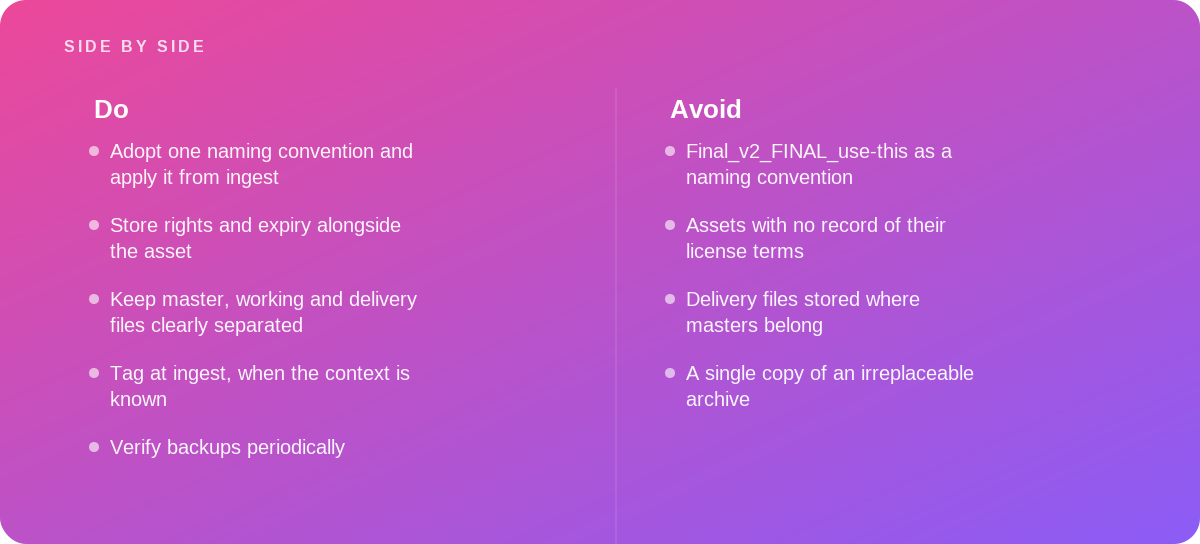
The anti-pattern everyone recognizes is Final_v2_FINAL_use-this.jpg. It fails because it encodes opinion rather than facts. "Final" is a claim that stops being true the moment someone requests one more change, and there is no way to sort, search or de-duplicate files named by mood. A good convention encodes facts that do not change: when the image was captured, who it belongs to, what it shows, and which iteration it is.
What a working convention looks like
A robust pattern for commercial work reads left to right from the most general fact to the most specific:
- Date in year-month-day order, so files sort chronologically in any file browser. The year-month-day format is the one set out in the international date standard maintained by the International Organization for Standardization, and it removes the ambiguity of 03/04 meaning March or April depending on who reads it.
- Client or brand code, short and fixed: three to five uppercase letters.
- Project or campaign code, such as SS26 or a job number from your project system.
- Subject identifier: a SKU, a property reference, a talent code, or a location.
- View or variant: front, back, detail, lifestyle-01.
- Version number, zero-padded to three digits so v010 sorts after v009.
Put together, that produces something like 2026-03-14_ACME_SS26_SKU10442_front_v003.tif. It is long, but every segment is searchable, sortable and meaningful to a person who was not at the shoot.
Rules that stop conventions decaying
Use only lowercase or only a fixed mix of case, letters, digits, hyphens and underscores. Avoid spaces, accented characters, slashes, colons and ampersands; they break in URLs, on some servers and in older archive formats. Use underscores to separate segments and hyphens inside a segment, so software and people can split the name reliably. Cap total length at a level your tools tolerate; staying well under about 100 characters avoids path-length problems on some operating systems when files sit deep in a folder tree.
Most importantly, never rely on people typing names by hand. Every serious ingest tool, from Lightroom Classic and Capture One to Photo Mechanic and Bridge, can rename files on import using tokens for date, sequence number and custom text. Build the pattern once as a preset, name the preset after the convention version, and make it the only way files enter the library.
Tip: Keep the original camera file name in metadata before you rename. Most ingest tools can write it to a field automatically. If a photographer later asks for "IMG_4471," you can still find it, and it helps when reconciling files against a tethered capture session.
Item 2: A Folder Structure That Separates Masters, Working and Delivery Files
The single most expensive organizational mistake in image libraries is storing delivery files where masters belong. A web JPEG, resized to 2,000 pixels and compressed, looks identical to the master at thumbnail size. When someone pulls it six months later for a billboard, a print catalog or a new crop, the damage is done: the detail is gone, the color has been converted to a web profile, and the only way back is a reshoot or a costly re-edit from the raw, if the raw still exists.
A clean library separates three kinds of file by role, not by date:
- Originals: the untouched camera raws or source scans. Read-only once ingested. Nothing is ever saved over them.
- Masters: the approved, fully edited, layered or high-bit-depth file from which every output is derived. There is exactly one current master per image.
- Working files: in-progress retouches, comps, alternate crops and experiments. These are disposable by design and should be pruned once a master is approved.
- Deliveries: exports made for a specific channel, such as a marketplace, a social ad, print or the website. Regenerable from the master at any time.
A practical top-level structure mirrors those roles: one tree per client or brand, then per project, then four subfolders named 01_originals, 02_masters, 03_working and 04_delivery, with the delivery folder split by channel. The numeric prefixes keep them in workflow order in every file browser.
Why deliveries are the least valuable files
Counterintuitively, the files people use most are the ones you need to protect least. A delivery file can be re-exported in seconds from a master; a master may represent hours of skilled retouching; an original cannot be recreated at all. Your backup priority, your permissions and your retention policy should all follow that order. Channel-specific exports for marketplace listings or ad placements can even be purged after a campaign closes, as long as the master and the export preset are kept.
Set folder permissions so that most people can read deliveries, fewer can write to working, and only a small group can write to masters and originals. It is the cheapest control there is against the accidental overwrite.
Item 3: Tagging at Ingest, While the Context Is Still Known
Search only works if something was tagged. And tagging is cheapest at one moment: during or immediately after ingest, when the photographer, producer or retoucher still knows who the model is, which product line a shot belongs to, where it was taken and what the brief was for. A month later that knowledge is spread across inboxes and memories; a year later it is gone, and tagging becomes forensic work.
A tagging model that stays usable
Uncontrolled keywording produces "sofa," "couch," "Sofas" and "settee" on four images of the same product. The fix is a controlled vocabulary: a short, agreed list of terms per facet, maintained by one owner. Useful facets for commercial libraries usually include:
- Subject: product category, SKU, property type, person or talent code.
- Shot type: packshot, on-model, lifestyle, detail, flat lay, aerial, interior.
- Usage: hero, gallery, social, print, internal only.
- Status: original, in retouch, approved master, archived.
- Campaign or season, using the same codes as the file names.
- Rights class: owned, licensed, editorial only, restricted.
Hierarchical keywords, which most catalog tools support, let you store "Furniture > Seating > Sofa" once and find the image by any level. Apply batch keywords to whole shoots at ingest, then add image-specific terms during the first edit pass. The goal is not exhaustive description; it is making the ten most common searches your team runs return the right results.
Where automation fits
Many platforms now offer automatic tagging through image recognition. It is useful for broad visual terms such as "outdoor," "red," or "group of people," and it can accelerate cataloging of large legacy archives. It does not know your SKU numbers, your campaign codes or which talent release applies. Treat automated tags as a supplementary layer, keep them in a separate field if your tool allows, and never let them substitute for the business-critical facets above.
Item 4: Embedded Metadata That Travels With the File
A catalog is a database about your files. Embedded metadata is information inside the files. You need both, because catalogs can be lost, migrated or abandoned, and the embedded fields are what survive when a file leaves your system and lands on a partner's server.
The fields that matter most are the IPTC and XMP descriptive and rights fields: creator, copyright notice, credit line, description, keywords, usage terms, and contact details. Adobe's documentation on metadata in its Help Center explains how Bridge, Lightroom and Photoshop read and write these fields and how XMP sidecar files work for raw formats that cannot be written to directly. Our own practical guide to image metadata and rights goes deeper on which fields partners and platforms actually read.
Metadata templates save hours
Create a metadata template per client or rights class that fills creator, copyright, credit, contact and usage terms automatically on import. Applied at ingest alongside the naming preset, it means every file carries its provenance from the first minute. The per-image work is then limited to description and specific keywords.
Know when metadata will be stripped
Many social platforms and some content management systems strip embedded metadata on upload, and some export presets drop it to save a few kilobytes. That is acceptable for a delivery file, but it is exactly why masters must retain full metadata and why your catalog should hold a copy too. Check your export presets: a common error is an overly aggressive "strip all metadata" option applied to master exports as well as web exports.
Tip: After setting up a template, export a test file and inspect it with a second tool rather than the one that wrote it. If the copyright and usage fields are visible in both, the fields are genuinely embedded and not just held in one application's database.
Item 5: A Versioning Rule Nobody Has to Interpret
Versioning answers one question that every team asks constantly: which file is the current approved one? If answering it requires opening three files and comparing timestamps, versioning has failed. A good versioning rule makes the answer visible from the file name and the folder, without opening anything.
The simplest reliable rule combines incrementing version numbers in working files with a single promoted master. Each meaningful save in working gets the next number: v001, v002, v003. When a version is approved through proofing, it is copied to the masters folder, and the master becomes the only file anyone is allowed to export from. Superseded working versions stay in working until the project closes, then are pruned or archived according to your retention rules.
What counts as a new version
Not every save deserves a version. A useful threshold is anything a reviewer would need to compare: a new retouch pass, a changed crop, a color correction round after client feedback. Minor saves during a session can overwrite the current working version. Where the retouching tool supports non-destructive history, such as adjustment layers, smart objects or parametric edits in a raw processor, you often need fewer file versions because the change history lives inside the file.
Tie version numbers to the proofing record so that feedback such as "use the skin retouch from round two" maps directly to v002. Our guides on getting image file versioning right and client proofing for image sets cover those handoffs in more detail.
Item 6: Rights, Credits and Expiry Stored With Every Asset
Assets with no record of their license terms are a legal liability waiting to surface. Stock images licensed for a year, influencer content cleared for social only, photographs with model releases limited to one territory, and agency images restricted to a single campaign all look identical to an unrestricted owned image once they sit in a folder. The only protection is recording the terms at the point the asset enters the library and keeping that record attached to the file.
What to record for each licensed or restricted asset
- Licensor and license or order number
- Permitted media and channels (web, social, print, broadcast, out-of-home)
- Territory and language restrictions
- Start and expiry dates
- Model and property release references, and any limits in them
- Required credit line
- Whether editing, compositing or AI-assisted modification is permitted
The first few can live in embedded usage-terms and credit fields. Expiry dates are best stored in a catalog field that can be searched and filtered, so that a monthly query such as "rights expiring in the next 60 days" returns a list someone can act on. Store the license document itself, as a PDF, in a rights folder with a file name that matches the asset or the order number.
Handling expiry properly
Expiry is the part organizations most often miss. An expired license does not remove the image from your website, your ad accounts, your email templates or your partners' marketplaces. When a license is approaching expiry, the checklist is: find every live placement, decide whether to renew or replace, and move the asset to a restricted status so it cannot be pulled for new work. If you suspect expired licenses are already in use across an inherited library, that is one of the clearest signals to bring in outside help, because the discovery work is time-consuming and the exposure grows every day it is left.
Warning: Deleting an expired image from the library does not remove it from the places it was published. Track placements, not just files, or you will retire the asset and leave the infringement live.
Item 7: Archive Formats That Will Still Open in Ten Years
An archive is only as good as your ability to open it later. Proprietary raw formats, layered files from discontinued software and obscure legacy formats all carry a risk that the tool needed to read them will be gone or unsupported when you need them. Format choice is therefore part of asset management, not just an export decision.
For masters, well-documented formats such as layered TIFF or PSD with maximum compatibility enabled are widely readable. For originals, keep the native raw; many teams also keep a DNG conversion as a hedge, though you should test that your raw processor renders the DNG to your satisfaction before relying on it. For deliveries, format follows the channel: JPEG, PNG, WebP or AVIF for web, often generated by a responsive image delivery pipeline rather than stored by hand.
When you inherit files in formats nobody uses anymore, migrate them deliberately rather than waiting until a deadline forces the issue. Our guides to image file formats and converting legacy image formats set out which conversions are lossless and which silently flatten layers or discard color data.
| File role | Recommended formats | Bit depth and color | Keep for |
|---|---|---|---|
| Original | Native raw, optionally plus DNG | As captured | Indefinitely, read-only |
| Master | Layered TIFF or PSD with compatibility on | 16-bit, wide-gamut working space | Life of the asset plus rights period |
| Working | Tool-native layered files | 16-bit | Until master approval plus a short buffer |
| Delivery | JPEG, PNG, WebP, AVIF, print PDF | 8-bit, channel-specific profile | Campaign life; regenerable from master |
Item 8: Three Copies, Two Media Types, One Off-Site
A single copy of an irreplaceable archive is not an archive; it is a gamble on one drive's lifespan. The long-established rule for protecting data is three copies of everything that matters, on at least two different types of media, with at least one copy stored off-site. For image libraries it maps neatly to practice: the working copy on a server or NAS, a second copy on separate local storage such as an external drive array or a second NAS, and a third copy in cloud storage or on drives rotated to another location.
The "two media types" part protects against a failure mode that affects a whole class of storage at once, such as a batch of drives from the same production run failing in the same month, or a sync error replicating across identical systems. The "one off-site" part protects against fire, flood, theft and ransomware that encrypts everything reachable on the local network.
Sync is not backup
A folder mirrored to cloud storage by a sync client is not a backup on its own. If a file is deleted, overwritten with a bad edit or encrypted by malware, the sync faithfully copies the damage. Real backup keeps point-in-time versions, so you can restore the file as it was last Tuesday. Check that at least one of your three copies has versioning and a retention period long enough to notice a problem; thirty days is a common minimum, and longer is better for archives that are rarely opened.
Worked example: sizing backup for a product library
Consider an illustrative mid-sized online retailer, not a real client, photographing 1,200 SKUs with six images each, which is 7,200 finished images a year. Assume raw files average about 45 MB, layered 16-bit masters about 150 MB, and each image is exported in four delivery variants averaging 1 MB. These file sizes vary widely by camera and retouch depth, so substitute your own averages.
- Originals: 7,200 x 45 MB is about 324 GB.
- Masters: 7,200 x 150 MB is about 1,080 GB.
- Deliveries: 7,200 x 4 x 1 MB is about 29 GB.
- Total for one copy: roughly 1.43 TB per year.
With three copies, the retailer needs about 4.3 TB of protected capacity for a single year's work, before versioning overhead. Two things stand out. First, deliveries are about 2 percent of the total, which is why purging and regenerating them is cheap. Second, masters are three-quarters of the storage, which is where compression settings, flattening old working layers after approval and pruning working files make the biggest difference. Rejected frames, which this example leaves out, can easily double the originals figure if every capture is kept; a clear rule on culling after selection is worth writing down.
Item 9: Restore Tests That Prove the Backups Work
A backup that has never been restored is an assumption. Backup jobs fail quietly: credentials expire, a drive fills up, a folder is excluded by a changed path, a cloud upload stalls on one oversized file and silently skips the rest. You find out on the day you need the file, which is the worst possible day.
Tip: Choose files for restore tests at random rather than picking the folder you know is fine. Include at least one original raw, one layered master and one file from the oldest part of the archive, because those three fail in different ways.
A sensible rhythm is a small restore test monthly and a fuller test quarterly. The monthly test restores a handful of randomly selected files from each backup copy to a scratch location and opens them in the relevant application. The quarterly test restores a whole project folder from the off-site copy, timing how long it takes, because a restore that works but takes four days to download may not meet your deadlines. Record each test's date, what was restored and the result in a simple log; if the log has gaps, the testing has stopped.
Checksums add another layer. Several archive and DAM tools can generate checksums at ingest and verify them periodically, which detects silent corruption, sometimes called bit rot, before it spreads into every backup copy. Where your tools support it, turn it on for originals and masters at minimum.
Item 10: Choosing Between Folders, Catalogs and a Full DAM
How you store and search the library depends on its size, the number of people using it and how many systems it feeds. There are broadly three levels: a well-structured shared file system; a desktop catalog such as Lightroom Classic or Capture One; and a dedicated digital asset management platform with a web interface, permissions, workflows and integrations.
Desktop catalogs are excellent for photographers and small studios. Capture One distinguishes between sessions, which keep everything for one shoot self-contained in a folder, and catalogs, which index many shoots in one database; choosing correctly between them is a real asset management decision, because sessions are easier to hand over and archive while catalogs make cross-project search easier. Their limit is multi-user access: most desktop catalogs are designed for one user at a time.
A full DAM becomes worth it when many people outside the production team need to find and download approved assets, when rights and expiry need enforcement rather than just recording, or when images must flow automatically to a website, PIM or marketplace. The key trade-off is between the simplicity and portability of files in folders and the control and searchability of a database-driven system.
Pros
- A DAM enforces permissions, approval status and rights restrictions rather than relying on people to follow rules
- Search across metadata, keywords and rights fields works for non-specialists through a browser
- Integrations can push approved renditions to web, ecommerce and marketing tools automatically
- Usage tracking shows which assets are downloaded and where they are used
Cons
- Subscription and implementation costs are ongoing, and scale with storage and users
- A DAM is only as good as the metadata going into it; it does not fix poor tagging
- Migration in or out can be slow, and proprietary metadata fields may not export cleanly
- Teams can stop embedding metadata in files because the DAM holds it, creating lock-in
Whichever level you choose, insist on two portability tests before committing: can you export every asset with its metadata embedded, and can you export the catalog's fields to a spreadsheet? If either answer is no, your library's organization belongs to the vendor rather than to you.
Item 11: A Retention and Audit Rhythm
Libraries decay. New people join and skip the naming preset; a rushed campaign dumps files in the wrong folder; licenses expire; products are discontinued. Without a scheduled audit, even a well-designed system drifts back toward chaos within a year or two.
Build a light, recurring routine. Monthly, run the rights-expiry query and the restore test, and check that recent ingests follow the naming convention by sampling a few folders. Quarterly, prune working files from closed projects, archive delivery folders from finished campaigns, and review the controlled vocabulary for terms that have drifted or duplicated. Annually, review the retention policy itself: which originals from discontinued lines can move to cold storage, which can be deleted entirely, and whether the storage tier and backup costs still match the library's value.
Build image checks into the same rhythm. The same people who audit naming often run image quality control checks, and combining the two catches issues such as delivery files with the wrong color profile sitting in a masters folder.
When to bring in help
Three situations justify outside support. The first is an inherited archive with no structure, such as after an acquisition, an agency change or the departure of the one person who knew where everything was. The second is a suspicion that expired licenses may still be in use, where speed matters. The third is cataloging at volume, where tens of thousands of images need renaming, keywording, de-duplication and rights reconciliation, which is repetitive work that benefits from dedicated production capacity. A studio that already handles image editing and graphic design at scale can usually combine cataloging with the retouching and format migration an old archive tends to need, and our image editing and retouching services page outlines how that work is typically scoped.
How the Checklist Fits Together in Practice
The items above are not independent. The naming convention and the metadata template both run in the same ingest step; the folder structure and versioning rule together decide what counts as a master; rights data lives in the same metadata fields and catalog; backups and restore tests protect the originals and masters that the folder structure identifies. Put them in the wrong order and each one works against the others. Start with ingest, because everything downstream inherits whatever quality it has.
A realistic implementation order for a team starting from scratch runs like this: write the naming convention and folder structure on one page; build the ingest preset and metadata template; set up the three-copy backup and run the first restore test; then define the controlled vocabulary and rights fields; and only then evaluate whether a DAM is needed. Teams that buy a platform first often spend months configuring it before deciding what their conventions should be, then discover the conventions they needed were never a software question.
For existing libraries, do not attempt to fix everything at once. Draw a line: apply the full system to all new work from a fixed date, then work backward through the archive in order of business value, starting with assets that are currently published or licensed. Old projects that nobody has opened in years can often be archived as they are, with a simple index, rather than fully re-cataloged.
Verdict Good image asset management comes down to decisions made at ingest and habits kept afterward: one naming convention applied automatically, masters kept apart from working and delivery files, tags and rights recorded while the context is fresh, three tested copies of everything irreplaceable, and a regular audit. Software helps, but it is the rules, written down and enforced from the first import, that stop reshoots and wrong versions going live.
Where this comes from
- ISO — Metadata and asset management standards
- Adobe Help Center — Digital asset management
- Capture One — Catalog management
The figures and practices above come from the sources listed.
Working on something like this?
We take on Image Editing & Retouching work for teams who want it done once, properly. Tell us what you are building and we will tell you honestly whether we are the right studio for it. Start a project.
Where to go next
Spotted something wrong? Report an error on this page. We correct on the page and say what changed.