H.264 Video, Done Properly
Learn how H.264 video works, which profiles, levels and bitrates to choose, how to edit and master without quality loss, and how to deliver to every platform.
 Tomas Lindqvist

H.264 video is the format most of the world actually watches. It is the codec behind the majority of MP4 files on websites, in social feeds, in email campaigns, on conference-room laptops and on phones that are several years old. It is formally called Advanced Video Coding (AVC), and it has been the safe default for delivery for so long that many teams export it without ever looking at the settings. That is exactly where problems start: blocky gradients after upload, files that are ten times larger than they need to be, videos that stutter on older devices, and masters that quietly lose quality every time someone re-exports them.
This field guide is for the people who make those decisions: marketers who commission video and need to brief an editor, in-house teams who export their own content, and editors who want a clear reference for why each setting matters. It moves from the fundamentals of how the codec works, through profiles, levels, containers and bitrate control, to editing workflows, mastering, platform delivery and troubleshooting. The goal is not to memorize numbers but to understand the trade-offs well enough to choose settings you can defend.
One principle runs through everything that follows. H.264 is an excellent delivery format and a poor master format. Treat it as the last step in a chain that starts from something better, and most of its weaknesses disappear.
- Standard ITU-T H.264, published jointly as ISO/IEC 14496-10 (MPEG-4 Part 10)
- Also known as AVC, Advanced Video Coding
- Usual container MP4, with AAC audio
- Main profiles Baseline, Main and High, plus professional variants
- Playback Supported in all major browsers and nearly every consumer device
- Best role Final delivery, not editing or archiving
What H.264 Video Is and Why It Is Still the Default
H.264 is a video compression standard maintained jointly by the ITU-T Video Coding Experts Group and ISO/IEC MPEG. The specification itself, available from the International Telecommunication Union's H.264 Advanced Video Coding recommendation, defines how a compliant decoder must interpret a bitstream. It does not dictate how an encoder must produce that bitstream. That distinction matters in practice: two H.264 files at the same bitrate can look very different because one encoder made smarter decisions than the other, even though both files are perfectly standard.
The codec earned its position through compatibility rather than raw efficiency. Newer codecs such as HEVC (H.265) and AV1 can deliver similar visual quality at noticeably lower bitrates, but their support is uneven across browsers, operating systems, older hardware, and the software your clients and partners use. H.264, by contrast, has hardware decoding on almost every phone, tablet, laptop, smart TV and set-top box made in the last decade and more, and it is supported in every major browser. If you have one file and do not know where it will be played, H.264 in an MP4 is the answer that almost never fails.
That makes it a sensible default for:
- Website hero videos, product demos and background loops where you control the file.
- Uploads to social platforms and video hosts, which will re-encode your file anyway and want a clean, compatible source.
- Files sent to clients, sales teams or event venues that will be played on unknown hardware.
- Review copies and approvals, where the reviewer needs to open the file instantly.
It is a weaker choice for editing, archiving, HDR delivery and very high-resolution streaming at scale, and later sections explain why.
How H.264 Compression Works, in Plain Terms
You do not need to read the specification to make good decisions, but a working model of what the encoder does explains almost every setting in an export dialog.
Frames are split into blocks
Each frame is divided into macroblocks of 16 by 16 pixels, which can be subdivided into smaller partitions. For each block, the encoder predicts what the pixels should be, subtracts the prediction from the real image, and stores only the difference, called the residual. The residual is transformed (H.264 uses small integer transforms, 4 by 4 and, in High profile, 8 by 8), quantized, and entropy coded. Quantization is where information is actually thrown away: a higher quantizer means coarser values, smaller files and more visible loss.
Three kinds of frames
Prediction can come from within the same frame or from other frames:
- I-frames (intra frames) are predicted only from themselves. They are the largest frames and the only ones a player can start decoding from without reference to anything else. IDR frames are a special kind of I-frame that also clears the decoder's reference memory, making them clean entry points for seeking.
- P-frames are predicted from earlier frames using motion vectors, which describe where a block has moved. They are much smaller than I-frames.
- B-frames can be predicted from both earlier and later frames, which makes them the most efficient of all, at the cost of more decoding complexity and reordering.
The group of pictures
The run of frames from one I-frame to the next is the group of pictures, or GOP. Delivery files use long GOPs, often one or two seconds or more, because most frames can then be cheap P- and B-frames. This is why H.264 is so efficient for delivery and so awkward for editing: to display frame 37 of a GOP, the decoder may need to reconstruct many other frames first.
Cleanup and entropy coding
Two more mechanisms explain differences between profiles. An in-loop deblocking filter smooths the edges between blocks, which is why well-encoded H.264 looks soft rather than tiled when it runs short of bits. And the final lossless packing step uses either CAVLC, a simpler variable-length code, or CABAC, an arithmetic coder that typically saves a meaningful share of bitrate at the cost of more processing. Baseline profile only allows CAVLC; Main and High allow CABAC.
Tip: When a video looks fine when paused but smeary in motion, the problem is usually not resolution but bits per frame during movement. Raise the bitrate ceiling or use a quality-based mode before you touch resolution.
Profiles and Levels: Choosing What Devices Can Decode
Profiles define which compression tools an encoder may use. Levels define how demanding the stream is, in terms of resolution, frame rate, bitrate and decoder memory. Together they tell a device whether it can play the file. Get them wrong and the video may refuse to play, play with no picture, or play only in software with high battery use.
The profiles that matter
| Profile | Key tools | Where it fits |
|---|---|---|
| Baseline (and Constrained Baseline) | I and P frames, CAVLC, no B-frames, no CABAC | Very old or very low-power devices, some real-time conferencing; rarely needed for modern delivery |
| Main | Adds B-frames, CABAC and interlaced coding | Broad compatibility where older set-top boxes or embedded players are a concern |
| High | Adds 8 by 8 transforms and custom quantization matrices | The normal choice for web, social, streaming and Blu-ray; best quality per bit of the common profiles |
| High 10, High 4:2:2, High 4:4:4 Predictive | Higher bit depth, richer chroma, lossless options | Professional acquisition and intermediate use; do not rely on them for browser or phone playback |
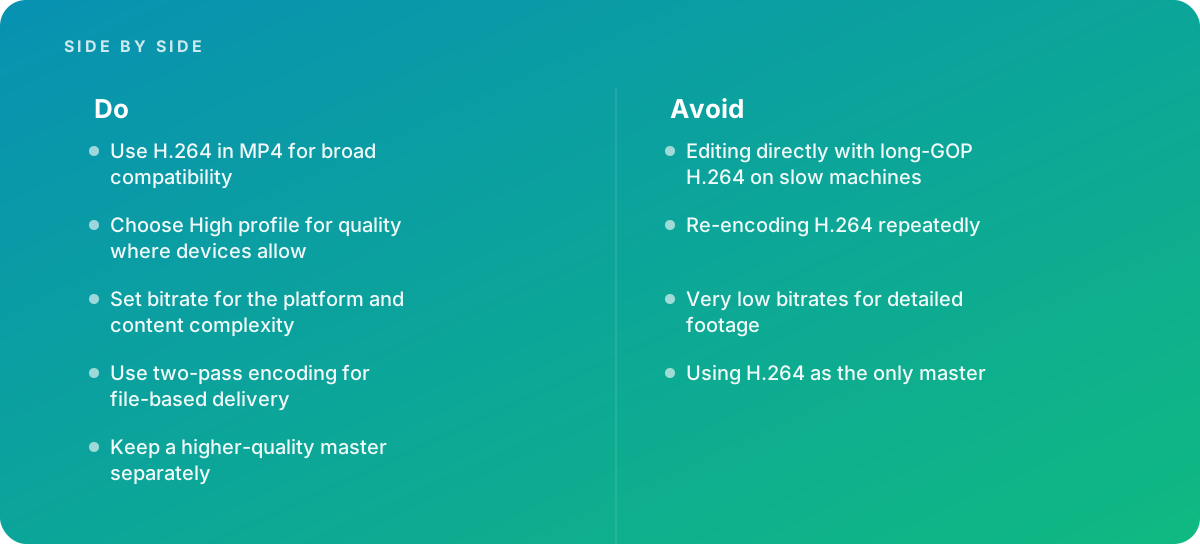
For almost every delivery today, choose High profile, 8-bit, 4:2:0 chroma. That combination is what browsers, phones and platforms expect. The rule of thumb is simple: choose High profile for quality where devices allow, and only fall back to Main or Baseline when you have a specific, known playback target that needs it, such as a legacy kiosk or an embedded display in a trade show booth.
Levels in practice
Levels are numbered from 1 to 6.2. Each sets maximums for macroblocks per second, frame size and bitrate. The practical reference points are well known among editors: Level 4.0 and 4.1 cover 1080p at up to 30 frames per second, Level 4.2 covers 1080p at 50 or 60, Level 5.1 covers 2160p at up to 30, and Level 5.2 covers 2160p at 60. Most encoders set the level automatically from your resolution, frame rate and bitrate, which is usually what you want. Set it manually only when a delivery specification names it, and check that your bitrate fits under that level's ceiling.
Warning: A file that is technically valid H.264 can still fail on a target device if its level is too high. The classic case is a 4K 60 fps export sent to an older display or media player that only decodes up to Level 4.2. Ask for the playback hardware's specifications before exporting for venues, retail screens or kiosks.
Containers, Audio and the Details That Break Playback
H.264 is the video stream. The container is the wrapper that holds the video, the audio, timing information and metadata. The container is often the reason a file will not play, even when the video inside is fine.
MP4 as the default wrapper
MP4 is the common container for H.264 and the one to use for anything headed to the web, social platforms, or unknown playback. MOV is closely related and works well inside Apple and editing ecosystems. MPEG transport streams (.ts) are used in broadcast and in HTTP Live Streaming segments. MKV is flexible but less universally supported by native players and browsers. The MDN Web Docs web video codec guide is a good reference for which codec and container combinations browsers accept; it is worth checking before you assume a combination will work in an HTML video element.
Fast start for the web
An MP4 stores its index, the moov atom, either at the start or the end of the file. If it is at the end, a browser must download the whole file before it can begin playback. Enabling fast start (sometimes labeled "optimize for web," or -movflags +faststart in FFmpeg) moves the index to the front so playback begins almost immediately. This single setting is one of the most common fixes when a self-hosted video takes too long to begin, and it pairs with the other decisions covered in our guide to embedding video on websites so it loads and plays reliably.
Audio alongside H.264
The standard companion is AAC-LC audio at 48 kHz. For stereo delivery, a bitrate in the range of 192 to 320 kbps is a comfortable working choice; speech-only content can go lower without audible harm. For silent website loops, remove the audio track entirely rather than exporting silence, because some browsers treat a video with an audio track differently for autoplay purposes, and it saves bytes.
Pixel format and color tags
Two invisible details cause many "why does it look different" complaints. First, export 4:2:0 8-bit (often shown as yuv420p); 4:2:2 or 4:4:4 H.264 will fail on many consumer players. Second, tag the color correctly. For standard dynamic range HD and web content, that means Rec. 709 primaries, transfer and matrix, and limited (video) range. Missing or mismatched tags lead to washed-out or overly contrasty playback in some players, and to the familiar complaint that a video looks brighter in one app than another.
Bitrate Control: CBR, VBR, CRF and Two-Pass Encoding
Bitrate is the amount of data per second. It is the setting with the most direct effect on both file size and quality, and it is where most bad exports go wrong. The right approach depends on where the file is going.
The main rate-control modes
- Constant bitrate (CBR)
- Holds the data rate roughly steady. Wasteful for simple scenes and starved for complex ones, but predictable, which is why live streaming and some broadcast workflows require it.
- Variable bitrate (VBR), one pass
- Lets the rate rise and fall around a target, within a maximum. Faster than two-pass, but the encoder has to guess how complex upcoming scenes will be.
- Variable bitrate, two pass
- The first pass analyzes the whole program; the second spends bits where they are needed most. For file-based delivery at a target size or average bitrate, this is the best option, and it is standard good practice.
- Constant quality (CRF in x264, or "quality" modes in hardware encoders)
- Targets a consistent visual quality and lets file size fall where it will. Excellent for masters of delivery files and for archives of review copies, less suitable when a platform imposes a strict bitrate or file-size cap.
With the widely used x264 encoder, CRF values run from 0 to 51, lower meaning better quality. The default is 23; values around 18 to 20 are commonly used when quality matters more than size, and each step of roughly six roughly doubles or halves the bitrate. Treat these as starting points to test, not guarantees, because the resulting bitrate depends entirely on the content.
What drives the bitrate you need
There is no single correct bitrate for 1080p. The number you need depends on:
- Motion. A static talking head needs far fewer bits than handheld footage of a crowd or a fast product spin.
- Detail and texture. Foliage, water, confetti, fabric and fine patterns are expensive. So is film grain and sensor noise.
- Frame rate. 60 fps carries more frames per second to describe, though consecutive frames are more similar, so the increase is less than double.
- Gradients. Skies, studio backdrops and dark scenes reveal banding at low bitrates in 8-bit files.
- Encoder and preset. Slower presets search harder for efficient predictions and deliver better quality at the same bitrate.
Working starting points
The table below gives working ranges we use as a first test for 8-bit, High profile, two-pass VBR delivery. They are starting points for testing, not published limits; always check the current upload guidance of the platform you are delivering to, because those recommendations change.
| Resolution and frame rate | Simple content (interviews, slides) | Complex content (action, texture, grain) |
|---|---|---|
| 720p at 25 to 30 fps | 3 to 5 Mbps | 5 to 8 Mbps |
| 1080p at 25 to 30 fps | 6 to 10 Mbps | 10 to 16 Mbps |
| 1080p at 50 to 60 fps | 9 to 14 Mbps | 14 to 24 Mbps |
| 2160p at 25 to 30 fps | 30 to 45 Mbps | 45 to 70 Mbps |
For uploads to platforms that re-encode, lean toward the higher end: you are giving their encoder a cleaner source to work from. For files you host yourself and stream directly, lean toward the lower end and test on a mid-range phone over a mobile connection.
Keyframe interval and seeking
For web and streaming delivery, a keyframe every two seconds is a common, safe choice. It keeps seeking responsive and aligns cleanly with adaptive streaming segments. Very long keyframe intervals save a little bitrate but make scrubbing sluggish, and very short ones waste bits on I-frames. Let the encoder insert extra keyframes on scene cuts, which it does by default in most tools.
Editing H.264 Footage Without Fighting Your Timeline
Many cameras, phones and screen recorders capture in H.264, so editors often receive it as source material. That is fine for capture, but editing long-GOP H.264 directly is one of the most common causes of slow, frustrating edits.
Why long-GOP files feel slow
When you scrub or play backward, the editing application must decode from the previous keyframe forward to reach the frame you want. With several layers of 4K H.264, color correction and effects, even a capable machine can stall. Hardware decoding on modern GPUs and Apple silicon has improved this a great deal for 8-bit 4:2:0 footage, but 10-bit 4:2:2 H.264 from some cameras is still poorly supported by hardware decoders on many systems.
Proxies and intermediates
There are two standard fixes. Proxy workflows generate lightweight copies for editing and relink to the original camera files for export, which keeps storage use modest. Transcoding to an intra-frame intermediate codec such as Apple ProRes or Avid DNxHR creates files that decode frame by frame, so scrubbing is instant and quality holds up across grading and effects. Intermediates take far more storage, so plan capacity before you transcode; our guide to planning storage for video projects covers how to size drives and archives for this.
- Inspect the source Check the codec, profile, bit depth, chroma subsampling and frame rate of every camera and phone file before editing begins. Variable frame rate phone and screen recordings are a common source of audio drift.
- Decide proxy or intermediate Use proxies when storage is tight and the final export can come from the camera originals. Use intermediates when heavy grading, compositing or stabilization will be applied.
- Conform variable frame rate files Convert phone and screen recordings to a constant frame rate that matches the project before cutting.
- Edit and finish Cut, grade and mix on the proxies or intermediates, then relink to originals if using proxies.
- Export a mezzanine master Render one high-quality master in an intermediate codec at full resolution before making any H.264 deliverables.
- Encode deliverables from the master Create each H.264 version directly from the master, never from another H.264 deliverable.
This workflow matters most on projects where the edit itself is demanding. Multi-camera interviews, heavy video stabilization of shaky handheld footage, and fast-cut sequences all benefit from intra-frame media, because each of those operations needs random access to individual frames.
Masters, Generation Loss and Why H.264 Should Never Be Your Only Copy
H.264 is a lossy codec. Every encode throws information away, and when you decode an H.264 file and encode it again, the second encoder sees the first encoder's artifacts as real picture detail and tries to preserve them, while discarding more of what remained. This is generation loss. One generation is usually invisible at sensible bitrates. Three or four generations, each at modest bitrates, produce the familiar mushy, blocky look of a video that has been downloaded and reposted several times.
How generation loss creeps in
It rarely happens deliberately. Typical paths include:
- A client asks for a shorter cut, and someone trims the delivered MP4 and re-exports it.
- A social editor downloads the website version to make vertical clips, then the platform re-encodes again on upload.
- A video is exported, then brought back into an editor to add captions or a new end card, then exported again.
- An agency receives only the final MP4 from a previous supplier and uses it as the source for a refresh.
Each of these can be avoided by keeping a proper master and project files, and by making every new deliverable from that master. When you are cutting short-form versions from long recordings, as described in our practical guide to clipping long video, always go back to the highest-quality source rather than the published file.
What a sensible master looks like
For most commercial work, a mezzanine master in ProRes 422 HQ or DNxHR HQX at the project's full resolution and frame rate is the right balance. It is visually lossless for practical purposes and survives several further encodes. Data rates are much higher than delivery files; ProRes 422 HQ at 1080p typically runs well over a hundred megabits per second, depending on frame rate. Alongside the master, keep a textless version if the video carries on-screen text, and keep separate audio stems (dialogue, music and effects) so localization or music changes do not require a re-mix from scratch.
A common trap: do not treat a high-bitrate H.264 file as your master just because it looks good. It is still long-GOP, still 8-bit 4:2:0 in most cases, and still lossy. Using H.264 as the only master is one of the most expensive mistakes to discover a year later, when a rebrand or a new platform format needs a fresh export.
A Worked Example: One Master, Five Deliverables
The numbers below describe an illustrative project, not a real client, to show how the settings and arithmetic fit together. The calculation for file size is simple: total bitrate in megabits per second, multiplied by duration in seconds, divided by eight, gives megabytes.
The illustrative brief: a 3-minute product film shot in 4K at 25 fps, finished in a 1080p timeline, with interviews, product close-ups and some fast handheld b-roll. It will appear on the company website, on two social platforms, as a sales presentation file, and on a looping screen at an event.
Step one: the master
The editor exports a ProRes 422 HQ master at 1920 by 1080, 25 fps, with 48 kHz, 24-bit stereo audio, plus a textless version and stems. This is the file every deliverable is made from, and it is what goes into long-term storage.
Step two: the deliverables
| Deliverable | Key settings | Approximate size for 3 minutes |
|---|---|---|
| Website player file | 1080p25, High profile, two-pass VBR 8 Mbps target, AAC 192 kbps, fast start | (8 + 0.192) x 180 / 8 = about 184 MB |
| Social platform upload | 1080p25, High profile, two-pass VBR 14 Mbps target, AAC 320 kbps | (14 + 0.32) x 180 / 8 = about 322 MB |
| Vertical social cut (60 seconds) | 1080 by 1920, 25 fps, High profile, 12 Mbps, AAC 320 kbps, reframed from the master | (12 + 0.32) x 60 / 8 = about 92 MB |
| Sales presentation file | 1080p25, High profile, CRF 20, AAC 256 kbps | Varies with content; often between the web and social versions |
| Event loop screen | 1080p25, profile and level confirmed with the venue's player, no audio, 12 Mbps CBR if the player requires it | 12 x 180 / 8 = about 270 MB |
Step three: checks before sending
The editor opens each file in a media inspector to confirm codec, profile, level, frame rate, pixel format and color tags; plays the website file on a mid-range phone on a mobile connection to confirm quick start and smooth playback; watches the dark interview section and the handheld b-roll on each version for banding and blocking; and loads the event file on the actual venue player or an identical model. If the website file shows mild blocking during the handheld section, the fix is to raise the target to 10 Mbps for that version, not to reduce resolution.
Notice what the example does not do: it never makes one deliverable from another. The vertical cut is reframed from the 1080p master rather than from the website file, and each version is an independent, single-generation encode.
Delivering H.264 Video to Websites, Social Platforms and Ad Networks
The destination decides the priorities. A file hosted on your own site must be small and quick to start. A file uploaded to a platform must survive the platform's re-encode. A file served in ads must meet a strict specification.
Your own website
For self-hosted video, file size and start time matter more than squeezing out the last few percent of quality. Use fast start, keep background loops short and silent, and consider offering a smaller version for mobile. For hero and product videos, the placement, length and poster frame often matter as much as encoding, which our article on video for landing pages covers in detail. If traffic is significant or videos are long, a dedicated video host or adaptive streaming with several H.264 renditions will serve visitors better than one progressive MP4.
Social and video platforms
Platforms re-encode everything you upload, often into several codecs and resolutions. You cannot prevent that, but you can control the quality of what they start from. Upload the highest quality file the platform accepts within its limits, at the native frame rate, without letterboxing baked in unless the format calls for it. Uploading at a higher resolution than your target can also help on some platforms, because higher-resolution uploads may be allocated more bitrate on playback. Timing, captions and thumbnails are separate decisions, covered in our guide to publishing and scheduling video.
Ad networks and players
Ad specifications are usually precise: codec, profile, maximum bitrate, frame rate, audio loudness and file size. Follow them exactly, because a file outside specification may be rejected or transcoded unpredictably. Media files referenced in VAST tags are commonly supplied as H.264 MP4 renditions at several sizes; the ad player then chooses among those renditions based on the viewer's device and connection.
Tip: Keep a one-page delivery sheet for each recurring destination listing resolution, frame rate, profile, bitrate target, audio settings, loudness target and maximum file size. It turns every future export into a checklist rather than a research project, and it makes delivery repeatable when different editors handle the work.
Troubleshooting: Blocky Uploads, Banding, Color Shifts and Stutter
Most H.264 problems fall into a small number of patterns, and each has a recognizable cause.
Blocky or smeared motion after upload
The platform's encoder ran short of bits for the amount of motion and detail. Upload a higher-bitrate, cleaner source; reduce noise and grain in the grade if they are not part of the look; and avoid uploading a file that has already been through several generations. If the problem appears only in fast pans, consider whether the camera movement or shutter angle is creating excessive motion detail that no delivery bitrate can carry cleanly.
Banding in skies, gradients and dark scenes
Eight-bit video has only 256 levels per channel, and low bitrates make steps between them visible. Remedies include a higher bitrate, adding a very light grain or dither in the finishing grade so the encoder does not flatten gradients into bands, and avoiding extreme lifts of shadow detail in the grade. Encoder tuning options for film or grain in x264 also help preserve texture rather than smoothing it into flat, banded areas.
Colors or brightness look different between players
Check the color tags and range. A file exported with full-range levels but tagged as limited, or without tags at all, will display differently in different players. Confirm Rec. 709 tagging for SDR, and preview in more than one player before you conclude the grade is wrong.
Stutter, dropped frames and audio drift
Mismatched frame rates are the usual culprit: a 29.97 fps source dropped into a 25 fps timeline, or a variable frame rate phone recording treated as constant. Conform sources early, export at the project's native frame rate, and check that the target device can decode the chosen profile and level in hardware.
File will not play at all
Check, in this order: container and codec combination, profile (4:2:2 or 10-bit H.264 will fail on many devices), level, and whether the file was fully written. A media inspector such as MediaInfo shows all of these in seconds.
Before any file leaves the building, confirm each of the following:
- Exported from a high-quality master, not from another delivery file
- High profile, 8-bit, 4:2:0, at the correct level for the target
- Two-pass VBR or constant quality mode, matched to the destination
- Keyframe interval around two seconds for web and streaming
- Rec. 709 color tags and consistent range for SDR
- Fast start enabled for web playback
- AAC audio at 48 kHz, or no audio track for silent loops
- Tested on a real phone and on the actual playback hardware where possible
When H.264 Is Not the Right Codec
H.264 is the safe default, not the best choice for every job. Knowing its limits helps you decide when the extra complexity of a newer codec is worth it.
Efficiency at scale
If you stream large volumes of video, especially at 4K, the bandwidth savings from newer codecs can be significant. HEVC offers better compression with strong hardware support in Apple devices and many TVs, though browser support is less consistent; our overview of what actually works with HEVC video covers where it fits. AV1 is royalty-free and highly efficient, and support is growing across browsers and newer hardware, as discussed in our article on AV1 video in practice. A common approach for streaming services is to offer AV1 or HEVC where supported and fall back to H.264 everywhere else.
HDR and wide color
Mainstream H.264 delivery is 8-bit SDR. HDR delivery generally relies on 10-bit HEVC, AV1 or VP9 with the correct HDR metadata, so H.264 is not the codec for an HDR master or HDR streaming. The details of transfer functions, metadata and platform requirements are covered in our guide to HDR video delivery.
Editing, archiving and interchange
As covered earlier, long-GOP H.264 is a poor editing and archive format. Use intra-frame intermediates for editing and finishing, and keep a mezzanine master and project files for the long term.
- AVC
- Advanced Video Coding, the formal name for H.264, standardized as ITU-T H.264 and ISO/IEC 14496-10.
- GOP
- Group of pictures: the sequence of frames from one I-frame to the next. Long GOPs compress efficiently but make frame-accurate editing slower.
- IDR frame
- An intra frame that resets the decoder's references, giving a clean point to start playback or seek.
- Profile
- A defined set of compression tools a stream may use, such as Baseline, Main or High.
- Level
- A cap on resolution, frame rate, bitrate and decoder memory that tells a device whether it can play a stream.
- CRF
- Constant rate factor, a quality-based rate-control mode in x264 where lower values mean higher quality and larger files.
- CABAC
- Context-adaptive binary arithmetic coding, the more efficient entropy coder available in Main and High profiles.
- Mezzanine master
- A high-quality intermediate file, such as ProRes or DNxHR, from which all delivery versions are encoded.
Building an H.264 Workflow Your Team Can Repeat
Good H.264 delivery is less about any single setting and more about a repeatable chain: capture or receive footage, move it into an editing-friendly format, finish, export a master, and encode each deliverable once from that master with settings written down for each destination. Teams that document that chain produce consistent results even as editors and platforms change.
A few habits make the biggest difference over time. Name files so the destination and version are obvious. Store masters, project files and delivery sheets together. Test every new destination once on real hardware and record what worked. And review a sample of published videos every few months, because platform processing and recommendations change without notice.
Bring in outside help when exports look blocky after upload and you cannot identify why, when you need a single master turned into a large set of platform-specific versions, or when the edit itself needs more capacity than your team has. A specialist video editing and production team can set up the masters, delivery sheets and encoding presets once, so every later export is routine. Regulated sectors such as healthcare and finance also add review and archiving requirements that make a disciplined master-and-deliverable approach even more important.
Verdict Use H.264 in MP4, High profile, 8-bit 4:2:0, as your default delivery format, with two-pass VBR or a quality-based mode set for the destination and the content's complexity. Edit with proxies or intra-frame intermediates, keep a proper mezzanine master and project files, and encode every deliverable once from that master. Move to HEVC or AV1 only when you need their efficiency or HDR support and can still provide an H.264 fallback.
Where this comes from
- International Telecommunication Union — H.264 Advanced video coding
- MDN Web Docs — Web video codec guide
The figures and practices above come from the sources listed.
Working on something like this?
We take on Video Editing & Production work for teams who want it done once, properly. Tell us what you are building and we will tell you honestly whether we are the right studio for it. Start a project.
Where to go next
Spotted something wrong? Report an error on this page. We correct on the page and say what changed.