Bitrate and Rate Control, Done Properly
Learn how to commission bitrate and rate control well: when to use CBR, VBR, CRF or two-pass, what to ask suppliers, how to compare quotes and check results.
 MediaScaleUp Editorial Team

Every video file you commission is a compromise between how good it looks and how much data it takes to carry that look. Bitrate and rate control are the settings that decide where that compromise lands. Bitrate is the amount of data a video uses per second of playback. Rate control is the rule the encoder follows to spend that data: it can hold it constant, let it rise and fall with the complexity of each scene, or aim for a fixed visual quality and let the file size fall wherever it falls. Get bitrate and rate control right and the same edit looks clean on a phone, a laptop and a conference-room screen. Get them wrong and a carefully graded film turns blocky the moment someone walks through a door or the camera pans across foliage.
This handbook is written for the person paying for the work: the marketing lead signing off a campaign, the in-house producer briefing an editor, the operations manager buying a live-stream package for a quarterly town hall. You do not need to operate an encoder to buy encoding well. You do need to know what to specify, which questions separate a careful supplier from a careless one, what actually drives the cost, and how to check the files that come back. Practitioners will find the detail they need too, including the settings logic behind each recommendation.
The short version is simple. Live streams generally need constant bitrate. Uploads and delivered files generally benefit from variable bitrate or two-pass encoding. Masters for your archive should not be squeezed at all. Everything else in this guide explains why, and how to hold a supplier to it.
What you are paying for when a supplier sets bitrate and rate control
When a quote includes "encoding" or "exports" as a line item, it can mean anything from pressing a preset button to a considered plan for every destination the video will reach. The difference is invisible in a proposal and very visible on screen. A properly handled encoding stage covers four decisions, and you should expect a supplier to be able to explain each one for your project.
- How much data each deliverable gets. This is the bitrate target, or the quality target if the supplier uses a constant-quality mode. It depends on resolution, frame rate, how much motion and fine detail the footage contains, and where the file is going.
- How that data is distributed over time. Constant, variable, constant-quality or two-pass. This is rate control, and it matters as much as the number itself.
- Which constraints the destination imposes. A live platform expects a steady stream at a predictable rate. A video platform will re-encode whatever you upload. A trade-show media player may choke on peaks above a certain rate. A client's intranet may cap file size.
- How the result is checked. Someone has to watch the difficult passages of each encode on realistic screens and confirm that nothing broke. This is where many workflows quietly cut corners.
The encoding stage sits at the very end of post-production, which is exactly why it gets rushed. By the time the edit is approved, the deadline is close, the budget is thin and everyone wants the file out. A supplier who has already thought about delivery settings when planning the shoot and edit will not be improvising at the last minute. If you want a sense of how encoding fits into the wider review process, the approach in our guide to video quality control done properly shows where the final technical checks belong.
- Bitrate
- The amount of data used per second of video, usually expressed in megabits per second (Mbps) or kilobits per second (kbps). Higher bitrate generally means more detail survives compression and the file gets larger.
- CBR (constant bitrate)
- Rate control that keeps the data rate steady regardless of what is on screen. Common for live streaming, where the network path needs a predictable flow.
- VBR (variable bitrate)
- Rate control that allocates more data to complex scenes and less to simple ones, around an average target, often with a ceiling.
- CRF (constant rate factor)
- A constant-quality mode in encoders such as x264 and x265. You choose a quality level; the encoder uses whatever bitrate each scene needs to hold it, so file size is not fixed in advance.
- Two-pass encoding
- The encoder analyzes the whole video first, then encodes it using what it learned, so it can distribute a fixed data budget more intelligently across the file.
- Mezzanine or master file
- A high-quality, lightly compressed file (for example ProRes or DNxHR) used as the source for all other deliverables and for archiving.
The four rate control modes in plain terms
Suppliers use a lot of shorthand here, and the terms overlap in ways that confuse buyers. The reference point for most of this vocabulary is the H.264 encoding guidance published alongside FFmpeg, the open-source encoding toolkit, which documents how x264 handles constant quality, target bitrates and multi-pass encoding. You do not need to read it to commission well, but it is the place a technically careful supplier will point you if you ask where their settings come from.
Constant bitrate (CBR)
The encoder sends roughly the same amount of data every second. A static talking head and a crowd shot with confetti get the same budget. The static shot wastes some of it; the confetti shot is starved and may break into blocks. That sounds like a bad trade, and for files it usually is. For live streaming it is often the right one, because the network connection between the venue and the platform has a fixed capacity, and a stream that spikes above that capacity drops frames or buffers for viewers. Predictability beats efficiency when there is no second chance.
Variable bitrate (VBR)
The encoder aims for an average rate but lets individual scenes go higher or lower depending on how hard they are to compress. Complex scenes get more data, simple ones get less, and the overall file lands near the target size. Good VBR settings also include a maximum rate and a buffer size, which keep peaks within what a player or network can handle. For most uploads and delivered files, VBR produces better-looking results than CBR at the same average rate.
Constant quality (CRF)
Instead of a data target, you choose a quality level. In x264 the FFmpeg documentation describes a scale where lower numbers mean higher quality and larger files, with a default of 23 and a commonly suggested usable range in the high teens to high twenties. The encoder spends whatever each scene needs to look consistent. The catch is that you cannot predict the final file size precisely, which matters when a platform or client imposes a limit. CRF is excellent for internal review copies, archive proxies and uploads where size is not constrained.
Two-pass encoding
The first pass reads the whole video and records how complex each part is. The second pass uses that map to spend a fixed data budget where it does the most good. The result is VBR with better decisions, at the cost of roughly doubling encode time. When a deliverable must hit a specific file size or average bitrate, two-pass is usually the best way to get the most quality inside that constraint.
| Mode | What stays fixed | What varies | Best suited to | Poor fit for |
|---|---|---|---|---|
| CBR | Data rate | Visual quality from scene to scene | Live streams, contribution feeds with fixed bandwidth | Archive masters, detailed file deliverables |
| VBR (single pass) | Average rate, usually with a ceiling | Rate per scene | Quick uploads and files where speed matters | Deliverables that must hit an exact size |
| CRF | Target visual quality | Bitrate and final file size | Review copies, uploads without size limits, proxies | Live streams, strict size caps |
| Two-pass VBR | Average rate and total size | Rate per scene, allocated with full knowledge of the file | Final file deliverables with size or rate limits | Live, anything needing a real-time encode |
Matching bitrate and rate control to where the video will play
The most useful thing a buyer can do is tell the supplier every destination at the start. Rate control is a function of destination, not taste. The same edit may need three or four different encodes, and each one should be defensible.
Live streams and webinars
For live events, CBR is the default and usually the right answer. The encoder at the venue has to fit its output into the upload capacity of the connection, with headroom for the connection's own fluctuations. A careful live supplier will test the venue's upload speed on the day, on the actual network the encoder will use, and set the stream bitrate comfortably below what the test shows. They will also set a regular keyframe interval, because most live platforms ask for one, and they will know what their destination platform recommends for resolution, frame rate and bitrate. If the connection is marginal, lowering the resolution often looks better than holding a high resolution at a starved bitrate. Redundancy matters too; the thinking in our article on redundancy on shoot days applies directly to live encoders and connections.
Uploads to video platforms and social networks
Every major platform re-encodes what you upload. Your file is a source for their compression, not the file viewers receive. That changes the goal: you want to give the platform a clean, generous source so its re-encode has the most to work with, while staying within its upload limits. YouTube Help publishes recommended upload encoding settings, including suggested bitrates by resolution and frame rate, and other platforms publish similar guidance. A good supplier checks the current recommendations for each destination rather than relying on memory, because these pages change. For uploads, VBR or two-pass at or above the platform's recommendation is typical; some suppliers upload higher-rate files deliberately, because a cleaner source tends to survive platform recompression better.
Files delivered for download, embedding or playback on devices
Website hero videos, email-linked downloads, trade-show loops and sales-team tablet files are watched as delivered, with no platform in between. Here file size, player compatibility and peak rate all matter. Two-pass VBR with a sensible ceiling usually gives the best result at a given size. For a website background loop, the supplier should consider page weight and how the file is served; for a trade-show screen, they should test on the actual player hardware, because some media players struggle with high peaks even when the average rate is modest.
Archive masters
Masters are where buyers lose the most value without noticing. An archive master should be a high-quality mezzanine file, such as ProRes or DNxHR, or at minimum a very high-bitrate encode, not a CBR file sized for streaming. Once the master is squeezed, every future cutdown, reframe and re-edit inherits the damage. Specify masters explicitly in your brief and confirm their codec, resolution and bit depth. Pair that with clear file naming; our guide to deliverable naming and versions covers how to keep masters distinguishable from the compressed copies that circulate.
What makes some footage need far more data than others
Buyers are often surprised when two videos of the same length and resolution need very different bitrates. Compression works by describing what changes between frames and discarding detail the eye is unlikely to miss. Anything that makes change hard to predict, or detail hard to discard, pushes the required bitrate up. Knowing these drivers helps you understand quotes and judge whether a supplier's settings are reasonable.
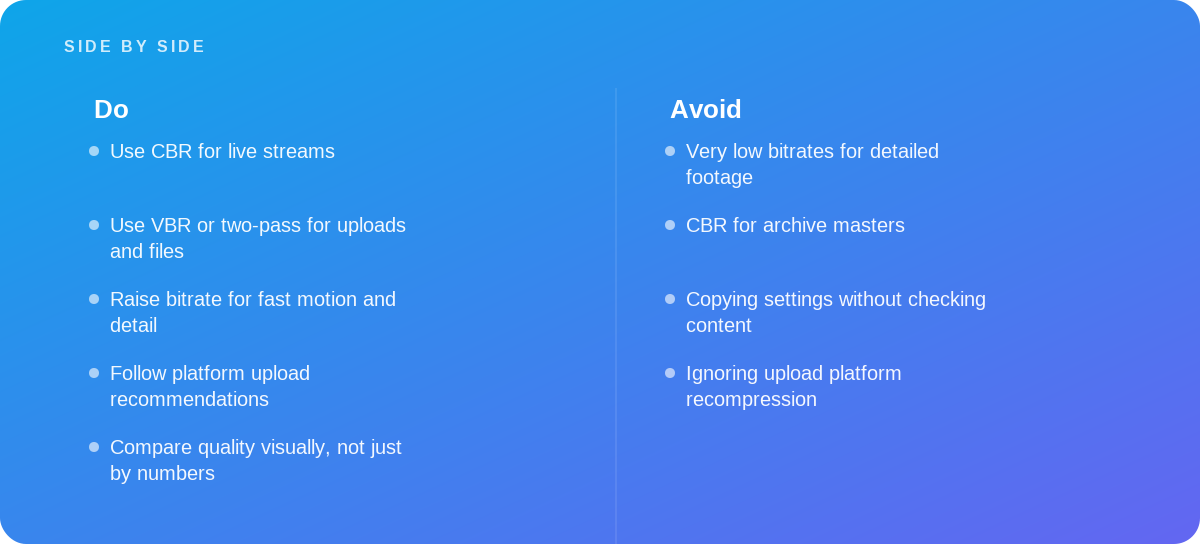
- Motion. Fast camera moves, handheld shake, sports, dance and vehicles in motion all force the encoder to describe more change per frame. The good-practice rule is to raise bitrate for fast motion and detail, not to hold one number for every project.
- Fine, random detail. Foliage, water, gravel, crowds, fabric textures and confetti are among the hardest things to compress. They look like noise to an encoder, and noise does not predict well.
- Sensor noise and film grain. Low-light footage and footage with added grain carry a layer of random texture across the whole frame. Denoising before encoding can help, but it is a creative decision with a look of its own, and the supplier should raise it with you rather than apply it silently.
- Smooth gradients. Skies, studio backdrops and dark scenes with subtle falloff are prone to banding, where smooth tones break into visible steps. Adequate bitrate helps, and so do 10-bit pipelines where the destination supports them. Footage shot with wide latitude, as discussed in our piece on dynamic range in cameras, keeps its advantage only if the encode preserves the tonal steps.
- Resolution and frame rate. More pixels and more frames per second both mean more data to describe. A 60 fps deliverable generally needs a higher bitrate than a 24 or 30 fps version of the same edit. The choice of frame rate itself should be made early; our guide to frame rates and motion cadence explains how that decision ripples through to delivery.
- Edit rhythm. Rapid cutting, flash frames and heavy transitions create frames with little in common with their neighbors. A fast social cut can need more data per second than a slow documentary interview of the same resolution.
This is also why copying settings from a previous project is a recurring mistake. A bitrate that looked perfect for last quarter's interview series may fall apart on this quarter's product launch with drone footage and fast motion graphics.
Red flag: one bitrate for everything. If a supplier quotes a single fixed bitrate for every deliverable regardless of content and destination, ask how they arrived at it. A number that never changes suggests settings copied from an old preset, not chosen for your footage.
What to put in the brief so encoding is not left to chance
Most encoding problems start as gaps in the brief. The supplier fills them with defaults, and defaults are tuned for nobody in particular. A short delivery specification, agreed before the edit starts, removes most of the guesswork. It does not need to be technical; it needs to be complete.
- List every destination. Name each platform, website, event screen, internal system and archive the video will reach. Include the ones you are only considering, because adding a destination late often means a new encode.
- State any hard limits. Maximum file sizes for email, intranet or ad platforms; maximum durations; player hardware for events; bandwidth at the venue for live work.
- Specify the master. Codec family, resolution, frame rate, bit depth and audio format for the archive file. If you are unsure, ask the supplier to recommend one and to explain the choice in writing.
- Describe the difficult content. Tell the supplier if the video includes fast motion, night scenes, large areas of sky, detailed products or on-screen text with fine lines. These are the passages that decide the bitrate.
- Ask for a delivery sheet. A one-page record of every file delivered with its codec, resolution, frame rate, rate control mode, target or quality setting, and file size. This is cheap to produce and invaluable when someone needs a new version two years later.
- Agree how quality will be approved. Who reviews the encodes, on which screens, and which scenes they will check. More on this below.
If the video is part of a wider publishing plan, share it. Scheduling decisions affect encoding too: a supplier who knows that a cutdown must go live on three networks the same morning can prepare the variants in advance. Our guide to publishing and scheduling video covers the planning side.
Questions to ask a supplier before you commit
The answers to these questions reveal more about a supplier's encoding discipline than any showreel. A showreel is usually viewed through a platform that has already re-encoded it, so it tells you little about how the supplier's own files are built. Ask the questions in conversation, not only in writing, and listen for specifics rather than reassurance.
- Which rate control mode will you use for each deliverable, and why that one?
- For our live stream, how will you test the venue connection, and how much headroom will you leave below the measured upload speed?
- Do you check each platform's current upload recommendations, or work from a standard preset?
- How do you adjust bitrate for fast motion, fine detail, low light or gradients in our footage?
- What will our archive master be, and is it lightly compressed enough to re-edit from later?
- How do you review encodes before delivery: which scenes, on which screens, at what viewing size?
- Do you upload a test to the destination platform and check the result after it has been re-encoded?
- Will you provide a delivery sheet recording the settings for every file?
- If an upload looks blocky after publishing, what is your process and is the fix included in the quote?
- Who on your team owns final encoding and delivery, and are they the same person who edits?
That last question matters more than it looks. On a small production the editor often handles delivery; on larger ones a separate post or delivery specialist does. Either can work, but someone must own it by name. Our guide to getting video crew roles right explains how responsibilities are typically split and where gaps open up.
What good answers sound like
A strong answer to the rate control question sounds like this: constant bitrate for the live stream at a rate set after testing the venue line; two-pass VBR for the website file, sized for page performance; a generous VBR or constant-quality upload for the video platform, based on its current recommendation; and a ProRes master for the archive. A weak answer sounds like "we export everything at high quality" or a single number with no explanation. Neither is proof of bad work, but the second leaves you no way to hold anyone to a standard.
What drives the cost and the schedule
Encoding is rarely the biggest line in a video budget, but it is not free, and understanding what drives it helps you read quotes fairly. Costs vary widely by market and supplier, so rather than quote figures, it is more useful to know which factors push effort up or down.
- Number of deliverables. Each destination, aspect ratio, duration and language version is a separate encode that needs settings, a render and a check. Ten cutdowns in three aspect ratios is thirty files, not one.
- Two-pass and slower presets. Better compression takes more machine time. Two-pass roughly doubles the encoding pass, and slower encoder presets squeeze more quality from each bit at the cost of render time. On long videos or many variants, this affects turnaround.
- Testing on destinations and devices. Uploading test files privately, checking them after platform recompression, and reviewing on phones and large screens takes staff time. It is also the step that catches most problems.
- Live engineering. Venue connection tests, backup connections, a second encoder and a dedicated operator all add cost, and all reduce the chance that the stream fails when it matters.
- Masters and archiving. High-quality masters are large. Storage, transfer and backup of those files is a real cost, and it is worth paying.
- Revisions after delivery. Re-encoding because a platform limit was missed, or because a destination was added late, is avoidable cost. A complete brief is the cheapest fix.
When comparing suppliers, remember that the cheapest encoding line may simply omit testing and masters. That is not a saving; it is a risk transferred to you. If you work with an agency that handles the full edit and delivery pipeline, such as our video editing and production service, ask for encoding and delivery to be itemized so you can see exactly what is included.
Comparing quotes side by side
Quotes for the same brief often look incomparable because suppliers describe delivery in different terms. Normalize them against the same criteria before you look at price. The scorecard below is a template; rate each supplier on what their quote and answers actually commit to, not on what you assume they will do.
| Criterion | What a strong quote commits to | What a weak quote leaves out | Weight |
|---|---|---|---|
| Rate control per deliverable | Named mode for each file, with the reason tied to its destination | One preset or "high quality" for everything | High |
| Platform recommendations | Checks current published settings for each destination | Settings from memory or an old template | High |
| Content-aware bitrate | Adjusts for motion, detail, grain and gradients | Same bitrate regardless of footage | Medium |
| Archive master | Specified mezzanine codec, resolution and bit depth | No master, or a compressed web file as the master | High |
| Quality review | Visual checks of difficult scenes on real devices and after platform upload | Automated export with no review step | High |
| Live stream engineering | Connection test, headroom, backup path, named operator | Assumes venue Wi-Fi will be fine | High for live work |
| Delivery documentation | Delivery sheet with settings and file sizes | Files only, no record of how they were made | Medium |
| Post-delivery fixes | Re-encode for defects included for a defined period | Any change billed as a new job | Medium |
Once you have scored each supplier, price becomes easier to interpret. A quote that is somewhat higher but scores strongly on review, masters and documentation often costs less over the life of the video, because it avoids re-exports, emergency fixes and lost source quality.
Red flags that predict blocky uploads and failed streams
Most encoding failures are predictable from the conversation before the work starts. These are the patterns worth taking seriously.
Red flag: a CBR file offered as the archive master.
- Constant bitrate starves complex scenes to keep the rate flat. That is acceptable for a live stream and a poor choice for a file you will re-edit from.
- Ask for a mezzanine master instead, and confirm it in the contract.
Other warning signs are less dramatic but just as telling:
- Very low bitrates for detailed footage. A supplier promising small files for footage full of foliage, crowds or fast motion is promising blocks, smearing or banding. Small files are achievable, but only by accepting visible compromises or reducing resolution; a good supplier will explain which.
- Ignoring platform recompression. If the supplier judges quality only on their own export, they have not seen what your audience sees. Platforms re-encode, and a file that looks fine in the edit suite can degrade noticeably once processed.
- Numbers without viewing. Objective metrics are useful, but a supplier who approves files purely on a bitrate figure or a single quality score, without watching them, will miss the artifacts that viewers notice first.
- No live test. A live stream set up without testing the actual connection on the day is a stream relying on luck.
- Vague ownership. If nobody can say who does the final export and checks it, the job will fall between people.
A related misconception is that a higher bitrate always means a better-looking video, so the safest instruction is to max it out. Past the point where the footage looks clean, extra bitrate just makes larger files that upload slower, stream worse on weak connections and may exceed platform or player limits. The right bitrate is the lowest one that holds up visually on the hardest scenes, for that destination, with a margin.
A worked example: one launch film, four deliverables
The following example is illustrative, not a client project. It shows how a supplier might reason through bitrate and rate control for a typical commission, and how simple arithmetic keeps everyone honest about file sizes.
Imagine a three-minute product launch film shot in 4K at 25 fps. It includes a slow interview, product close-ups with fine surface texture, and a fast drone sequence over a forested site. The client needs a live premiere during an online event, an upload to a video platform, a website hero file and an archive master.
Deliverable 1: the live premiere
The film will be played out as part of a live stream from the client's office. The supplier tests the office connection and measures upload capacity, then sets the stream to CBR well below the measured speed so there is headroom for fluctuation. They choose 1080p rather than 4K for the stream, because a steady 1080p stream at a comfortable rate looks better than a 4K stream starved of data. They set the keyframe interval to match the platform's live guidance and run a private test stream the day before.
Deliverable 2: the platform upload
The supplier checks the platform's current recommended upload settings for 4K at 25 fps and encodes with two-pass VBR at or above that recommendation. File size is not a concern for this upload, so they lean generous, knowing the platform will re-encode. After uploading privately, they review the drone sequence and the product close-ups on the processed version, at full screen, on a laptop and a phone.
Deliverable 3: the website hero file
The website team asks for a muted 20-second loop and a file that will not slow the page. Here the arithmetic matters. File size in megabytes is roughly bitrate in megabits per second multiplied by duration in seconds, divided by eight.
| Option | Resolution | Average bitrate | Duration | Approximate size |
|---|---|---|---|---|
| A | 1080p | 8 Mbps | 20 s | 8 × 20 ÷ 8 = 20 MB |
| B | 1080p | 4 Mbps | 20 s | 4 × 20 ÷ 8 = 10 MB |
| C | 720p | 2.5 Mbps | 20 s | 2.5 × 20 ÷ 8 ≈ 6.3 MB |
The supplier encodes options B and C with two-pass VBR, avoids using the drone forest shot in the loop because its fine detail would demand far more data, and chooses a calmer product sequence instead. The client reviews both on the live page before deciding. The lesson is that content selection is a legitimate rate control tool: choosing footage that compresses well can matter as much as the setting.
Deliverable 4: the archive master
The master is a ProRes 422 HQ file at full 4K resolution with uncompressed audio. It is large, and it is supposed to be. At three minutes, a file like this can run to several gigabytes, depending on resolution and codec flavor. Every future cutdown will be made from it, not from the web versions.
Across the four deliverables, the supplier used four different approaches: CBR, two-pass VBR at a generous rate, two-pass VBR at a tight rate, and a mezzanine master. None of them is "the right setting" in isolation. Each is right for its destination.
Put simply, there is no single correct bitrate for a video. There is a correct bitrate and rate control mode for each place the video will be watched.
How to judge the files that come back
You do not need specialist tools to catch most encoding problems. You need a method, the right scenes and realistic screens. The good-practice principle is to compare quality visually, not just by numbers: a bitrate figure tells you how much data was spent, not whether it was spent well.
Where to look
- The hardest passages first. Fast motion, pans across detailed textures, crowds, water, foliage and confetti. If these hold up, the rest almost always will.
- Dark scenes and gradients. Look for banding in skies, walls and shadow falloff, and for blocky patches in near-black areas.
- Text and graphics. Thin lines, small type and lower thirds should stay crisp without shimmering or ringing around the edges.
- Cuts and transitions. The first frames after a hard cut or during a dissolve are where encoders briefly struggle; watch for a moment of mush.
- Faces and skin. Over-compressed skin looks waxy or smeared. Viewers notice this quickly even if they cannot name it.
How to look
- Watch full screen, at the size and on the device your audience will use. Check at least one phone and one large display.
- For platform uploads, review the processed version on the platform, not only the file you delivered.
- Compare against the master where you can, switching between the two on the same passage.
- Scrub back and forth through the hardest shot; artifacts are easier to see when you pause on frames just after motion.
- Record what you saw and where, with timecodes, so the supplier can find it quickly.
Objective quality metrics such as PSNR, SSIM and VMAF can help a supplier compare encodes at scale, and a technical supplier may use them. Treat them as supporting evidence, not as approval. After publication, watch how the video performs; a sudden drop in viewing at a particular moment is not always about content, and our guide to video analytics and retention explains how to read those signals.
Remember that audio is encoded too. A supplier focused on picture can leave audio at a low bitrate or the wrong sample rate. Include audio format and bitrate in your delivery sheet, and listen to the delivered files on headphones as part of review.
When to bring in specialist help
Many in-house teams handle their own exports successfully for simple content, and that is sensible. The point to bring in help is when results start to slip in ways you cannot explain. Two situations stand out: uploads that look blocky even though the edit looked fine, and live streams whose quality drops during events. Both usually have identifiable causes, such as a starved bitrate on detailed footage, the wrong rate control mode for the destination, an unstable venue connection, or a source file that was already compromised before upload.
A specialist will start by tracing the chain: the camera files, the edit export, the delivered file and the platform's processed version. Finding where quality falls off tells you whether the fix is a setting, a workflow change or a different approach to shooting. For recurring content, the most valuable outcome is often a documented set of delivery presets per destination, reviewed against current platform guidance, so the team stops copying old settings. Where brand consistency across many videos matters, those presets become part of the house standard alongside grading and graphics, much as described in our guide to editing for brand consistency.
Verdict Buy encoding as a set of destination-specific decisions, not a single export. Insist on CBR only where a live stream needs it, VBR or two-pass for uploads and files, a lightly compressed master for the archive, bitrates that rise with motion and detail, and a supplier who checks current platform recommendations and watches the results, including after platform recompression. A supplier who can explain each choice in plain language, and who writes the settings down, is the one to hire.
Where this comes from
- FFmpeg — H.264 encoding guide
- YouTube Help — Recommended upload encoding settings
The figures and practices above come from the sources listed.
Working on something like this?
We take on Video Editing & Production work for teams who want it done once, properly. Tell us what you are building and we will tell you honestly whether we are the right studio for it. Start a project.
Where to go next
Spotted something wrong? Report an error on this page. We correct on the page and say what changed.