Stream Overlays and Alerts: What Actually Works
Compare static, pre-rendered alpha video and browser-source approaches to stream overlays and alerts, with scores, safe-area rules and live testing steps.
 MediaScaleUp Editorial Team
Stream overlays and alerts are the graphics that sit on top of a live broadcast: the frame around a webcam, the lower bar with the show name, the "starting soon" and "be right back" scenes, the transitions between them, and the animated pop-ups that fire when someone follows, subscribes, donates or raids. Unlike an edited video, none of this is rendered once and delivered. It runs continuously for hours, on the same computer that is capturing, compositing and encoding the stream, and it is seen by viewers through a compression pipeline and a platform interface that the designer does not control.
That makes stream graphics a different design problem from almost any other motion work. A lower third for a produced video only has to look right in one export. A stream overlay has to stay legible at whatever bitrate the platform delivers, avoid the areas where the player puts its own buttons and chat, keep its hands off the encoder's processing budget, and never cover the thing people actually came to watch. Creators, esports and events teams, brands running product launches or webinars on YouTube and Twitch, and agencies building channel packages all run into the same trade-offs.
This guide is a decision framework. It lays out the three practical ways to build stream overlays and alerts, the criteria that separate them, a scored comparison, the strengths and weaknesses of each approach, and a recommendation for the situations we see most often. It also covers the parts that apply whichever route you choose: transparency, safe areas, type that survives compression, and testing on a real stream rather than in a preview window.
What stream overlays and alerts actually have to do
Before choosing a build method, it helps to be precise about the job. Stream graphics fall into four families, and each has different demands.
- Persistent overlays stay on screen for the whole segment: webcam frames, a branded border, a name bar, a social handle, a sponsor bug. They are on screen for hours, so any motion in them runs for hours too, and any flaw is seen thousands of times.
- Scene frames are full-screen or near-full-screen layouts for specific moments: starting soon, intermission, ending, a "just chatting" layout, a gameplay layout. They set the visual identity and hold the other elements in place.
- Transitions cover the cut between scenes, often with a stinger, a short animated wipe that hides the switch. They are brief but they happen at the moments when the encoder is already dealing with a full-frame change.
- Alerts are event-triggered animations, usually with a sound and a line of dynamic text such as a username or an amount. They must appear quickly, read instantly and get out of the way.
Across all four, the reference constraints are the same. Overlays need alpha channels so that the content underneath shows through. Graphics share computer resources with encoding, so every animated layer competes with the process that turns the scene into a stream. Platform interfaces overlay the edges of the stream, so anything placed at the extreme edges risks sitting under a play bar, a chat panel or a mobile control. And text must survive streaming compression, which is harsher than the compression used for a finished upload because the encoder has to work in real time at a fixed bitrate.
A useful way to think about it: an edited video is a finished object, while a stream is a live system. Stream graphics are components in that system, and they are judged on how they behave under load, not only on how they look in a mockup.
Three ways to build stream graphics
Almost every stream package, from a hobbyist's first layout to a corporate event broadcast, is built from some mix of three approaches. The choice between them is the most consequential decision in the project because it sets the cost, the flexibility and the performance profile of everything that follows.
Option A: Static images with light native motion
The overlay is a set of transparent PNG files placed as image sources in the streaming software, such as OBS Studio or a similar compositor. Any motion comes from the software itself: a fade or slide on show and hide, a simple scene transition, perhaps a text source that updates from a file. Alerts, if any, come from an alert service's default templates with the channel's colors and fonts applied.
Option B: Pre-rendered animated video with alpha
The designer animates the overlay, stinger or alert in a motion tool such as After Effects and renders it as a video file that carries an alpha channel. Common delivery formats are WebM with VP8 or VP9 and alpha for browser-based and OBS playback, ProRes 4444 for editing and some broadcast tools, and PNG sequences as a lossless master. The streaming software plays these files as media sources, looped for persistent elements or triggered for alerts and transitions. Dynamic text, such as the username in an alert, is layered on top by the alert service or the software.
Option C: Browser-source overlays built in HTML, CSS and JavaScript
The overlay is a web page, loaded into the streaming software as a browser source with a transparent background. Animation is done with CSS or a JavaScript animation library, and live data such as follower counts, event feeds, scores or chat can be pulled in and rendered as real text. Most hosted alert and widget services work this way under the hood; a custom build simply takes control of the page.
There is a fourth approach at the high end: compositing graphics in a real-time engine and feeding the result to the stream as a video input. It is the right answer for virtual sets, data-heavy esports broadcasts and live 3D, and we cover it in our guide to real-time motion graphics in game engines. For most channels and brand streams it is more machinery than the job needs, so this framework focuses on the three options above.
The criteria that decide between them
Seven criteria separate the options in practice. Weight them according to what your stream is for; a solo creator and a product-launch broadcast will not weight them the same way.
1. Transparency quality
Every overlay depends on clean transparency. The questions are whether the format carries a true alpha channel, whether soft edges such as glows, shadows and anti-aliased type composite without dark or light fringes, and whether the alpha is straight or premultiplied as the playback tool expects. A mismatch between straight and premultiplied alpha is one of the most common reasons an overlay that looked perfect in After Effects shows a gray halo on stream.
2. Encoder and system load
Graphics share resources with encoding. A PNG costs almost nothing once loaded. A looping 1080p video with alpha has to be decoded every frame. A browser source runs a full web rendering engine, and a badly written one can consume a surprising share of CPU or GPU. On a single-PC setup that is also running a game, this criterion can decide the whole project.
3. Motion quality and brand expression
How much can the graphics move, and how polished can that motion be? Pre-rendered animation has no ceiling here because it is made in a full motion tool. CSS animation is capable but constrained. Static images with native fades have almost none.
4. Dynamic data
Does the overlay need to show text that changes during the stream: usernames, donation amounts, goals, schedules, scores, a rotating list of sponsors? Browser sources handle this natively. Video can only show it as a separate text layer on top. Static images need a separate text source.
5. Readability after compression
Text rendered live as real text by the streaming software or browser starts sharp and then goes through the encoder once. Text baked into a video overlay has been compressed once in the overlay file and again by the stream encoder. The second path costs clarity, particularly on thin strokes and small sizes.
6. Ease of updating
Channels change schedules, sponsors, colors and segments. A PNG can be swapped in minutes. A browser overlay can be edited with a text change. A pre-rendered animation has to go back to the project file, be re-rendered and re-exported, which is fine for a studio but slow for a streamer on their own.
7. Build cost and skills required
Static overlays need a designer. Pre-rendered packages need a motion designer and someone who understands alpha export. Browser overlays need front-end development skills as well as design, and they need maintenance when services or APIs change.
Scored comparison of stream overlay approaches
The scorecard below rates each option from 1 (weak) to 5 (strong) on the criteria above. The scores are our editorial judgment from building and testing stream packages, not measurements; your weighting should change the outcome for your situation. For load, a high score means a light load.
| Criterion | A: Static images | B: Pre-rendered alpha video | C: Browser source |
|---|---|---|---|
| Transparency quality | 5 | 4 | 5 |
| Light system and encoder load | 5 | 3 | 3 |
| Motion quality and brand expression | 1 | 5 | 3 |
| Dynamic data | 2 | 2 | 5 |
| Readability after compression | 5 | 3 | 5 |
| Ease of updating | 5 | 2 | 4 |
| Low build cost and skill barrier | 5 | 3 | 2 |
| Unweighted total (of 35) | 28 | 22 | 27 |
Read the totals with care. Unweighted, static images win because they are cheap, light and easy, but they score poorly on the one thing many clients are paying for: motion that expresses the brand. Pre-rendered video scores lowest overall, yet it is the only option that delivers a truly finished-looking stinger or signature alert. That is why almost every strong stream package is a hybrid: static or browser-based persistent elements, with pre-rendered animation reserved for the short, high-impact moments where motion earns its cost.
A practical way to weight the table is to multiply each criterion by 1, 2 or 3 depending on importance. A gaming creator on a single PC might weight load at 3 and motion at 2. A brand webinar might weight readability and ease of updating at 3 and motion at 1. Recalculate and the ranking often flips, which is the point of doing it.
Option A in depth: static PNG overlays
Static overlays are underrated. A well-designed set of transparent PNGs, with motion handled by the streaming software's own show and hide transitions, looks clean, costs almost nothing to run and never stutters. For talk formats, tutorials, podcasts and corporate streams where the content is people speaking, static frames are often the correct choice rather than the budget one.
Build them at the exact canvas resolution, usually 1920 by 1080, so no scaling happens in the compositor. Export as 24-bit PNG with alpha (often labeled PNG-24 or 32-bit RGBA), not as an 8-bit palette PNG, which bands gradients and produces jagged edges on soft shadows. Keep each logical element as a separate file, such as camera frame, name bar and social handles, so they can be positioned, hidden and replaced independently rather than baking the whole layout into one image.
Where static overlays need text that changes, such as the current topic or the next scheduled stream, use a text source in the streaming software rather than editing the image. That text is rendered live at full sharpness and can be changed in seconds.
Pros
- Near-zero processing cost, so the encoder keeps its full budget.
- Perfect transparency with no alpha-mode confusion.
- Crisp edges and type because nothing is pre-compressed.
- Anyone on the team can swap a file in minutes.
- Cheapest to design and to maintain.
Cons
- Little brand expression beyond layout, color and type.
- Alerts depend on generic service templates unless designed separately.
- Can feel flat on high-energy formats like gaming or live events.
- Dynamic data needs separate text or browser sources layered in.
Option B in depth: animated overlays and alerts rendered with alpha
Pre-rendered animation is where stream graphics start to look produced. A signature stinger transition, a logo reveal on the starting soon scene or a subscriber alert with a crafted build and exit can carry a brand the way a title sequence does. The discipline is in making that animation behave in a live system.
Export with a real alpha channel
In After Effects, transparency is controlled in the output module: the channels setting must include alpha, typically RGB plus Alpha, and the chosen format and codec must support it. Adobe's After Effects user guide documents the render queue and output module settings, including how straight and premultiplied alpha are interpreted, and it is worth reading before the first export rather than after the first halo. As a rule, render a lossless or near-lossless master first, such as ProRes 4444 or a PNG sequence, and create the lighter delivery file such as WebM with alpha from that master. That way a codec problem never forces a full re-render.
Check the result on a busy, mid-gray and bright background, not only on the checkerboard. Fringing is invisible on a checkerboard and obvious over a white game menu. If the target software expects straight alpha and receives premultiplied, soft edges darken; the reverse lightens them. Fix it at export rather than trying to compensate in the compositor.
Keep persistent animation light
Heavy animations affect encoding, and nothing is heavier than a full-frame loop that never stops. Persistent elements should move rarely and in small areas: a slow shimmer on a logo every 30 to 60 seconds, a gentle gradient drift inside a frame border, a pulse on a live indicator. Full-screen particle loops, constantly scrolling textures and animated backgrounds behind the webcam all cost decode time, and they also cost bitrate, because the encoder has to spend bits describing changing pixels that could have gone into the content. Subtle grain and noise layers are a particular trap: they read as texture in a render and as expensive, constantly changing detail to an encoder. Our guide to texture and grain in animation explains why that texture fights compression.
Match frame rate and length to the stream
Render at the stream's frame rate, usually 30 or 60 fps, so the compositor never has to drop or duplicate frames. A 60 fps stinger in a 30 fps stream wastes file size; a 30 fps stinger in a 60 fps stream can look steppy next to smooth gameplay. For how frame rate interacts with perceived smoothness, see our piece on frame rates for web animation, much of which applies directly to overlays. Keep stingers short, typically around one second of full coverage inside a clip of one and a half to two and a half seconds, and set the transition point to the frame where the stinger fully covers the screen. For alerts, three to six seconds from entrance to exit is usually enough to read a name and an amount.
Pros
- No ceiling on motion quality or brand expression.
- Consistent playback: the animation looks the same every time.
- Built in tools motion designers already know well.
- Ideal for stingers, reveals and signature alerts.
Cons
- Decoding video with alpha adds load, especially at 1080p60.
- Baked-in text is compressed twice and loses sharpness.
- Alpha mode mismatches cause halos and fringes.
- Every change means reopening the project and re-rendering.
- Large files if the master format is shipped by mistake.
Option C in depth: browser-source overlays and live alerts
Browser-source overlays are web pages with transparent backgrounds. They are how most alert services deliver their widgets, and a custom build gives a studio full control over the design, the animation and the data. Their great strength is dynamic content: usernames, amounts, goal bars, countdowns, schedules, match scores and rotating sponsor messages are all rendered as real text at full sharpness, and the animation can react to the data rather than play the same clip every time.
Their weakness is that a web page is a program, and programs can misbehave. A browser source that animates dozens of elements with JavaScript on every frame, uses large blurred box shadows, runs CSS filters over big areas or leaks memory over a four-hour stream will slowly eat into the resources the encoder needs. Good browser overlays animate only transform and opacity, which browsers can typically hand to the GPU compositor, avoid animating layout properties like width, height or position offsets, pause or remove elements when they are hidden, and are tested for memory growth over a stream-length session.
Keep the page's canvas the same size as the source in the streaming software so nothing is scaled. Set the page background to transparent. And decide deliberately whether the source should shut down when not visible and refresh when the scene becomes active; the right setting depends on whether the overlay needs to keep state such as a running goal total.
A hybrid is common and effective: a browser source handles the logic and the text, and plays a short pre-rendered WebM with alpha for the animated flourish behind the text. That keeps the type sharp and the motion rich. It is the same division of labor that works in broadcast packages, which we discuss in broadcast graphics and lower thirds.
Pros
- Live data and dynamic text rendered at full sharpness.
- Easy to edit copy, colors and timing without re-rendering.
- One overlay can adapt to different events and states.
- Can combine with pre-rendered clips for richer motion.
Cons
- Needs front-end development skill, not just design.
- Poorly optimized pages can steadily drain CPU, GPU and memory.
- Depends on third-party services and APIs that change.
- Font loading and caching problems can show fallback type on air.
Safe areas and type that survive compression
Whichever option you choose, two design rules apply to every element: keep clear of the platform's interface, and set type that can survive the encoder.
Designing within platform safe areas
Platform interfaces overlay stream edges. Depending on the player and device, viewers may see a progress or control bar across the bottom, a title and menu row across the top, live-status badges in a corner, and on mobile a set of buttons and a chat drawer that can cover a large part of the lower frame. These elements appear and disappear as the viewer moves the pointer or taps, which is exactly why they get missed: a preview on the streamer's own screen shows none of them.
A practical rule is to treat an outer margin of roughly 5 percent of the frame width and height as a danger zone for anything that must be read, which on a 1920 by 1080 canvas means about 96 pixels at the sides and 54 at top and bottom, and to push critical text a little further in along the bottom edge, where player controls usually sit. Borders, textures and decorative frames can run into that margin; names, handles, calls to action and alert text should not. The logic is the same as the title-safe areas used in broadcast. Check your actual layouts against the desktop player, the mobile app in portrait and landscape, and any embedded players you use, because each can behave differently.
Alerts deserve their own placement rule: they must never cover the main content. In gameplay, that means knowing where the game's own HUD sits, such as the minimap, the health bar or the kill feed, and keeping alerts away from it. In talk formats, it means not firing an alert across the speaker's face. A fixed alert zone, agreed with the streamer and marked in the layout file, avoids arguments later.
Type weights that survive compression
Text must survive streaming compression. Live encoders work at a fixed bitrate in real time, and when the scene gets busy they reduce detail to stay within budget. Thin strokes, small sizes, tight tracking and low-contrast color pairs are the first things to smear. Reds and saturated blues on dark backgrounds suffer additionally from chroma subsampling, which stores color at lower resolution than brightness, so colored text on a colored background loses edge definition faster than white on dark.
Use regular to bold weights rather than light or thin cuts. On a 1080p canvas, keep persistent text at around 28 pixels or larger and alert names larger still, and remember many viewers watch on phones where the whole frame is a few inches wide. Give type a solid or semi-opaque backing plate rather than relying on a drop shadow alone. Avoid text that sits over constantly moving gameplay. Where brand fonts are very light, pick a heavier weight from the same family for stream use; that is a legitimate adaptation, not a brand violation. If your overlays are shipped in several languages, test the longest translations for fit and weight; our guide to localizing motion graphics covers text expansion and font coverage.
Color consistency matters too. An overlay built in a wide-gamut or linear working space and viewed in a standard stream can shift in saturation and contrast. Build and export stream graphics in standard sRGB and Rec. 709 terms unless you have a specific reason not to, and see our guide to color management in After Effects for how to keep the render true to the design.
A worked example: budgeting a 1080p60 stream package
The following example is illustrative. It is a composite built to show the reasoning, not a client project, and the numbers are round figures chosen to make the arithmetic clear.
A creator streams gameplay and talk segments at 1920 by 1080 and 60 frames per second from a single computer that also runs the game. They want a branded package: a webcam frame, a name bar, a starting soon scene, an intermission scene, a stinger transition, and follow, subscribe and donation alerts. Their chosen platform's encoder guidance, which YouTube publishes for its own service in the YouTube Help encoder settings and bitrate recommendations, sets the bitrate range they should target for that resolution and frame rate; say they settle on 6 Mbps for this example.
First, it is worth seeing how thin that budget is. At 6,000,000 bits per second and 60 frames per second, each frame gets about 100,000 bits on average. Spread over 1920 by 1080, or about 2.07 million pixels, that is roughly 0.05 bits per pixel. The encoder can only achieve that by throwing away most of the detail and spending its bits where the image changes. Every pixel of overlay that animates, shimmers or scrolls competes directly with the gameplay for those bits. That single calculation is the strongest argument for static or near-static persistent overlays.
With that budget in mind, the studio assigns an approach to each element.
| Element | Approach | Motion on screen | Reasoning |
|---|---|---|---|
| Webcam frame | A: static PNG | None; fades in with scene | On screen for hours; any loop costs bits constantly |
| Name bar and socials | A plus live text source | Text rotates every 45 seconds with a fade | Sharp type, trivial load, easy to update |
| Starting soon and intermission | B: looping WebM with alpha behind live text | Slow full-frame loop, 10 to 20 seconds | No gameplay on screen, so the budget is free for motion |
| Stinger transition | B: WebM with alpha, about 2 seconds | Full-frame wipe; cut at full cover | Signature brand moment; short enough to be affordable |
| Alerts | C: browser source with a short B clip behind | About 4 seconds in a fixed zone | Dynamic names and amounts stay sharp; motion stays rich |
The package now puts heavy motion only where the content is paused (holding scenes) or momentary (stinger and alerts). During gameplay, the only continuously present graphics are static, and the only moving ones are small, brief and away from the game HUD.
Next come the files. A 2-second stinger as ProRes 4444 at 1080p60 is a high-bitrate master that is large and heavy to decode; it belongs in the archive, not in the streaming software. The delivery version is a WebM with VP9 and alpha, encoded at a quality setting chosen by eye against the master. The loops for holding scenes are designed to be seamless and are kept at modest file sizes by avoiding full-frame noise and fine particles, which compress badly.
Finally, the alert zone. The game's minimap sits top right and the kill feed sits top left, so alerts go center-top, just below the upper safe margin, occupying no more than about a third of the frame width. The alert name renders in a bold weight at around 44 pixels on a solid plate. During talk segments, the same zone sits above the speaker's head because the webcam frame is placed low and to the side in that layout.
The result is a package that looks produced, runs lightly and can be updated without a render: most edits, such as a new sponsor line or a changed schedule, are text changes. Only a rebrand requires reopening the motion project.
Designing alerts that celebrate without interrupting
Alerts are where stream graphics most often go wrong, because they sit at the intersection of design, community and money. They exist to thank a viewer publicly and to signal to everyone else that support is noticed. They fail when they become the loudest thing on the stream.
Hierarchy by event
Not every event deserves the same treatment. A sensible hierarchy uses one small, quick alert for follows, a fuller alert for subscriptions and recurring memberships, and the largest treatment for donations or raids above a threshold the streamer chooses. Keep the same visual family across tiers, varying scale, duration and sound rather than inventing a new design for each. Viewers learn the system quickly, and the streamer gets a clear signal without looking away from the content.
Timing and queueing
Alerts arrive in bursts, especially during raids or big moments. Decide how the queue behaves: whether alerts stack, play one after another with a short gap, or collapse into a combined message when several arrive at once. A queue of twenty four-second alerts takes well over a minute to clear; a combined "and 19 others" treatment respects both the supporters and the content. Build the entrance so the name is readable within about half a second, hold long enough to read, and exit cleanly rather than lingering.
Sound
Alert sounds are mixed into the stream audio. Normalize them against the streamer's voice so they do not spike, keep them short, and give the streamer a way to lower or mute them without touching the graphics. A great animation with a piercing sound will be muted within a week, and then half its effect is gone.
Text handling
Usernames vary wildly in length and characters. Test with the longest names the platform allows, with non-Latin scripts and with emoji. Decide in advance whether long names scale down, truncate or wrap, and make sure the chosen font includes the characters your audience actually uses. A fallback font appearing on air mid-alert is a small thing that looks careless. Filtering matters too: alerts that display viewer-supplied messages need profanity and link filtering configured before launch, not after an incident.
Once an alert system is designed, many studios package the pieces as reusable templates with exposed text and color controls, which makes later variants cheap. Our guide to motion graphics templates for editors covers how to structure those controls so they are hard to break.
Testing overlays on a real stream before going live
Graphics tested only in preview are the most common source of on-air problems. The preview in the streaming software shows the composited scene before encoding, at full quality, on the streamer's own monitor, with no player interface. None of those conditions match what viewers see. The only reliable test is an actual stream, sent to an unlisted or private destination on the real platform, watched on the devices your audience uses.
Before any overlay goes live, run this test:
- Stream privately to the real platform at your normal resolution, frame rate and bitrate for at least the length of a typical segment, with the game or content running.
- Watch on a phone in portrait and landscape and on a desktop player with controls showing; check every name, handle and alert against the interface.
- Trigger every alert type, including the longest username and a burst of several alerts at once.
- Switch through every scene and transition, and watch the stinger cut point for a flash of the wrong scene.
- Monitor the streaming software's statistics for dropped or skipped frames and rendering lag, and compare with a run using no animated overlays.
- Check soft edges over bright, dark and busy content for halos or fringing.
The comparison run is the most revealing step. If the stream drops frames or the encoder struggles only when the animated overlays are active, the overlays are too heavy for that machine, regardless of how they look. Fixes, in rough order of impact, are to reduce always-on animation, lower the resolution or frame rate of looping clips, replace full-frame loops with smaller elements, simplify browser-source animation, and finally move encoding to a dedicated hardware encoder or a second machine if the setup allows.
Repeat the test after any significant change: a new overlay, a software update, a new game, a change of platform. Treat the graphics like any other part of a live system that can break.
Which approach to choose, situation by situation
The scorecard gives a general ranking. The right choice depends on the stream's purpose, the hardware and who will maintain the graphics. Here is how we would decide for the situations that come up most.
Solo creators on a single PC
For gameplay creators running everything on one machine, load is the dominant constraint, and the budget usually does not stretch to custom development.
Verdict Use static PNG overlays for everything persistent, a single well-made pre-rendered stinger, and a hosted alert service with custom-designed alert artwork or short WebM clips in the channel's style. Spend the motion budget on the stinger and the starting soon scene, where the content is paused. Test on the real stream with the game running before paying for anything more elaborate.
Talk shows, podcasts and tutorials
When the content is people speaking or a screen being explained, the overlay's job is to identify and frame, not to entertain. Static frames with live text sources are usually enough, with small, quiet alerts placed away from faces and away from the part of the screen being demonstrated. A subtle transition between segments adds polish; the ideas in our guide to transitions and scene changes carry over directly.
Brand streams, launches and webinars
For a company broadcast, the priorities shift to brand consistency, legibility for a broad audience including mobile viewers, and the ability to change content quickly: speaker names, agenda items, sponsor lines, calls to action. Motion should feel produced but restrained.
Verdict Build persistent graphics and lower-third name bars as browser-source overlays driven by editable data, so the producer can change names and agenda items live without a render. Use pre-rendered animation for the open, the stinger and any segment bumpers. Run the streaming machine with headroom, rehearse on the real platform, and have a static fallback layout ready in case a browser source misbehaves.
Esports, tournaments and data-heavy events
Scores, brackets, timers and player stats change constantly, which points toward browser sources or a real-time engine, with a dedicated graphics operator and often a separate graphics machine. Pre-rendered transitions and team intros still carry the brand moments. At this level, the graphics are a production department, and they should be planned and rehearsed like one.
Agencies building packages for clients
If you are delivering a package to a streamer or brand who will run it themselves, favor maintainability. Deliver layered source files, the alpha masters, the lightweight delivery files, a layout guide marking safe areas and the alert zone, and a short setup document. Keep dynamic text out of rendered files wherever possible so the client can update it. A package that is beautiful but that nobody on the client side can change will be abandoned at the first rebrand.
When to bring in a motion design team
Many streamers start with templates, and for a new channel that is sensible. The case for professional help grows when a stream needs branded graphics: when the channel or company has an identity that templates cannot express, when the stream is a revenue or marketing asset, or when an event cannot afford an on-air failure.
A good studio brings three things that are hard to assemble on your own. The first is motion design that expresses a brand in a few seconds, built with the same care as a title sequence; much of it rests on vector craft of the kind covered in our guide to shape layers. The second is technical delivery: correct alpha export, sensible codecs and file sizes, frame rates matched to the stream, and browser overlays that stay light over a long broadcast. The third is testing discipline: real-platform test streams, device checks against safe areas, and load comparisons before launch.
When briefing a studio, share your stream resolution and frame rate, your platforms, your hardware and encoder setup, the formats you run, the alert service you use or want to use, and who will maintain the graphics after delivery. Ask for a layout guide and a test plan as deliverables, not only the graphics themselves. If you want a team that designs and builds stream packages end to end, our animation and motion graphics service covers stream overlays, alerts, stingers and the testing that makes them reliable on air.
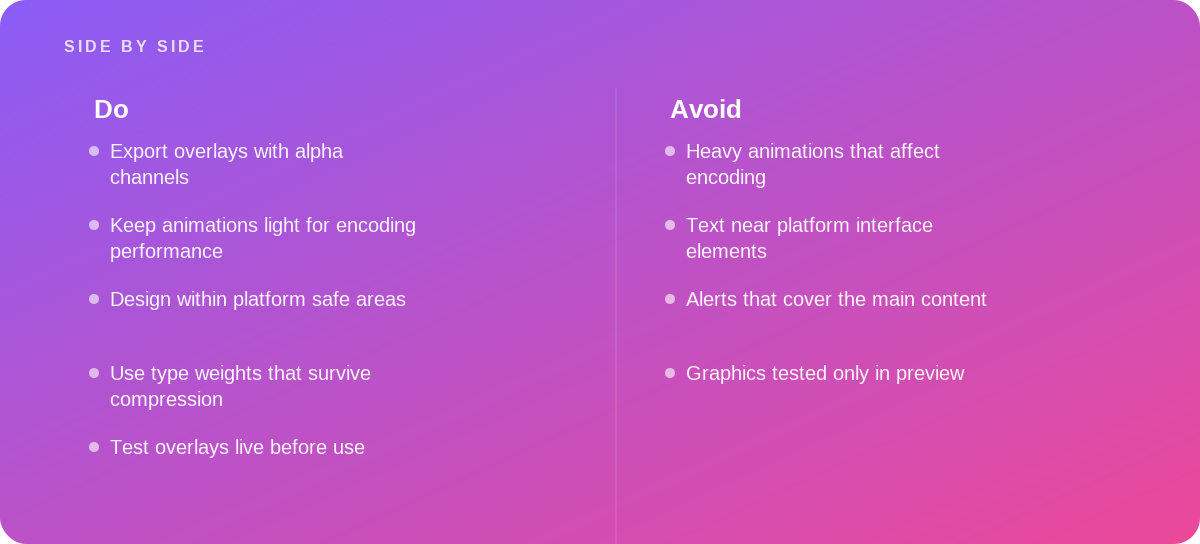
Whatever route you take, the principles are stable: export with alpha, keep persistent motion light, stay inside the safe areas, choose type that survives compression, keep alerts off the content, and test on a real stream before any audience sees it. Graphics that follow those rules disappear into the show in the best sense, which is what good stream design is for.
Where this comes from
- YouTube Help — Choose live encoder settings, bitrates, and resolutions
- Adobe Help Center — After Effects User Guide
The figures and practices above come from the sources listed.
Working on something like this?
We take on Motion Graphics & Animation work for teams who want it done once, properly. Tell us what you are building and we will tell you honestly whether we are the right studio for it. Start a project.
Where to go next
Spotted something wrong? Report an error on this page. We correct on the page and say what changed.