Reusing Rigs and Templates: The Decisions That Matter
Six common myths about reusing rigs and templates, debunked, plus how to expose the right controls, document, version and maintain a template library.
 Tomas Lindqvist
Reusing rigs and templates means building an animation setup once, with the controls, structure and instructions that let it be used again, instead of rebuilding the same lower third, character, logo sting or chart animation from an empty timeline every time a project comes in. A rig is the machinery that drives motion: a character skeleton, a camera setup, a set of expression-linked controllers. A template is a finished piece of design with its variables exposed: text, color, duration, layout. Most real systems are a mix of the two, and the decisions about how to build, share and maintain them determine whether reuse saves a team weeks or quietly costs it more than starting fresh.
This matters to anyone paying for or producing recurring motion work. Marketing teams that publish social cutdowns every week, in-house video teams maintaining a brand's on-screen graphics, agencies running the same campaign across dozens of markets, and editors who need to drop a title into a sequence without opening After Effects all depend on templates that actually work in someone else's hands. Reuse is where animation teams find capacity, but templates need maintenance to stay usable, and most of the frustration people feel about templates comes from a handful of beliefs that sound reasonable and turn out to be wrong.
This guide works through the six most common misconceptions about reusing rigs and templates, explains why each one fails in practice, and sets out what to do instead. It closes with a worked example, a checklist you can apply to your own library, and guidance on when volume justifies bringing in help to build a proper system.
Myth one: a template is just a finished project you save and copy
Myth: Any project that turned out well is a template. Duplicate the file, swap the text and footage, and you have reuse.
Reality: A copied project is a starting point only for the person who built it. A template is a project deliberately reorganized so that the parts meant to change are exposed, labeled and constrained, and the parts meant to stay fixed are protected. Without that work, every reuse is a reverse-engineering exercise.
The copy-and-edit approach feels efficient because the first reuse usually is. The original animator opens the file, remembers which precomp holds the headline, knows the logo lives three levels deep, and knows that the background color is set in a solid on layer 14 and repeated in a gradient on layer 22. They make the change in ten minutes. The trouble starts when someone else opens it, or when the original animator opens it six months later. The knowledge that made the file editable lived in one person's head, not in the file.
What separates a template from a saved project
A genuine template has three properties a saved project usually lacks. First, its variable content is gathered in one place. In After Effects that often means a single control layer, typically a null or an adjustment layer named something like CONTROLS, carrying Expression Controls: Slider Control for numbers, Color Control for brand colors, Checkbox Control for toggles, Dropdown Menu Control for choosing between variants, and Layer Control for picking a source layer. Every other layer that needs those values reads them through expressions rather than holding its own copy. Change the color once and it changes everywhere.
Second, its structure is predictable. Precomps are named for what they contain, nesting is shallow enough to follow, and there is a clear separation between the compositions a user should touch and the internal compositions they should leave alone. A common convention is to prefix internal comps with an underscore or keep them in a folder marked as internal, with the user-facing comps at the top level of the project panel. If your team has not settled its conventions for this yet, our guide to precomposing and project structure in motion projects covers the decisions that make a file navigable by someone other than its author.
Third, it is resilient to reasonable input. A headline that is four words in the original may be eleven words in the next use. A template that only works with the original copy length is not a template. Expressions using sourceRectAtTime() can size a background box to fit the text, and a maximum width with automatic scaling or a line-break rule can keep long copy from overflowing the frame.
The conversion step
Turning a good project into a template is its own task, and it should be scoped and budgeted as one. Typical work includes consolidating duplicated values into controls, renaming layers and comps, removing unused footage and experiments (After Effects' Reduce Project and Remove Unused Footage commands help), replacing hard-coded keyframe positions with expression-driven ones where the layout needs to flex, and testing with deliberately awkward input. For a simple lower third this can be a couple of hours. For a full broadcast package or a character rig it can be days. Treating that effort as free is how teams end up with a library of "templates" that are really just archived projects.
Myth two: the more controls a template exposes, the more useful it is
Myth: A template should expose every property so users can adapt it to anything. More sliders means more flexibility, and more flexibility means more reuse.
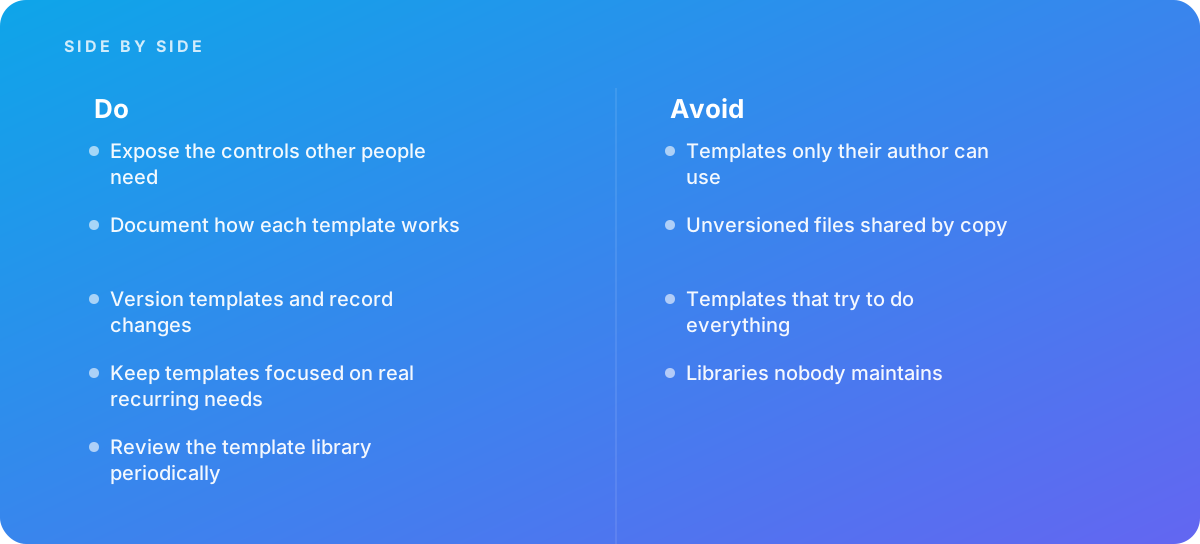
Reality: Parameterization makes templates adaptable only when the exposed controls match what users actually need to change. Past that point, every extra control is a decision the user has to understand, a way to break the design, and a combination the builder has to test. Expose the controls other people need, and deliberately hide the rest.
The instinct to expose everything comes from a good place: the builder does not want to be the bottleneck every time someone needs a small change. But the people using a template, whether a junior animator, an editor working in Premiere Pro, or a marketer filling in a web-based variant tool, generally want to change content, not design. When they are handed thirty controls, three things happen. They take longer to finish because they have to work out which controls matter. They make changes that drift away from the brand, because the controls allow it. And the builder can no longer promise that every output looks right, because nobody has tested the combinations.
Deciding what to expose
A useful way to decide is to sort every candidate property into three groups before building the control layer.
- Content controls change with every use: headline text, subhead, name and title, numbers in a chart, the product image. These must be exposed, clearly labeled and ordered the way a user reads the frame.
- Variant controls change between known cases: light or dark background, left or right alignment, one of four approved brand colors, a 16:9 or 9:16 layout. These should be exposed as constrained choices, such as a Dropdown Menu Control or a checkbox, not as open-ended values like a free color picker or a position slider.
- Design constants should not change from use to use: easing curves, animation timing, type size ratios, margins, the logo lockup. These stay internal, even if exposing them would be easy.
Timing is a common place to get this wrong. Exposing an "animation speed" slider seems harmless, but the ease curves in a well-built piece are tuned to specific durations, and scaling them uniformly rarely looks as good as the original. If users genuinely need different durations, it is usually better to offer two or three tested presets than a continuous slider. The reasoning behind that is covered in more depth in our guide to easing and timing curves.
Controls for editors versus controls for animators
The right set of controls depends on who uses the template. When a template is exported as a Motion Graphics template (.mogrt) through the Essential Graphics panel, only the properties you add to the panel appear for the editor in Premiere Pro, and you can group them and label them in plain language. The Adobe Help Center's After Effects User Guide documents how the Essential Graphics panel, Master Properties and Responsive Design features work, and it is worth reading before building anything an editor will use, because the details of what can and cannot be exposed shape the design. For animators using the template inside After Effects, you can afford a slightly richer control layer, but the same discipline applies. We look at the editor side in detail in what actually works in motion graphics templates for editors.
Myth three: a template explains itself if it is built cleanly
Myth: Good naming and a tidy project panel are documentation enough. Anyone competent can open the file and figure it out.
Reality: Reusable setups need instructions. Clean structure reduces the amount of documentation required, but it cannot tell a user what the template is for, which inputs it expects, what its limits are, or how to get a clean export. The cost of writing that down is small; the cost of every user rediscovering it is large and recurring.
The trouble with "self-documenting" files is that they document the what but not the why or the limits. A control labeled "Headline Max Width" tells a user that there is a maximum width. It does not tell them that headlines beyond roughly two lines at that width will be scaled down and may become too small for mobile viewing, or that the brand team approved a specific range. That knowledge is exactly what prevents bad outputs, and it only lives in documentation.
What template documentation should contain
Documentation for a template does not need to be long. For most templates, a single page covers it, as long as it answers the questions a user will actually have:
- Purpose and scope. What the template is for, and just as important, what it is not for. "Speaker lower thirds for recorded webinars; not for live broadcast; not for multi-line titles."
- Inputs and their limits. Each exposed control, what it does, and the acceptable range: character counts for text fields, image dimensions and aspect ratios for media placeholders, approved values for colors.
- Required assets. Fonts, with exact family and weight names, plugins and their versions, and any linked footage or logo files the template expects to find.
- Output settings. Frame size, frame rate, codec, and any render settings that matter, such as whether to render with alpha for overlay use.
- Known issues. What breaks and what to do about it. A template with a known quirk that is documented is far less trouble than one whose quirks are discovered on deadline.
- Owner and version. Who maintains it and which version this documentation describes.
Where to put it
Documentation works best when it travels with the template. Options include a guide layer or text layer inside the project set as a guide layer so it never renders, a README text file stored in the same folder as the template, comment fields on the controls themselves, and the description field in a shared library. For templates used by many people, a short screen recording of a complete use, from opening the file to rendering, is often worth more than several pages of text. What matters most is that the documentation is updated whenever the template changes; stale instructions are worse than none, because they are trusted.
Myth four: a shared folder is version control
Myth: Put the templates on the shared drive and everyone uses the latest one. When something changes, overwrite the file or save a copy with "_final" or "_v2" in the name.
Reality: Templates change, and versions matter. Unversioned files shared by copy multiply silently: each project takes its own copy, fixes made to one never reach the others, and nobody can say which version produced a given deliverable. Version templates deliberately and record what changed.
The shared-drive problem is subtle because it looks like it works. In the first months, there is one version of each template and everyone uses it. Then someone fixes a bug in their project copy but never copies the fix back. Someone else adds a feature for a specific client and saves it as a new file next to the original. A third person overwrites the master file with a change that breaks the layout for a case they did not test, and projects that were halfway through suddenly render differently when they relink. Within a year, there are four lower-third files with overlapping names and no record of which is authoritative.
A versioning approach that fits motion work
Animation files do not version as neatly as code, because project files are binary and cannot be meaningfully merged. That does not mean they cannot be versioned; it means the process has to be explicit rather than relying on a merge tool. A practical scheme for most teams looks like this:
- Numbered versions with a clear meaning. Borrowing from semantic versioning works well: a major number for changes that break existing uses (a renamed control, a changed layout), a minor number for added features that do not affect existing uses, and a patch number for fixes. "LowerThird_Speaker_v2.1.0" tells a user far more than "LowerThird_final_NEW".
- A single master location that is read-only for most users. Users copy from it; only the template owner writes to it. Older versions move to an archive folder rather than being deleted, because in-flight projects may still depend on them.
- A change log. A plain text file listing each version, the date, what changed and whether existing projects need to do anything. This is the single most useful versioning habit and it takes minutes.
- Version stamped inside the file. A hidden guide layer or a text field in the control layer that states the version, so anyone looking at an old project can tell which template it came from.
Linking versus copying
Some tools support linking to a shared source instead of copying it, which changes the trade-off. In Blender, you can link data-blocks such as a character rig from a library file into a scene file, so updates to the library propagate to every file that links it, and library overrides let an animator pose and animate a linked rig locally without editing the source. The Blender Foundation's Blender manual on linked libraries explains the difference between linking and appending and how overrides work. Linking is powerful precisely because changes flow automatically, which is also why it demands versioning discipline: a careless change to a linked rig can alter every shot that uses it. In After Effects, templates are generally copied into projects, and a .mogrt dropped into a Premiere Pro sequence is also a snapshot, so updating a template does not update past uses. Both models are workable; what fails is not knowing which one you are in.
Myth five: the best template handles every possible case
Myth: Build one master template flexible enough for every format, language, brand variant and use case, and the team will never need another.
Reality: Over-general templates become hard to use. Every added case multiplies the controls, the expressions, the testing surface and the ways the output can go wrong. Keep templates focused on real recurring needs, and prefer a small family of focused templates to one that tries to do everything.
The "one template to rule them all" project is a common trap, and it usually starts with a good template that gets extended. A lower third gains a two-line mode, then a logo option, then a vertical layout for social, then right-to-left support, then an animated background variant for one client. Each addition is reasonable on its own. Together they produce a file with dozens of controls, expression chains that are fragile and slow to evaluate, and preview performance that makes the template unpleasant to work with. Users then avoid it and start copying old projects again, which is the problem the template was meant to solve.
How to tell when a template is doing too much
A few signals suggest a template has grown past its useful scope:
- Users regularly ask which controls they need for their case, or keep a personal cheat sheet.
- Some controls only make sense when others are set a particular way, and setting them wrong produces broken output rather than a different valid design.
- The builder cannot confidently say that every combination of controls has been tested.
- Preview and render times have crept up noticeably compared with a simpler version, often because of expressions evaluating on every frame for features the current use does not need.
- Changes for one use case keep breaking another.
Splitting a template family
The fix is usually to split along the lines of real recurring need. A 16:9 lower third and a 9:16 lower third may share a design language, but the layout logic is different enough that two templates with shared styling are easier to use and maintain than one that handles both. Shared elements, such as a brand color controller or an animation preset for the logo reveal, can live in a common source that each template draws from. This keeps each template simple for users while avoiding duplicated design decisions. If your team produces lots of format variants, our guide to seasonal campaign variants covers how to plan a variant set so that the template family stays manageable.
A good test before adding any case to a template is to ask how often it will be used. If a variant is needed twice a year, a one-off modification of a copy, clearly labeled as a derivative, is often cheaper than carrying the complexity in the master template forever.
Myth six: once the library is built, the work is done
Myth: Building a template library is a one-time investment. Once it exists, it keeps paying back with no further effort.
Reality: Libraries nobody maintains decay. Software updates change behavior, fonts and brand guidelines change, templates accumulate workarounds, and unused templates clutter the library so users cannot find the good ones. Review the template library periodically and treat maintenance as part of the cost of reuse.
Decay happens in several predictable ways. A software update changes how an effect renders, deprecates a plugin, or changes the expression engine, and a template that worked in one version produces errors or different output in the next. After Effects, for instance, moved its default expression engine to JavaScript in the 16.0 release, and some older expressions written for the legacy ExtendScript engine needed adjustment. A brand refresh changes the typeface or the color palette, and half the library is now off-brand. A font license lapses or a font is replaced on the team's machines, and templates start substituting fallbacks. Small workarounds added in the heat of a deadline are never cleaned up, and the template grows more fragile with each one.
What a periodic review covers
A library review does not need to be elaborate, but it needs to be scheduled rather than left for when something breaks. Many teams tie it to software update cycles or to quarterly planning. A review should cover:
- Usage. Which templates were used in the period and which were not. Templates unused for a year or more are candidates for archiving, which makes the rest easier to find.
- Compatibility. Open each active template in the current software version, run a test render with representative input, and compare it to a reference render from the previous version.
- Brand currency. Check colors, fonts, logos and legal lines against current guidelines.
- Issues logged. Collect the problems users reported and decide which to fix, which to document, and which mean the template should be split or retired.
- Documentation. Confirm the instructions match the current version.
Ownership
Every template needs a named owner, even if the owner is a small team rather than a person. The owner is responsible for accepting changes, publishing new versions, updating documentation and running the review. Without an owner, everyone assumes someone else is maintaining the library, and nobody is. For larger teams, a lightweight intake process, such as a shared form or a channel where users request changes and report issues, keeps requests from being lost and gives the owner a real picture of what users need.
Where rigs differ from templates
Most of the myths above apply to both templates and rigs, but rigs raise a few decisions of their own that are worth treating separately, because the stakes are different. A template usually produces a finished output with limited variation. A rig is a tool an animator uses to create performance, so its controls are about making motion, not filling in content.
Character rigs
A reusable character rig in After Effects is typically built with a rigging tool such as Duik or a similar script, or with Puppet tool pins driven by controllers, and in Blender with an armature. The reuse questions are about the controls the animator needs: inverse kinematics for limbs, a clean set of facial controls or mouth-shape switches for lip sync, and a consistent naming scheme so that animation can be copied between shots. Rigs designed for one scene often bake in assumptions, such as a fixed camera angle or a fixed character scale, that make them awkward in the next. When building a rig meant for reuse, test it in the range of poses and shots the character will actually appear in, not just the first one. For teams working with live performance capture of simple characters, Adobe Character Animator offers a different reuse model, where the puppet is the reusable asset and its behaviors are the exposed controls.
Scene and camera rigs
Camera rigs, such as a null-parented camera with separate controls for orbit, dolly and shake, and scene rigs, such as a data-driven chart where bar heights read from a control layer or a spreadsheet, are among the highest-value reusable assets because they solve problems that recur across very different projects. They also benefit most from clear documentation, because their controls are less intuitive than a text field. A chart rig that reads values from a JSON or CSV file, which After Effects supports as a data source for expressions, can turn a monthly reporting animation from a day of keyframing into an hour of data preparation and review, provided the data format is documented and stable.
Rigs and automation
At a certain volume, the next step beyond templates is automation: scripts that populate templates from a spreadsheet and render the results in batch. That step is only worth taking once the underlying templates are stable, well parameterized and versioned, because automation amplifies whatever is in the template, including its bugs. Our guide to automating After Effects with scripts covers where that line falls and what it takes to cross it.
A worked example: turning copied projects into a lower-third system
The following example is illustrative. The team, the volumes and the hours are assumptions chosen to show how the decisions interact, not measurements from a real project. Adjust the numbers to your own situation; the method is what carries over.
Imagine an in-house video team of three: one senior motion designer and two editors. They produce around 40 videos a month for a company's webinars, product updates and social channels. Each video needs between two and six lower thirds, plus an opening title and an end card. Today, the motion designer builds these by copying the last project that looked right, editing text, and exporting. The editors wait for the designer whenever a name or title changes.
The current state
Suppose an audit of a typical month finds the following. Across the 40 videos, the designer spends an average of 45 minutes per video on lower thirds, titles and end cards, including finding the right source project, making edits, fixing overflow when names are long, and exporting. That is about 30 hours a month. On top of that, the designer handles around 25 revision requests from editors, averaging 15 minutes each, which is another six hours or so, much of it context switching away from other work. There are, at last count, seven different lower-third files in circulation with small differences in timing and color.
The system build
The team decides to build a focused template family rather than one master file: a 16:9 speaker lower third, a 9:16 social lower third, a title card and an end card. They expose only content controls (name, title, optional company) and variant controls (light or dark, with or without logo). Timing and easing are fixed. The templates are exported as .mogrt files so the editors can use them directly in Premiere Pro. Each template gets a one-page document and a short screen recording, a version number, and a change log. The designer is named owner, and a review is scheduled each quarter.
The build estimate, again illustrative, looks like this: about 6 hours per template for conversion and testing, so roughly 24 hours, plus 4 hours for documentation and recordings, plus 2 hours of training for the editors. Call it 30 hours up front. Maintenance is estimated at about 4 hours a quarter for review and minor updates, plus occasional fixes.
| Activity (illustrative) | Before: copied projects | After: template system |
|---|---|---|
| Graphics time per video | About 45 minutes, designer | About 10 minutes, editor |
| Monthly graphics time (40 videos) | About 30 hours, designer | About 7 hours, editors |
| Revision requests to designer | About 25 a month, about 6 hours | A few a month for edge cases, about 1 to 2 hours |
| Maintenance | None scheduled; drift accumulates | About 4 hours a quarter, plus fixes |
| Up-front build | None | About 30 hours, one time |
| Versions in circulation | Seven unofficial variants | Four templates, one current version each |
Reading the result
On these assumptions, the designer recovers roughly 34 to 35 hours a month, while the editors take on about 7. The net saving is around 28 hours of team time a month, and the up-front 30 hours pays back in a little over a month. The more important change is where the hours move: the designer's time shifts from repetitive production toward new work, and the editors stop waiting on another person to change a name.
The example also shows where the assumptions are fragile. If the templates had been over-general, the editors' per-video time would have been higher and errors more common. If documentation had been skipped, revision requests would have stayed high. If nobody had owned maintenance, the first brand refresh or software update would have sent the team back to copying old projects. The payback depends less on the build itself than on the decisions around it: what to expose, what to document, how to version and who maintains the library.
It is also worth being honest about when the arithmetic does not work. A team making four videos a month with one lower third each would spend the same 30 hours building the system and save only a few hours a month. For low-volume work, a single well-organized project file with a control layer and a short note may be the right level of investment. Scoping this properly before committing is part of the work; our guide to scoping animation projects covers how to size the effort.
What to do instead: a working checklist for reusable rigs and templates
The correct practice behind each myth fits on a single list. Use it when converting a project into a template, when auditing an existing library, or when briefing someone else to build templates for your team.
- Treat template creation as a separate, budgeted task, not a side effect of finishing a project.
- Gather every variable value into a single, clearly named control layer, and drive the rest of the file from it with expressions.
- Sort candidate controls into content, variant and design constants; expose only the first two, and make variant controls constrained choices.
- Test each template with awkward input: the longest realistic name, the shortest, missing optional fields, and every variant combination you expose.
- Write a one-page document per template covering purpose and scope, inputs and limits, required fonts and plugins, output settings, known issues, owner and version.
- Keep one read-only master location, number versions with a clear meaning, keep a change log, and stamp the version inside the file.
- Know whether each tool links or copies, and set expectations accordingly about whether updates reach past uses.
- Split templates that have grown to cover too many cases into a focused family with shared styling.
- Name an owner for every template and a simple channel for change requests and issue reports.
- Schedule a library review, at least quarterly or with each major software update, covering usage, compatibility, brand currency, issues and documentation.
- Archive templates that nobody uses rather than letting them clutter the library.
Two further habits make every item on the list easier. First, keep a reference render for each template version: a short clip rendered with standard test input. When a software update or a change produces different output, a side-by-side comparison against the reference shows the difference immediately. Second, pay attention to preview performance. A template that is slow to preview gets avoided. Heavy expression chains, unnecessary precomp nesting and effects that recalculate on every frame all add up, and our guide to speeding up After Effects previews covers the techniques that keep templates responsive.
When animation volume calls for a dedicated template system
The principles above work at any scale, but the right level of investment changes with volume. A freelancer or a small team with a few recurring needs can apply them informally: a tidy control layer, a note in the project, a version number in the file name. As volume grows, the informal approach starts to strain, and the question becomes whether to build a proper system and whether to build it in-house.
Signs it is time to systematize
- The same kind of graphic is being produced dozens of times a month, and people other than the original designer need to produce it.
- Variants multiply: multiple languages, multiple aspect ratios, multiple brands or sub-brands, or regional campaign versions.
- Editors, marketers or regional teams are waiting on motion designers for changes that should be self-service.
- Brand consistency problems keep appearing in finished work, traced back to drifted copies of the same asset.
- The team is considering automation or data-driven rendering and needs stable templates underneath it.
What outside help typically provides
Bring in help when animation volume demands systems. A studio that builds templates regularly brings conventions and testing habits that take time to develop internally: naming schemes, control layer patterns, expression libraries for responsive layout, documentation formats, and experience of how templates fail in other people's hands. The work usually starts with an audit of what the team produces and how often, which determines what belongs in the template family and what should remain bespoke. It then moves through building and testing, documentation and handover, and ideally a period of support while the team adopts the system.
The handover matters as much as the build. A template system that only the studio can maintain recreates the original problem at a different address. Ask for editable source files, documentation written for your team, a change log, and training for whoever will own the library. If you are weighing whether to build templates internally or with a partner, our animation and motion graphics service covers how we scope and deliver template systems alongside bespoke animation work.
Reusing rigs and templates is less about any single technique than about treating reusable assets as products with users, owners and a life cycle. The six myths all come from treating them as byproducts instead. Build the controls people need, write down how things work, version deliberately, keep scope focused, and maintain the library, and reuse will return the capacity it promises.
Where this comes from
- Adobe Help Center — After Effects User Guide
- Blender Foundation — Blender Manual: Linked libraries
The figures and practices above come from the sources listed.
Working on something like this?
We take on Motion Graphics & Animation work for teams who want it done once, properly. Tell us what you are building and we will tell you honestly whether we are the right studio for it. Start a project.
Where to go next
Spotted something wrong? Report an error on this page. We correct on the page and say what changed.