Optimizing SVG Files: What Actually Works
Learn which SVG optimizations cut file size safely, where precision and cleanup break artwork, and how to sanitize uploads, keep accessibility and ship icons.
 Imogen Clarke

Optimizing SVG files is the unglamorous work of taking vector graphics exported from Illustrator, Figma, Sketch, Affinity Designer or Inkscape and turning them into files that are small, predictable, safe to serve and easy to style on a website. An exported SVG is a text document, and design tools write that document for their own convenience: editor metadata, hidden layers, generous decimal precision, nested groups that mirror the artboard, and inline styles that fight your stylesheet. None of that helps a browser draw a logo or an icon.
This briefing is for three audiences. Marketing leads and business owners need the short version: what optimization actually changes, what it risks, and when it is worth paying for. Front-end developers and production designers need the technical depth: which transformations are safe, which ones quietly break artwork, and how to build a repeatable pipeline. Anyone who accepts SVG uploads from customers, partners or staff needs the security section, because an SVG can carry script, and treating it like a harmless picture is a real exposure.
The structure follows that order. An executive summary first, then the specialist detail on precision, structure, styling, accessibility, security and delivery, then a worked example with realistic numbers, and finally what all of it means for budgets, workflows and risk.
Executive Summary: What Optimizing SVG Files Actually Buys You
SVG optimization delivers three distinct benefits, and it helps to keep them separate because they are argued for by different people and measured in different ways.
Smaller files. Exported SVGs routinely carry data the browser ignores: editor namespaces, generator comments, empty groups, unused definitions and coordinates written to five or six decimal places. Stripping that material and rounding coordinates sensibly usually cuts a file substantially before any server compression is applied. The saving matters most where SVGs are numerous or inlined into HTML, such as icon sets, navigation menus and illustrated landing pages, because inlined markup cannot be cached separately from the page.
Easier styling and maintenance. A cleaned file with a proper viewBox, no hard-coded width and height where they get in the way, and fills that can inherit from CSS is far easier to recolor for dark mode, hover states or a brand refresh. The unoptimized version often requires a designer to re-export every asset whenever a color changes.
Lower security risk. SVG is an XML document format that can contain script elements, event-handler attributes and references to external resources. Files you create in-house are low risk; files uploaded by users are not. Sanitizing uploads is not an optimization nicety but a control, and it belongs in the same conversation.
The costs are equally concrete. Aggressive automated optimization can distort shapes, merge paths that were meant to be animated separately, strip accessible titles, or collapse IDs that JavaScript or CSS depended on. The practical answer is a configured pipeline, not a one-click tool with default settings, plus a visual check of every output against the original.
An SVG is a document, not a picture. Treat files you made differently from files someone else handed you, and never serve an untrusted upload without sanitizing it first.
Anatomy of an Exported SVG: Where the Bytes Go
Before changing anything, open an exported SVG in a text editor. The structure tells you what to remove and what to protect. A typical export from a desktop design tool contains most of the following.
Material that is almost always safe to remove
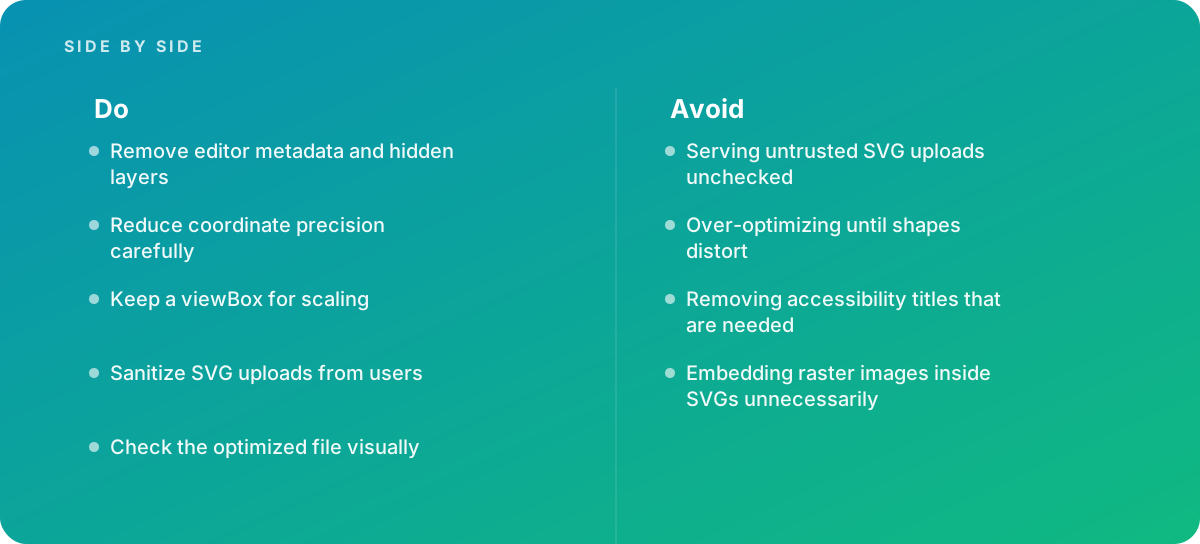
- XML prolog and generator comments. Lines such as <?xml version="1.0"?> and comments naming the application and version add bytes and do nothing when the SVG is inlined or served as an image.
- Editor namespaces and metadata. Inkscape's sodipodi and inkscape attributes, Illustrator's private data blocks, and <metadata> elements holding RDF descriptions are for round-tripping in the editor, not for rendering. Design tools often add this unnecessary data by default.
- Hidden layers and empty groups. Layers switched off in the artboard still export in some workflows, either as display="none" elements or as groups with no visible children. They add weight and, worse, can surface unexpectedly if a stylesheet overrides display.
- Unused definitions. Gradients, clip paths, masks and symbols defined in <defs> but never referenced.
- Default attribute values. Writing fill-opacity="1" or stroke-miterlimit="4" restates what the renderer already assumes.
Material that needs judgment
- IDs and class names. Tools generate IDs from layer names. Some are noise; others are hooks for CSS, JavaScript or animation. Minifying or deleting them is only safe when nothing references them.
- Group structure. Flattening nested groups saves bytes, but groups carry transforms, opacity and semantic meaning (for example, the parts of an illustration that animate together).
- Title and description elements. Often removed by default optimizers, yet sometimes required for accessibility.
- Width and height attributes. Useful as intrinsic size hints to prevent layout shift when the SVG is used as an image, a nuisance when the graphic needs to be fluid inside a component.
Material that should almost never be removed
- The viewBox. It defines the coordinate system and aspect ratio. Without it, the graphic cannot scale predictably, and CSS sizing produces cropping or empty space. The MDN Web Docs reference on SVG documents how viewBox and preserveAspectRatio work together, and it is worth reading once in full.
- Referenced definitions. A gradient or clip path in use.
- The SVG namespace declaration when the file is served standalone or used in an img element.
If you are still deciding whether SVG is even the right format for a given asset, the trade-offs against PNG, WebP and AVIF are laid out in our practical guide to image file formats. The short version: SVG wins for logos, icons, diagrams and flat illustration; it loses for photographs and for artwork so detailed that the path data outweighs a well-compressed raster.
Coordinate Precision: The Biggest Lever and the Easiest Way to Break Artwork
Path data is usually the bulk of an SVG's weight. A single d attribute in a detailed illustration can run to thousands of characters, and every coordinate written as 12.345678 instead of 12.35 costs characters without improving what anyone sees. Excessive decimal places increase file size, and reducing them is where most of the savings come from.
How to think about precision
Precision is relative to the coordinate system, not to pixels on screen. An icon drawn in a 24 by 24 viewBox and displayed at 24 CSS pixels has one user unit per pixel; two decimal places already express hundredths of a pixel, which no display can resolve. An illustration drawn on a 2,000-unit artboard and displayed at 400 pixels has five user units per pixel, so even one decimal place is generous. Conversely, an icon drawn in a tiny 1 by 1 box, which some tools produce, needs more decimals to hold the same fidelity.
A workable rule: pick the smallest precision at which the shape is visually identical at the largest size it will ever be shown, including high-density displays and any zoomed or print use. For most icon sets on a 16, 20 or 24 unit grid, that means two or three decimals. For large illustrations, one or two. For maps, technical drawings and anything users zoom into, be conservative.
Where rounding goes wrong
- Small details collapse. Thin strokes, tight curves and closely spaced points can merge or kink when rounded too hard. Type converted to outlines is especially sensitive at small counters and serifs.
- Adjoining shapes gap or overlap. Two shapes that met exactly at 10.4449 and 10.4451 may round differently, leaving a hairline seam that shows against a contrasting background.
- Relative commands accumulate error. Optimizers often convert absolute path commands to relative ones because they are shorter. Rounding each relative offset independently can drift the path over a long sequence of segments. Good tools compensate for this; always check long outlines at their end points.
- Transforms multiply error. If a group carries a scale transform, rounding the child coordinates before applying the transform magnifies the error by the scale factor.
Insight: Over-optimization rarely fails loudly. A distorted curve at 24 pixels can look fine, then show a visible kink when the same icon is scaled to 96 pixels in a hero banner. Always review optimized files at the largest size they will be used, not the size you happen to be looking at.
Other path-level transformations
Beyond rounding, optimizers can convert shapes (rect, circle, ellipse) to paths or the reverse, merge adjacent paths that share styling, remove redundant points, and convert cubic curves to shorter command forms where the geometry allows. Merging paths is the one that most often causes trouble downstream: it saves bytes, but an animation that moved one part of a logo, or a stylesheet that colored two parts differently, stops working. Turn merging off for anything that will be animated or themed part by part.
Structure Cleanup: Groups, IDs, Transforms and the viewBox
Once precision is under control, the remaining gains come from simplifying the document tree. This is also where maintainability is won or lost.
Collapsing groups and applying transforms
Design tools often wrap every layer in a group, and every group in another group for the artboard. Collapsing groups that carry no attributes is safe. Collapsing groups with a transform means baking that transform into child coordinates, which is also safe in principle, but interacts with precision as described above. Groups that carry opacity must be kept: group opacity composites the children together and then applies transparency, which looks different from applying the same opacity to each child when shapes overlap.
Handling IDs
IDs matter for three reasons: internal references (a path using url(#gradient1)), external hooks (CSS, JavaScript, animation libraries, analytics), and collisions. Collisions are the overlooked one. When several inline SVGs on the same page each define id="a" for a clip path, the browser resolves references to the first match in the document, and icons start clipping each other. Either prefix IDs per file during the build, or avoid inlining multiple files that use internal references.
The viewBox, width and height
Keep the viewBox. Decide deliberately about width and height. For standalone files used in img elements, keeping width and height gives the browser an intrinsic size and helps prevent layout shift; you can still override the displayed size in CSS. For inline icons inside a component system, removing them and sizing through CSS is usually cleaner. Also check that the viewBox fits the artwork: exports from a large artboard frequently include empty margins, which makes icons look undersized and misaligned in a row. Cropping the viewBox to the artwork, or to a consistent padded grid for icon sets, is a design decision, not an optimizer setting.
- viewBox
- The attribute that defines the SVG's internal coordinate system and aspect ratio, allowing it to scale to any displayed size.
- User unit
- One unit of the viewBox coordinate system; how many screen pixels it maps to depends on the displayed size.
- Path data (d attribute)
- The string of move, line and curve commands that describes a shape; usually the largest part of an SVG file.
- currentColor
- A CSS keyword that makes a fill or stroke inherit the text color of its parent, the standard way to theme icons.
- Sanitization
- Parsing an SVG and removing anything that can execute or load content, such as scripts, event handlers and external references, against an allowlist.
- Sprite
- A single SVG containing many symbols, each referenced by ID with the use element, so one file serves a whole icon set.
Styling SVG for the Web: currentColor, Classes and Where Styles Live
How an SVG is styled decides how cheaply it can be changed later. Exports tend to take one of three approaches, and each has consequences.
- Presentation attributes such as fill="#1A73E8". Compact, easy to override with CSS, and the most predictable output for optimizers.
- Inline style attributes such as style="fill:#1A73E8". Harder to override because of specificity; most pipelines should convert these to attributes.
- An embedded style element with generated classes such as .cls-1. Convenient in the editor but dangerous when several SVGs are inlined on one page, because class names collide and one file's styles leak into another.
For icons that should follow text color, replace the fill with currentColor during optimization. The icon then adopts the color of the surrounding link or button, including hover and focus states, without any per-icon CSS. For two-tone icons, use currentColor for one tone and a CSS custom property for the other. For brand logos, do the opposite: keep explicit colors, because a logo that silently turns the color of a navigation link is a brand problem.
A related trap is embedding raster images inside SVGs unnecessarily. Some exports wrap a PNG or JPEG as a base64 image element, typically because a layer had an effect the tool could not express as vectors, or because a photo was placed in the artboard. The result looks like a vector file but behaves like a heavy raster with none of the scaling benefits, and base64 encoding inflates the embedded data by roughly a third. If the artwork is genuinely photographic, export a proper raster. If it was an effect such as a drop shadow or blur, rebuild it as an SVG filter or in CSS. Our guide to exporting images for the web covers the raster side of that decision in depth.
Accessibility: The Titles and Roles You Should Keep
Many optimizer presets remove title and desc elements by default, on the reasoning that they add bytes and are often filled with meaningless layer names. That is fine for decorative graphics and wrong for meaningful ones. Deciding which is which is an editorial task, and it should be made per use, not per file.
Decorative versus meaningful
A decorative icon sits beside a text label that already says what it means, such as a magnifying glass next to the word "Search." It should be hidden from assistive technology, typically with aria-hidden="true" on an inline SVG or an empty alt on an img. A meaningful graphic stands alone and conveys information: an icon-only button, a logo that serves as the home link, a chart or a diagram. It needs an accessible name.
Giving meaningful SVGs a name
- For an SVG used in an img element, the alt attribute provides the name, and internal titles are largely irrelevant.
- For inline SVG, add role="img" to the root and either an aria-label or a title element referenced by aria-labelledby. Keep the title short and meaningful, not the layer name "Group 12."
- For complex diagrams, a desc element or a nearby text explanation carries the detail a title cannot.
- For icon-only buttons, it is often more robust to put the accessible name on the button itself and mark the SVG decorative.
The optimization rule that follows is simple: configure the pipeline to preserve title and desc, and strip them deliberately for decorative assets, rather than stripping by default and hoping someone re-adds them. Removing accessibility titles that are needed is one of the most common, least visible regressions an optimizer introduces.
Security: Sanitizing SVG Uploads Before You Serve Them
This is the section that should reach whoever owns your content management system, e-commerce platform or customer portal. SVG files can contain scripts, and that is not an edge case in the specification; it is a feature. A script element, an onload attribute, a foreignObject containing HTML, or a link with a javascript: URL can all run code in some contexts. External references can also make the browser fetch resources from elsewhere.
When the risk is real
Whether that code runs depends on how the SVG is delivered. Browsers do not execute scripts in an SVG loaded through an img element or a CSS background. They can execute them when the SVG is inlined into the page's HTML, embedded through object or iframe, or opened directly as a document at its own URL. That last case is the one teams forget: if a user uploads an SVG to your domain and anyone can visit its URL directly, script in that file runs with your site's origin. Serving untrusted SVG uploads unchecked is therefore a cross-site scripting risk.
Controls that work together
The OWASP File Upload Cheat Sheet is the standard reference for upload handling in general, and its principles apply directly: validate type by content rather than extension, restrict what is allowed, store uploads outside the application's web root or on a separate domain, and serve them with conservative headers. For SVG specifically, layer these controls:
- Decide whether you need SVG uploads at all. If users only upload avatars or product photos, reject SVG outright. Many breaches of this kind come from accepting a format nobody needed.
- Sanitize on the server with an allowlist. Parse the file as XML, keep only known-safe elements and attributes, drop scripts, event handlers, foreignObject, external references and unexpected URL schemes. A maintained sanitization library is far safer than a hand-written regular expression.
- Serve from an isolated origin. A separate asset domain means that even a sanitizer bypass cannot read your main site's cookies or session.
- Set restrictive headers. A Content-Security-Policy on SVG responses that forbids script, plus correct content-type and nosniff headers, reduces what a malicious file can do if opened directly.
- Prefer image-context display. Show user SVGs through img elements, never by inlining their markup into your pages.
- Re-sanitize on output if the sanitizer changes. Files stored before a sanitizer update were cleaned by older rules.
Optimization and sanitization are different jobs. An optimizer makes a trusted file smaller; a sanitizer makes an untrusted file safe. Running one is not a substitute for the other.
That distinction matters because teams sometimes assume a general-purpose optimizer removes scripts. Some presets do remove certain elements, but optimizers are designed to preserve rendering, not to defend against a deliberately crafted file. Use a purpose-built sanitizer for untrusted input.
Delivery: Compression, Caching and How You Embed
SVG is text, and text compresses well with gzip or Brotli. Once your server applies transfer compression, the raw byte savings from optimization shrink in absolute terms, because repetitive markup such as long namespace declarations compresses efficiently anyway. That is not a reason to skip optimization. Precision reduction removes entropy that compression cannot, the browser still parses the uncompressed document, and inlined SVG adds to the size of every HTML response that carries it.
Checking compression is actually on
Confirm that your server or CDN compresses the image/svg+xml content type. Some configurations compress HTML, CSS and JavaScript by default but not SVG, which leaves an easy gain on the table. Check the response headers in your browser's developer tools for a content-encoding value on SVG requests.
Choosing an embedding method
| Method | Cacheable separately | Styleable with page CSS | Scripts run | Best for |
|---|---|---|---|---|
| img element | Yes | No | No | Logos, illustrations, user uploads |
| CSS background-image | Yes | No | No | Decorative patterns and textures |
| Inline svg in HTML | No | Yes | Yes | Themed icons, animated or interactive graphics you control |
| Sprite with use element | Yes, if external | Partially, via inherited properties | No for external sprites | Large icon systems used across many pages |
| object or iframe | Yes | No | Yes | Rare; interactive standalone documents |
The table explains why icon systems commonly settle on either inline SVG generated by a component library or an external sprite. Inline gives full styling control at the cost of caching; external sprites cache well and can still inherit currentColor, though they cannot be styled part by part from outside. For large illustrations, an img element is usually the right default: it caches, it lazy-loads, and it removes any script risk.
Worked Example: Optimizing a 40-Icon Library
The following project is illustrative, built to show how the decisions above interact. The numbers are realistic for this kind of work but are not measurements from a specific client.
A software company has 40 interface icons drawn in a design tool on a 24 by 24 grid, exported one by one as SVG. The front-end team wants them to inherit text color, work in dark mode, and ship as components. A sample of the raw exports averages about 2.4 KB per icon, or roughly 96 KB for the set, before transfer compression.
Step one: inspection
Opening five files shows the usual pattern: an XML prolog, a generator comment, editor namespaces, an empty defs element, a wrapping group per artboard, coordinates to six decimal places, fills written as inline style attributes with a hard-coded dark gray, and a title set to the layer name. Three icons contain a hidden layer from an earlier version. One contains a clip path with the ID clip0, which several other icons also use.
Step two: configuring the pipeline
- Remove prolog, comments, metadata, editor namespaces, hidden elements and empty containers.
- Round coordinates to two decimal places, which on a 24-unit grid is a hundredth of a pixel at native size.
- Convert inline styles to attributes, then replace the gray fill with currentColor.
- Keep the viewBox; remove width and height, because the component sets size through CSS.
- Prefix all IDs with the icon name to prevent clip0 collisions when icons appear together.
- Strip titles, because the component library will mark icons decorative by default and accept an accessible label as a property when an icon stands alone.
- Disable path merging for the six icons the design team plans to animate.
Step three: results and review
| Stage | Average per icon | Whole set (40 icons) | Notes |
|---|---|---|---|
| Raw export | about 2.4 KB | about 96 KB | Metadata, six-decimal coordinates, inline styles |
| Metadata and structure cleanup | about 1.3 KB | about 52 KB | Prolog, namespaces, empty groups and hidden layers gone |
| Precision to two decimals | about 0.8 KB | about 32 KB | Largest single gain on path-heavy icons |
| After gzip or Brotli in transit | well under 0.5 KB | depends on bundling | Bundled components compress better than separate files |
Visual review at 16, 24 and 96 pixels, on light and dark backgrounds, finds two problems. A calendar icon's thin inner divider has shifted by a fraction of a unit and now touches the frame at 96 pixels, and a gear icon shows a faint seam where two shapes met. Both are fixed by raising precision to three decimals for those two files only, which adds a few dozen bytes each. The overall result is a set roughly a third of its original raw size, fully themeable, with no ID collisions and a documented accessibility approach.
Insight: The byte savings in this example are welcome, but the lasting value is elsewhere. The team can now recolor every icon from one CSS variable, the animation work is not blocked by merged paths, and the next designer who exports an icon has a written configuration to run it through.
Building an SVG Pipeline That Survives Handover
A single cleanup pass decays quickly. The next export from the design tool reintroduces everything you removed, and a new team member runs a default preset that strips titles and merges paths. Durable results come from treating optimization as a build step with a checked-in configuration.
- Standardize the source. Agree on artboard sizes, grid, stroke-versus-outline conventions and layer naming in the design file, so exports start consistent. Our guide to layered file handover covers how to package source files so the next person can re-export them.
- Keep sources and outputs separate. Store the raw exports as the editable masters and generate optimized files from them. Never hand-edit the optimized output, because the next build overwrites it.
- Version the configuration. Commit the optimizer configuration alongside the assets, with comments explaining each non-default choice, such as why path merging is disabled.
- Automate in the build. Run the optimizer in the asset pipeline or a pre-commit hook so every SVG passes through the same rules.
- Add visual regression checks. Render originals and optimized versions to raster at several sizes and compare them automatically, flagging any file whose difference exceeds a threshold for human review.
- Document exceptions. Keep a short list of files that need higher precision or preserved IDs, and why.
Naming and versioning matter more than they appear to. When a brand icon is updated, teams need to know which build shipped which version, especially where SVGs are cached aggressively by CDNs. Content-hashed filenames solve the cache problem; a clear naming scheme solves the human one. The principles are the same as for raster assets, which we cover in how to get versioning image files right.
When your source files are not SVG
Many organizations hold logos and illustrations only as EPS, AI or old PDF files, or worse, as low-resolution PNGs. Converting these to clean SVG is a different job from optimizing an export: vector formats need opening and re-exporting with care for fonts, color spaces and effects, and rasters need redrawing rather than auto-tracing if the result must look professional. The approaches that work are covered in converting legacy image formats. Print is its own branch again; if the same artwork must also go to press, transparency and color handling follow different rules, discussed in our guide to transparency in print files.
Generated SVGs
SVGs produced by code, such as charts, data visualizations or personalized graphics, deserve the same scrutiny. Generators often write excessive precision and verbose inline styles, and if any user-supplied data flows into the markup, text must be escaped just as it would be in HTML. The broader practice of producing graphics from data is covered in data-driven image generation.
What It Means for the Business: Cost, Risk and When to Bring In Help
For decision makers, SVG optimization sits at the intersection of three budgets: page performance, design and development time, and security. The right level of investment depends on how many SVGs you have, how they are used and who creates them.
Where the return is highest
- Icon systems and design systems. Dozens or hundreds of icons, used on every page, often inlined. Here, a configured pipeline pays for itself in maintenance time alone, because every future color or theme change becomes a CSS edit.
- Illustrated marketing pages. Large custom illustrations are frequently the heaviest vector files on a site, and precision reduction plus removal of embedded rasters can make a visible difference to load time.
- Any platform accepting uploads. The security controls are not optional, and the cost of adding them is small next to the cost of an incident.
Where it matters less
A brochure site with a single logo and a handful of icons gains little from an elaborate pipeline. A one-time manual cleanup, a visual check and compression switched on at the server are enough. Spend the effort where the asset count or the risk justifies it.
A quick readiness check for any site that serves SVG:
- Every production SVG keeps a viewBox and scales correctly in its container.
- Editor metadata, hidden layers, comments and unused definitions are removed.
- Precision is set per asset type and verified at the largest display size.
- Themeable icons use currentColor; brand logos keep explicit colors.
- Meaningful graphics have an accessible name; decorative ones are hidden from assistive technology.
- No raster images are embedded without a reason.
- User uploads are either rejected or sanitized, served from an isolated origin and displayed through img elements.
- The server or CDN compresses the SVG content type.
- The optimizer configuration is versioned, and outputs are regenerated rather than hand-edited.
When to bring in help
Bring in outside help when icon libraries or illustrations need web-ready SVGs and your team lacks the time or the specialist eye to do it well: redrawing messy exports on a consistent grid, rebuilding raster effects as vectors, converting legacy logo files, or setting up a pipeline and documentation your developers can own afterward. Work of this kind is scoped by asset count, complexity and how much redrawing is needed rather than by a flat rate; our note on estimating retouching work explains how production studios size this sort of job. For project support, see our image editing and graphic design services.
One boundary is worth stating plainly. Security controls for user uploads are an engineering responsibility, not a design deliverable. A studio can supply clean, trusted SVGs; the sanitization, headers and hosting decisions for untrusted files belong with whoever runs your platform.
Where this comes from
- MDN Web Docs — SVG: Scalable Vector Graphics
- OWASP — File Upload Cheat Sheet
The figures and practices above come from the sources listed.
Working on something like this?
We take on Image Editing & Retouching work for teams who want it done once, properly. Tell us what you are building and we will tell you honestly whether we are the right studio for it. Start a project.
Where to go next
Spotted something wrong? Report an error on this page. We correct on the page and say what changed.