Exporting Images for the Web: What Actually Works
Learn what to ask for when commissioning web image exports: sizing, formats, sRGB color, metadata, cost drivers, comparing quotes and checking delivered files.
 MediaScaleUp Editorial Team

Exporting images for the web is the last step between a finished edit and what a visitor actually sees, and it is the step most often left to defaults. The export dialog decides the pixel dimensions, the file format, the compression quality, the color space and the metadata that travel with every file. Get those five choices right and a page loads quickly, looks the way the retoucher intended and does not leak information you never meant to publish. Get them wrong and the same carefully retouched photograph arrives oversized, dull, oddly saturated or carrying the GPS coordinates of the photographer's home.
This handbook is written for the person commissioning the work: the marketing lead replacing a product catalog, the operations manager whose team uploads hundreds of listing photos a week, the founder rebuilding a site and wondering why the image budget line is so vague. It explains what you should ask a supplier for, what genuinely drives the cost, how to compare quotes that describe the same job in different words, which warning signs to watch for, and how to check the files once they are delivered.
You do not need to become a compression engineer to buy this well. You need to know which decisions exist, which ones a competent supplier will make deliberately, and how to verify that they did. The practitioners reading along will find the specific settings and trade-offs in each section, so the buyer and the person doing the work can use the same vocabulary.
What You Are Really Buying When You Commission Web Image Exports
A web export job is rarely just "resize and save." Behind a line item that reads "web optimization" there should be a set of repeatable decisions, documented so that the next batch comes out the same way as this one. When you pay for exporting images for the web, you are buying one or more of three things, and it helps to know which.
A one-off batch
The simplest engagement: a supplier takes a set of finished masters and produces web-ready files for a launch, a catalog refresh or a site migration. The deliverable is the files themselves, ideally with a short note of the settings used. This suits a small site or a single campaign where nobody will repeat the work soon.
An export standard
For a team or a large site, the more valuable deliverable is a written standard: target dimensions for each layout slot, the format for each image type, quality targets, color handling, metadata policy, naming conventions and where the masters live. The reference advice for this subject is plain on the point: bring in help when setting export standards for a team or large site. A standard is what stops five people from exporting five different ways, and it is what lets you hand the work to a new supplier later without starting over.
A pipeline
The third option is automation: presets, actions, scripts or a server-side image service that generates the variants from one master. This is where costs vary most, because it touches your content management system and your hosting. It is worth it when volume is high and constant, such as marketplaces, real estate listings or large product ranges, and rarely worth it for a brochure site.
Whichever you choose, the underlying decisions are the same, and every supplier you talk to should be able to explain them. If your need sits within a broader retouching project, the studio's image editing and retouching services typically fold export into the delivery spec rather than treating it as an afterthought.
- Color space sRGB for general web use, with the profile embedded
- Formats JPEG, PNG, WebP and AVIF, chosen by image type
- Dimensions the largest size the layout actually needs, not the camera original
- Metadata keep copyright, strip GPS location from public images
- Quality judged visually per image type, because encoder scales differ
- Masters kept separately, so every export can be regenerated
The Five Decisions Inside Every Export Dialog
Every export tool, from Photoshop and Lightroom Classic to Capture One, Affinity Photo and command-line encoders, asks the same five questions in different layouts. A buyer who can name them can read any quote and any settings note.
- Dimensions. How many pixels wide and tall the file will be. This has the largest single effect on file weight, because pixel count grows with the square of the width: halving the width cuts the pixel count to a quarter.
- Format. JPEG, PNG, WebP or AVIF, each with different strengths. The right format depends on what the image contains, not on habit.
- Quality or compression. How aggressively the encoder discards detail. This is a trade between weight and visible artifacts, and it is content-dependent.
- Color space and profile. Which color space the pixel values are expressed in, and whether a profile travels with the file so browsers can interpret them.
- Metadata. Which embedded information, such as copyright, contact details, camera data and location, is kept or removed.
Adobe documents these controls for its own tools; the Adobe Help Center guidance on exporting images in Photoshop covers the Export As dialog, including image size, format, quality, the option to convert to sRGB, embedding the color profile and choosing which metadata to include. Other applications use different labels for the same switches. When you brief a supplier, ask them to state their choice for each of the five, per image type. A settings note that covers all five is a sign of a methodical supplier; a note that says only "optimized for web" tells you nothing.
There is also a sixth, quieter decision: sharpening for output. Downsizing softens detail, and most professional export workflows add a light output sharpen tuned to the final size and to screen viewing. It should be modest. Over-sharpened web images show bright halos along edges, which look cheap on high-density displays and enlarge file size because the encoder has more fine contrast to preserve.
Choosing Formats by Image Type: JPEG, PNG, WebP and AVIF
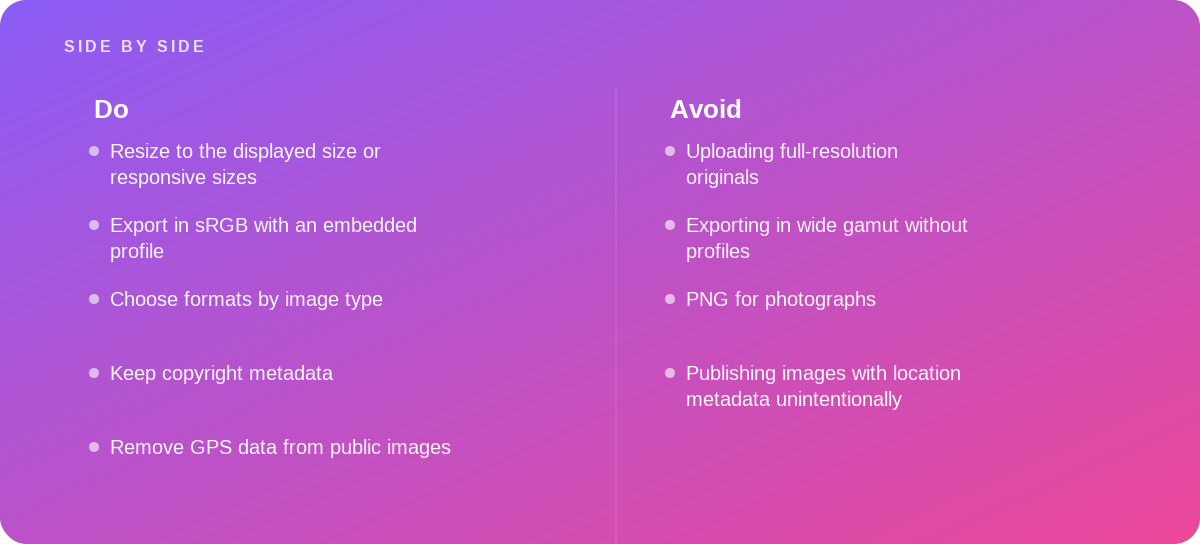
The single most common mistake in web exports is choosing format by habit. The reference guidance is simple: choose formats by image type, and never use PNG for photographs. Here is how those choices play out, and what you should expect a supplier to propose.
The MDN Web Docs image file type and format guide is the most useful neutral reference for format capabilities and browser support, and it is worth pointing an in-house developer to it when the conversation turns technical. For a deeper treatment of the formats themselves, see our practical guide to image file formats.
| Image type | Sensible primary format | Fallback or alternative | Why |
|---|---|---|---|
| Photographs (product, lifestyle, editorial) | AVIF or WebP (lossy) | JPEG | Modern lossy formats usually reach the same visual quality at a smaller size; JPEG remains the universal baseline |
| Product cutouts needing transparency | WebP or AVIF with alpha | PNG | JPEG cannot store transparency; PNG can but is heavy for photographic content |
| Screenshots, UI captures, diagrams with text | PNG or lossless WebP | High-quality lossy WebP | Sharp edges and flat color compress well losslessly and smear under aggressive lossy compression |
| Logos, icons, simple flat graphics | SVG where the source is vector | PNG | Vector files stay sharp at any size; raster versions need several sizes |
| Wide-gamut or HDR hero imagery | AVIF with correct profile | sRGB JPEG | Only worth it with a deliberate color plan and a fallback for other displays |
JPEG
JPEG is the universal photographic format. Every browser, email client, social platform and content management system accepts it. It has no transparency and it degrades with repeated saving, which is why it should always be generated from a master rather than re-saved from a previous JPEG. Progressive encoding, which displays a coarse version first and refines it, is a reasonable default for larger photographs.
PNG
PNG is lossless, supports full transparency and excels at screenshots, interface graphics and anything with hard edges and flat color. For a photograph it is usually the wrong choice: the file can be several times heavier than a JPEG of indistinguishable appearance. When a supplier delivers photographic product images as PNG "for quality," they are usually shipping weight, not quality.
WebP
WebP offers both lossy and lossless modes and supports transparency, which makes it a practical all-rounder: lossy WebP for photographs, lossless WebP for graphics, and alpha for cutouts without PNG's weight. Browser support is now broad, though some older tools in a marketing stack, such as certain email platforms or legacy plug-ins, may still not accept it.
AVIF
AVIF typically compresses photographs more efficiently still, supports transparency, and can carry wide-gamut and high dynamic range content. The trade-offs are slower encoding, which matters when generating thousands of variants, and a need to check that every system in your publishing chain handles it. Many sites serve AVIF with a WebP or JPEG fallback using the HTML picture element, letting each browser take the best format it understands.
If your library still contains TIFFs, BMPs, old GIFs or camera-specific formats, format choice becomes a migration question as well; conversion becomes its own project and should be scoped separately.
Sizing for the Layout, Not the Camera
Uploading full-resolution originals is on every list of export mistakes for good reason. A modern camera produces files thousands of pixels wide; a product grid might display an image a few hundred CSS pixels across. Everything beyond what the layout can show is weight the visitor downloads and never sees. The guidance is to export at the largest size the layout needs, and to resize to the displayed size or to a set of responsive sizes.
Work out the largest real display size
Start with the layout, not the image. For each slot, such as the homepage hero, the product detail zoom, the category grid tile, the blog inline image and the thumbnail, find the widest the image is ever displayed in CSS pixels. Then account for high-density screens: a phone or laptop with a device pixel ratio of 2 needs twice as many image pixels as CSS pixels to look crisp. A tile shown at 400 CSS pixels wide on a 2x display wants an 800-pixel-wide file. Going to 3x for every image is usually not worth the weight outside of small, detail-critical imagery.
Generate a responsive set
Rather than one file per image, most well-built sites use a small set of widths and let the browser choose via the srcset and sizes attributes. A typical set spans a handful of widths, for example 400, 800, 1200 and 1600 pixels for a content image, chosen so that the steps are not so close that they duplicate work nor so far apart that a browser downloads far more than it needs. The exact widths should come from your breakpoints and slot sizes, which is why the supplier needs to see the layout or talk to the developer.
Crop deliberately
Responsive layouts often change aspect ratio between mobile and desktop. If a hero is 16:9 on desktop and 4:5 on mobile, a centered crop may cut off the product or the face. That requires art direction: separate crops per breakpoint, specified in the brief and served with the picture element. It is a real cost driver, and it should be priced separately from simple resizing.
Do not upscale to fill a slot
If a master is smaller than the slot requires, exporting larger simply spreads the same detail over more pixels. Where there is no better source, AI upscaling can help in some cases, but it is a retouching decision with its own risks, covered in our guide to super resolution and image upscaling. A supplier should flag undersized masters rather than silently enlarging them.
Red flag: a supplier who proposes a single export size for every image on the site, or who delivers files at camera resolution "so the website can resize them."
- Browser-side scaling still downloads every pixel of the original.
- Many content management systems generate thumbnails but still serve the original in some templates.
- Oversized files hurt load time most on mobile connections, where most visitors often are.
Color Space and Profiles: Why sRGB Still Wins for General Web Use
Color complaints are the most frustrating web image problem because they are inconsistent: the image looks right on the retoucher's screen, slightly off in one browser and badly off in a marketplace listing. Almost all of it traces back to two export decisions, the color space and whether the profile is embedded.
The standard
For general web use, export in sRGB with the profile embedded. sRGB is the color space the web was built around and the one that untagged images are assumed to be in. Embedding the profile removes any ambiguity: color-managed browsers read the tag and render accordingly, and a small profile adds negligible weight.
The failure mode
Retouchers often edit in wider spaces such as Adobe RGB or ProPhoto RGB, especially for print-bound work. If an image is exported in one of those spaces without a profile, or if a system strips the profile on upload, the browser interprets the numbers as sRGB. The result is typically dull, desaturated color, with skin tones and brand reds suffering most. This is exactly the mistake the reference warns against: exporting in wide gamut without profiles. The fix is to convert to sRGB at export, not merely to assign the sRGB tag, since assigning changes appearance while converting preserves it as closely as the smaller gamut allows.
When wide gamut is justified
Many phones and laptops now display a wider range than sRGB, and there are legitimate cases, such as fashion, cosmetics or art reproduction with vivid colors, where a wide-gamut version of key imagery is worth serving. That requires a deliberate plan: a correctly tagged wide-gamut file, typically Display P3, an sRGB fallback, and testing on both kinds of display. Our article on wide gamut color for the web walks through that in detail. For most catalogs and content sites, sRGB is the right answer and a supplier recommending otherwise should explain why.
The screen the decisions are made on
Color decisions are only as good as the display they were judged on. Ask whether the retoucher works on a calibrated monitor and how often it is recalibrated. It is a fair question, not an insult; our practical guide to monitor calibration explains what good practice looks like and why it matters for anything that must match a physical product.
Metadata: Keep the Copyright, Lose the Coordinates
Every image file can carry embedded metadata: camera model, lens, exposure settings, capture date, software history, keywords, copyright notice, creator contact details and, on phones and many modern cameras, precise GPS coordinates. Export dialogs decide how much of that survives. The reference guidance is clear on both halves: keep copyright metadata, and remove GPS data from public images. Copyright metadata can be kept while location data is removed.
Why keep copyright
Copyright and creator fields, commonly stored in IPTC and XMP fields, do not stop anyone copying an image, but they record ownership and contact details in the file itself. That helps when images are shared, scraped or reused, and it supports licensing conversations later. It costs only a small amount of file size. For the wider picture, see our guide to copyright and image licensing.
Why strip location
Publishing images with location metadata unintentionally is a privacy failure, not a technical nicety. A photo of a home office, a staff member's house, an unlisted property or a warehouse can reveal an exact address. Some platforms strip metadata on upload, but your own website usually does not, and you should not rely on any downstream system to do it for you.
How the tools handle it
Most professional tools expose metadata as a menu with graded options. In Photoshop's export dialogs you can typically choose between no metadata and copyright with contact information. Lightroom Classic's export panel offers options from copyright only through all metadata, together with a separate switch to remove location information. Whatever the tool, the supplier should state which option they used and confirm that GPS fields are absent from the delivered files. Stripping everything is acceptable for pure weight reasons on tiny thumbnails, but for editorial, portfolio and product hero images, keeping the copyright block is the better default.
What Drives the Cost of Web Export Work
Buyers are often surprised by how widely quotes vary for what sounds like a mechanical task. The variation is usually legitimate, because the scope behind "web optimization" differs a great deal. These are the factors that move the price, roughly in order of impact.
- Volume and variety. Six hundred images of the same product type on the same white background are one job repeated; six hundred mixed images across heroes, cutouts, screenshots and editorial photographs are several jobs.
- Number of variants per image. Four widths in two formats is eight files per master. The cost is not eight times higher if the work is automated, but quality checking scales with the file count.
- Art-directed crops. Separate crops per breakpoint involve human judgment for every image and are the most labor-intensive part of many export jobs.
- State of the masters. Clean, layered, correctly tagged masters in one place are cheap to export. Scattered files, missing profiles, flattened JPEGs used as masters and inconsistent naming all add time before export even begins.
- Retouching mixed into the job. Background cleanup, color matching across a range, or skin work are retouching, not export. Make sure quotes separate the two.
- Standard and documentation. Writing a standard, building presets and training staff is consulting time, priced differently from batch production.
- Automation and integration. Scripts or a server-side image pipeline involve developer time and testing against your content management system.
- Turnaround. Rush delivery on large batches means more people or longer hours, and it is usually priced accordingly.
Prices are not published as fixed facts in this field, and per-image rates quoted in the market vary with all of the above. The more useful comparison is not the headline rate but what each supplier includes for it, which the scorecard below is designed to expose. Compression settings deserve their own careful discussion; our article on image compression and quality settings covers how quality targets are set and tested.
Questions to Ask a Supplier Before You Sign
A short conversation reveals most of what you need to know. A supplier who has thought about exporting images for the web will answer these quickly and specifically. Vague answers, or answers that treat every image identically, are the signal to keep looking.
- What dimensions will you export for each layout slot, and how did you derive them from our design and breakpoints?
- Which format will you use for photographs, for cutouts with transparency, and for screenshots or graphics, and what fallback will you provide?
- How do you choose quality settings, and do you check results visually at 100% on a high-density display?
- Will files be converted to sRGB with the profile embedded, and how do you handle masters edited in wider color spaces?
- Which metadata will you keep, and how will you confirm GPS location data has been removed?
- Do you apply output sharpening after resizing, and how do you avoid halos?
- What naming convention will you use, and does it encode the size and variant?
- Will you work from our masters and return them untouched, or will you create new masters?
- What settings note or written standard will you deliver with the files?
- How will you handle images that are too small for the slot they are meant to fill?
- What quality checks do you run before delivery, and what happens if we find problems?
- How many rounds of revision are included, and what counts as a revision versus new work?
Two of these deserve emphasis. First, file naming and version control: exports multiply files quickly, and a sensible convention such as product code, variant, width and format in the filename saves hours later. Our guide to versioning image files covers conventions that hold up at scale. Second, the settings note: without it, the next batch cannot be made to match, and you are locked into the same supplier by default rather than by choice.
Comparing Quotes Side by Side
Quotes for export work arrive in different shapes: per image, per variant, per hour, per project. Converting them into the same questions is the only fair way to compare. The scorecard below shows how to lay three hypothetical quotes against each other. The suppliers and their answers are illustrative; the criteria are the ones that matter.
| Criterion | Supplier A (illustrative) | Supplier B (illustrative) | Supplier C (illustrative) |
|---|---|---|---|
| Sizes derived from layout and breakpoints | Yes, per slot | One size for all | Yes, asks for design files |
| Format chosen by image type | AVIF with JPEG fallback; PNG for screenshots | JPEG only | WebP for all, including screenshots |
| Color handling stated | Convert to sRGB, embed profile | Not mentioned | sRGB, profile stripped for size |
| Metadata policy | Keep copyright, strip GPS | Strip all | Keep all |
| Art-directed crops | Priced separately per image | Not offered | Included, centered crop only |
| Written settings note or standard | Included | Not included | Available at extra cost |
| Quality checks and revisions | Sample review, then full batch; one revision round | None stated | Spot checks; revisions hourly |
| Masters returned untouched | Yes | Unclear | Yes |
Read across the rows, not down the price column. Supplier B may be cheapest per image, but you would be buying oversized single-size JPEGs with unknown color handling and no record of how they were made. Supplier C is thorough in places but would strip the color profile to save a few hundred bytes and keep GPS coordinates, which is the wrong trade on both counts. Supplier A's quote may look higher because it itemizes crops and documentation that the others either omit or hide, but it is the one you can hold to a standard and repeat.
When quotes differ in structure, ask each supplier to restate theirs against your criteria. Suppliers who welcome that request are usually the ones who have nothing to hide in the detail.
Worked Example: Exporting a 600-Image Product Catalog
This is an illustrative project, not a client case, with numbers chosen to be realistic for a mid-sized online store. It shows how the decisions above turn into a concrete specification and a file count you can price.
The starting point
The store has 600 retouched product photographs. The masters are layered files from a high-resolution camera, around 8,000 pixels on the long edge, edited in Adobe RGB. Of the 600, 480 are standard product shots on white, 90 are cutouts with transparent backgrounds for use over colored banners, and 30 are lifestyle images used as category heroes.
Deriving the sizes
The developer reports these slots: the product grid tile displays at up to 360 CSS pixels wide; the product page main image at up to 720 CSS pixels; the zoom view at up to 1,200 CSS pixels; category heroes at up to 1,440 CSS pixels wide. Allowing for 2x displays, the largest file each slot needs is 720, 1,440, 2,400 and 2,880 pixels wide respectively. The supplier proposes a responsive set for product shots of 360, 720, 1,080, 1,440 and 2,400 pixels, which covers the grid, the product page and the zoom without large gaps, and a set of 720, 1,440, 2,160 and 2,880 pixels for heroes.
Formats and file counts
| Group | Masters | Widths | Formats | Files delivered |
|---|---|---|---|---|
| Product shots on white | 480 | 5 | AVIF + JPEG fallback | 4,800 |
| Cutouts with transparency | 90 | 5 | AVIF + WebP fallback (both with alpha) | 900 |
| Category heroes | 30 | 4 per crop, 2 crops | AVIF + JPEG fallback | 480 |
| Total | 600 | 6,180 |
The arithmetic is worth checking yourself: 480 masters times 5 widths times 2 formats is 4,800; 90 times 5 times 2 is 900; 30 heroes times 2 crops (landscape desktop and portrait mobile) times 4 widths times 2 formats is 480. Six hundred masters become more than six thousand files, which is why automation and naming conventions matter and why quality checking has to be sampled intelligently rather than done file by file.
Color, metadata and quality
All files are converted from Adobe RGB to sRGB at export with the profile embedded. Metadata is set to copyright and contact information only, with location removed; because these are studio shots, GPS is unlikely, but the rule applies uniformly so that nobody has to remember exceptions. Quality is set per group by exporting a sample of ten images from each group at several quality levels and comparing them at 100% on a 2x display against the master. The lowest setting at which no one on the review panel can see banding, blocking or smeared texture becomes the group standard. White-background shots usually tolerate more compression than lifestyle images with gradients and fabric texture.
Where the cost sits
In this illustrative project, the batch export itself is mostly automated once presets exist, so the labor concentrates in three places: preparing and checking the masters, art-directing 60 hero crops by hand, and quality control. A supplier who quotes a single per-image rate for "600 images" without asking about variants or crops has not understood the job yet. Once standards are written, the next season's catalog should cost noticeably less, because the decisions are already made.
Six hundred masters can become more than six thousand files. The cost of web export work sits less in pressing export and more in deciding, once, what each of those files should be.
Red Flags in Proposals and Deliveries
Most poor export work is not careless; it is default-driven. The export dialog was opened, the last-used preset was applied and the files were shipped. These are the signals that you are looking at that kind of work, before and after delivery.
In the proposal
- No questions about your layout, breakpoints or content management system.
- One format for everything, whether that is "all PNG for quality" or "all WebP because it is modern."
- No mention of color space, or a claim that color "does not matter for web."
- Metadata described only as "stripped for speed," with no distinction between copyright and location.
- No settings note, standard or preset included in the deliverables.
In the delivered files
- Filenames that do not indicate size or variant, such as IMG_4471_final_v2_web.jpg.
- Photographs delivered as PNG, or screenshots delivered as heavily compressed JPEG with smeared text.
- Files wider than the largest slot on the site.
- Colors that look noticeably duller in a browser than in the approved proofs.
- GPS coordinates or camera serial numbers still present in public images.
Red flag: exported files that have been re-saved from earlier JPEGs rather than generated from the masters. Each lossy save compounds artifacts, and it usually means the true masters are missing or were never kept. Ask where the masters are and insist they are returned untouched with the exports.
None of these alone proves a supplier is poor, and some have innocent explanations, such as a content management system that renames files on upload. But two or three together usually mean the work was done with defaults, and the reference guidance is blunt that defaults are rarely optimal.
How to Judge the Result Once Files Arrive
You do not have to take a supplier's word that the work is right. A buyer with an afternoon and free tools can verify most of it. The checks below go from quick to thorough; for a fuller routine, see our guide to image quality control checks.
Check the numbers
Sort the delivered folder by size and dimensions. Every file should match the widths in the specification, no file should be wider than the largest slot needs, and the weight should rise smoothly with width within each group. An outlier several times heavier than its siblings usually means a wrong format, a missed quality setting or an unconverted master.
Check the format per image type
Photographs should be in the lossy formats agreed; cutouts should have genuine transparency, which you can confirm by placing a few on a colored background; screenshots and graphics should have crisp text with no blocky halos around letters.
Check color
Open a sample of files in two or three different browsers alongside the approved proof. Skin tones, brand colors and saturated products are the best test subjects. If the web versions look duller, check whether the profile is present and whether the file is actually in sRGB. Most image viewers and command-line tools such as ExifTool will report the embedded profile.
Check metadata
Inspect a sample with a metadata viewer. Copyright and creator fields should be present if that was agreed, and GPS fields should be absent. Do this on the files as served from your live site, not just on the delivery folder, because some systems add or strip metadata on upload.
Check on the page
Finally, load the pages on a phone and a desktop with a high-density screen. Look at hero crops on mobile, zoom views on product pages and grid tiles at full width. Use the browser's developer tools to confirm which file each slot actually downloaded; a correctly built responsive set should deliver smaller files to smaller screens. If the page downloads the 2,400-pixel variant into a 360-pixel tile, the files may be fine but the markup needs attention, and that is a conversation for your developer rather than the retoucher.
Verdict Good exports come from deliberate decisions on five things: dimensions tied to your layout, formats chosen by image type, sRGB with an embedded profile, copyright kept and location removed, and quality judged by eye per image group. Buy from the supplier who asks about your layout, states each of those choices in writing and returns your masters untouched, even if their quote looks higher at first. For a one-off batch a clear settings note is enough; for a team or large site, pay for a written standard, because that is what keeps every future export consistent.
If you are planning a larger project that combines retouching, export and ongoing production, the studio's image editing and graphic design service can scope the standard and the batch together.
Where this comes from
- Adobe Help Center — Export images in Photoshop
- MDN Web Docs — Image file type and format guide
The figures and practices above come from the sources listed.
Working on something like this?
We take on Image Editing & Retouching work for teams who want it done once, properly. Tell us what you are building and we will tell you honestly whether we are the right studio for it. Start a project.
Where to go next
Spotted something wrong? Report an error on this page. We correct on the page and say what changed.