Figma Auto Layout and Variables: The Decisions That Matter
Figma features that make designs respond to content and support themes through reusable values.
 MediaScaleUp Editorial Team

Why does it matter?
They make design files behave more like real interfaces, reducing surprises at handover.
What are the numbers?
- Auto layout resizes frames as content changes
- Constraints control how elements respond to resizing
- Variables store reusable values such as colors and spacing
- Modes variables can switch between themes such as light and dark
What should I do?
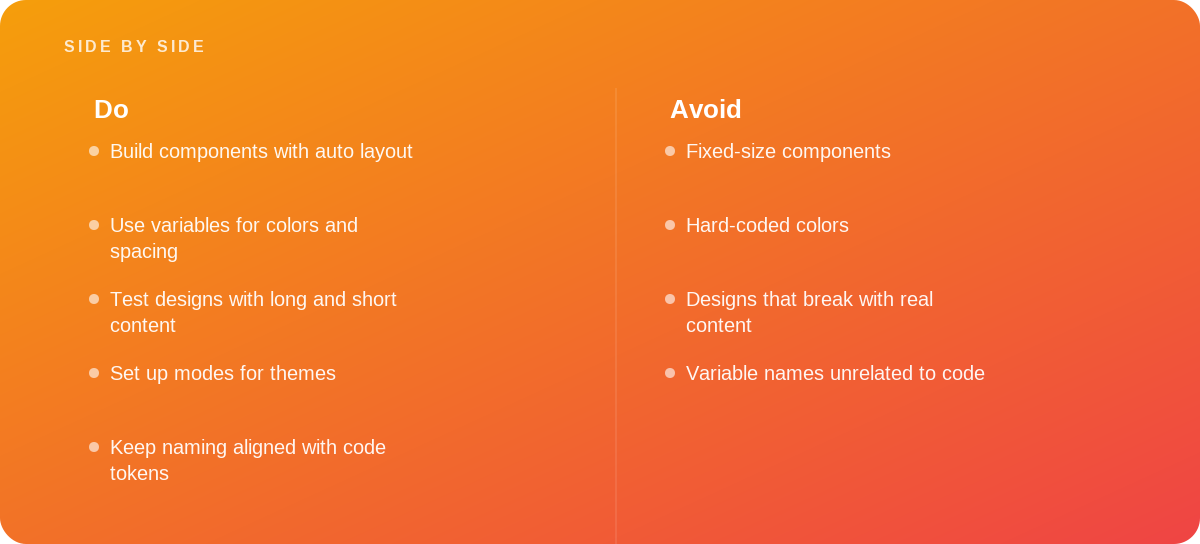
- Build components with auto layout
- Use variables for colors and spacing
- Test designs with long and short content
- Set up modes for themes
- Keep naming aligned with code tokens
What should I avoid?
Avoid:
- Fixed-size components
- Hard-coded colors
- Designs that break with real content
- Variable names unrelated to code
When should I get help?
Short answer Bring in help when design and code tokens must stay aligned.
Where this comes from
- Figma Help Center — Auto layout
- Figma Help Center — Variables
The figures and practices above come from the sources listed.
Working on something like this?
We take on UI & UX Design work for teams who want it done once, properly. Tell us what you are building and we will tell you honestly whether we are the right studio for it. Start a project.
Where to go next
Spotted something wrong? Report an error on this page. We correct on the page and say what changed.