A Practical Guide to Transparent Video and Alpha Channels
Learn which formats carry transparent video, how straight and premultiplied alpha differ, and how to render, test and deliver alpha for edits and websites.
 MediaScaleUp Editorial Team

Transparent video and alpha channels are what let a lower third sit cleanly over an interview, a logo sting float over a product shot, or an animated character walk across a web page without dragging a rectangle of black behind it. An alpha channel is an extra layer of information stored alongside the red, green and blue color data in each frame, and it tells the receiving software how opaque every pixel should be. When that information survives the trip from the animator to the editor or developer, compositing is easy. When it does not, the graphic arrives with a solid black or white box around it and the schedule slips while everyone works out why.
The subject matters to three groups. Marketers and producers commission graphics that must be layered over other footage and need to ask for the right deliverable. Editors and developers receive those files and need them to import without surprises. Animators and motion designers render the files and are the ones blamed when the edges fringe or the file refuses to play. The problems are rarely creative. They are almost always about format, codec, alpha interpretation and handoff, and they are all preventable once you know the rules.
This field guide moves from fundamentals to advanced practice: what an alpha channel is, which formats can carry one, the straight-versus-premultiplied question that causes most edge problems, how transparency works on the web, how to render and test, and how to hand files off so the next person does not have to guess.
- What it is Video or animation with a fourth channel that stores per-pixel opacity, so it can be layered over other footage or a web page.
- Editing format ProRes 4444 carries an alpha channel and is a common choice for editing and finishing.
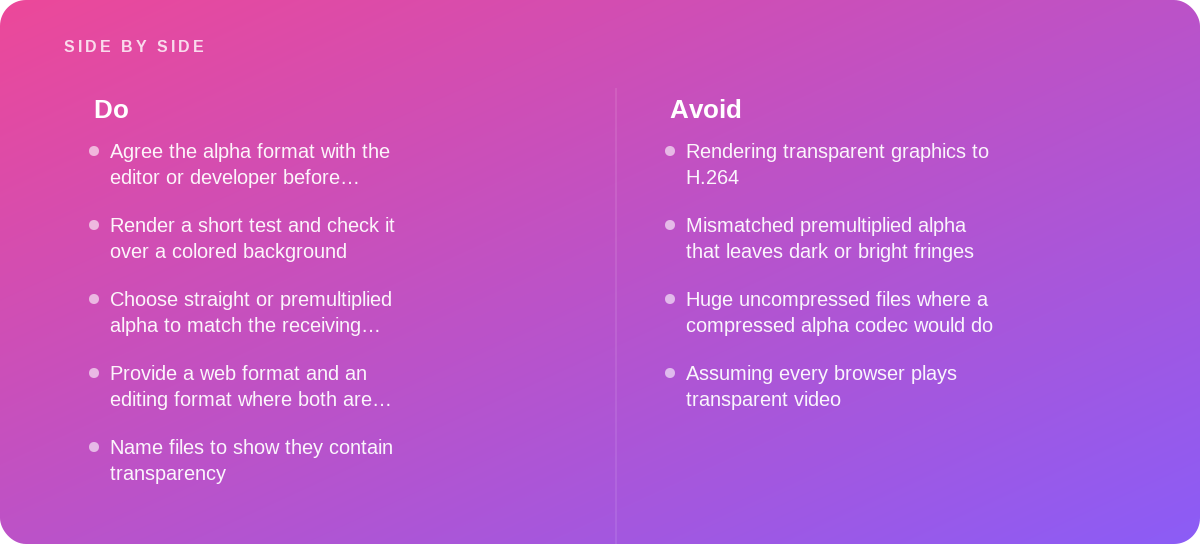
- No alpha H.264 cannot carry transparency, so a graphic rendered to it arrives with a solid background.
- Web format WebM with the VP9 codec supports alpha for playback in several browsers, but not all of them.
- Exchange format PNG or EXR image sequences are a common, robust way to pass transparent animation between tools.
- Biggest edge risk A mismatch between straight and premultiplied alpha, which leaves dark or bright fringes.
What an Alpha Channel Actually Stores
A standard video frame stores three values per pixel: red, green and blue. An alpha channel adds a fourth value that describes coverage, or how much of that pixel belongs to the foreground. At full opacity the pixel completely hides whatever is behind it. At zero it is invisible. Everything in between is partial transparency, and that in-between range is where the quality of a composite is won or lost. Anti-aliased text edges, soft drop shadows, motion blur, glows, smoke, hair and semi-transparent panels all live in the partial values.
In an 8-bit channel, alpha runs from 0 to 255, giving 256 steps of opacity. In a 16-bit or floating-point channel there are far more steps, which matters for long, subtle gradients such as a shadow that fades across half the frame. With too few steps, those gradients can band visibly once the graphic is composited over a dark background and the editor brightens the shot.
Alpha, masks and mattes are related but not identical
People use these words loosely, and the confusion causes real miscommunication in briefs. An alpha channel is embedded in the file with the color data. A mask is a shape drawn inside a composition to reveal or hide part of a layer. A matte is a separate image or layer whose brightness or alpha is used to define the transparency of another layer. Adobe's documentation on alpha channels, masks and mattes in After Effects draws these distinctions clearly, and it is worth sharing with anyone new to compositing so that "send me the matte" and "send me a file with alpha" are not treated as the same request.
Why a separate matte is sometimes the better deliverable
Some pipelines cannot read embedded alpha at all: certain broadcast playout systems, some older presentation tools, and many LED wall and event media servers. For those, the standard workaround is a fill-and-key pair: one video file carrying the color (the fill) and a second, grayscale file carrying the transparency (the key), rendered with identical length, frame rate and timing. The receiving system combines them. It doubles the file count and relies on both files staying in sync, so it is a fallback rather than a first choice, but it is the right answer when the receiving system says so.
- Alpha channel
- A fourth channel in each frame that stores per-pixel opacity, from fully transparent to fully opaque.
- Straight (unmatted) alpha
- Color values are stored at full strength regardless of transparency; opacity is applied only when the image is composited.
- Premultiplied (matted) alpha
- Color values have already been multiplied by the alpha, usually against black, so semi-transparent pixels are stored darker.
- Fill and key
- A pair of synchronized files: one carries the color image, the other a grayscale version of the transparency.
- Image sequence
- An animation exported as one numbered still image per frame, such as PNG or EXR, rather than a single video file.
- Pixel format
- The technical layout of channels and bit depth in a video stream; alpha-capable formats include an "a" component, such as yuva or rgba.
Why Most Delivery Formats Drop Transparency
The formats built for distribution were designed to deliver a finished, flat picture to a screen as efficiently as possible. There is nothing behind a finished picture, so there is no reason to spend bits describing transparency. H.264, the most widely used delivery codec on the web and on social platforms, has no provision for an alpha channel in the way it is used in practice. Render a lower third to H.264 and the encoder simply fills the transparent areas with whatever the background color of the composition was, usually black.
This is the single most common failure in transparent delivery, and it happens for understandable reasons. H.264 is the default in many export dialogs, it produces small files that upload quickly, and the preview looks fine in the animator's software because the preview is shown over a checkerboard or the composition background. Only when the editor drops it on a timeline does the black box appear.
Compression and alpha pull in different directions
Distribution codecs also achieve small files by subsampling color and discarding detail the eye is unlikely to notice in a finished picture. Alpha does not behave like picture content. A soft edge that is slightly smeared in the color channels is invisible; the same smearing in the alpha channel produces a visible halo or a shimmering edge once the graphic sits over a contrasting background. Formats that support alpha therefore make choices about how carefully to store it, and those choices show up as file size.
Players matter as much as files
Even when a file carries alpha correctly, the software playing it has to read and honor that channel. A ProRes 4444 file with perfect alpha will still show a black background in a player that ignores the channel. That is why testing in the actual receiving application, not just a desktop media player, is part of the job.
Tip: Before anyone renders, ask the receiving person three questions and write the answers into the brief:
- Which application will the file go into, and which version?
- Does it expect embedded alpha, a separate fill-and-key pair, or an image sequence?
- Should the alpha be straight or premultiplied, and if premultiplied, against which color?
The Formats That Can Carry Transparent Video and Alpha Channels
There is no single best transparent format. Each one trades file size, quality, compatibility and ease of handling differently, and the right choice depends on where the file is going. The table below summarizes the options a motion studio most often uses. It describes typical behavior; always confirm support in the specific version of the receiving software.
| Format | Alpha support | Best used for | Main trade-off |
|---|---|---|---|
| ProRes 4444 (QuickTime .mov) | Yes, embedded | Editing and finishing in NLEs and compositing apps | Large files compared with delivery codecs |
| ProRes 4444 XQ | Yes, embedded | High-end finishing where maximum quality justifies size | Even larger files; rarely needed for graphics |
| PNG image sequence | Yes, per frame | Exchange between tools, archival masters, resilient renders | Many files to manage; frame rate must be set on import |
| OpenEXR image sequence | Yes, per frame, high bit depth | VFX and high-dynamic-range compositing pipelines | Big files; overkill for most flat graphics |
| WebM (VP9) | Yes, in supporting browsers | Transparent video on websites | Not played with alpha by every browser |
| HEVC with alpha (.mov) | Yes, on supporting Apple platforms | Transparent web video for Safari as a companion to WebM | Encoding and playback support is platform-specific |
| H.264 (.mp4) | No | Flat, finished delivery only | Transparent areas become a solid background |
ProRes 4444 for editing and finishing
ProRes 4444 is the workhorse for transparent graphics headed into an editing timeline. It carries an alpha channel alongside full-resolution color, it is widely supported by professional editing and compositing software, and it decodes efficiently, so editors can play it back in real time without rendering. Its drawback is size: it is an intermediate codec designed for quality, so a few seconds of 1080p graphics can run into hundreds of megabytes. For graphics that will be edited, color corrected and re-encoded, that is an acceptable price. Note that other ProRes flavors, such as 422 HQ, do not carry alpha, so "export as ProRes" is not a sufficient instruction on its own.
Other intermediate codecs with alpha
Some Windows-centric and broadcast pipelines prefer other alpha-capable intermediates, such as Avid DNxHR 444 or GoPro CineForm, or older options such as the QuickTime Animation codec. These can be the right choice when the receiving system is built around them, but they vary more in support across applications. Use them when the editor asks for them specifically, not as a default.
Image sequences for exchange and archiving
PNG sequences are lossless, carry 8-bit or 16-bit alpha, and open in almost any graphics or video application. Because each frame is a separate file, a crash during rendering only loses the frame in progress, and a single damaged frame can be re-rendered without touching the rest. OpenEXR adds floating-point precision and multiple channels, which makes it the standard for VFX work but usually unnecessary for flat motion graphics. The cost of sequences is management: thousands of files, a frame rate that has to be set correctly on import, and a folder structure that must stay intact.
WebM and HEVC for websites
For the browser, the choice is between video codecs the browser can decode natively. WebM with VP9 supports alpha and plays with transparency in several major browsers. Safari has historically handled transparent video differently, using HEVC with an alpha channel on supported Apple devices, which is why many teams ship both a WebM file and an HEVC file for the same animation. The MDN web video codec guide is the most reliable place to check which codecs and containers each browser supports, and it is worth re-checking whenever you plan a transparent web feature, because support changes over time.
Straight Versus Premultiplied Alpha: The Cause of Most Fringes
If a transparent graphic shows a thin dark outline around its edges, or a faint bright glow where there should be none, the cause is almost always a mismatch in how the alpha was interpreted. Understanding the two conventions takes a few minutes and saves hours of trial and error.
How straight alpha works
With straight alpha, the color channels store the full, unaffected color of each pixel, and the alpha channel stores its opacity separately. A pixel at the soft edge of a white title might be pure white in the color channels with 30 percent alpha. The compositing application multiplies them at the moment of compositing. Straight alpha is flexible and survives color changes well, but when viewed without its alpha, the color channels look strange, with colors bleeding out past the visible edge of the shape.
How premultiplied alpha works
With premultiplied alpha, the color has already been multiplied by the alpha, usually against black. That same edge pixel is stored as a dark gray, because 30 percent of white over black is dark gray, plus the 30 percent alpha. Premultiplied images look correct when viewed over black without any alpha handling, and many rendering engines produce them naturally. The catch is that the receiving application has to know the image is premultiplied, and against which color, so it can remove that contribution before compositing.
What goes wrong when they are mismatched
If a premultiplied image is interpreted as straight, the darkened edge pixels are treated as the real color, so the edges composite with a dark fringe, most visible over light backgrounds. If a straight image is interpreted as premultiplied, the software over-corrects and the edges brighten, producing a halo that is especially visible over dark footage. The fix is not to choke the matte or add a stroke; it is to set the interpretation correctly. In After Effects this lives in the footage interpretation settings, where you can choose straight, premultiplied with a specified matte color, or let the software guess. Guessing works often, but not reliably enough to leave to chance on a client deliverable.
Warning: Do not fix fringes by shrinking or blurring the edges of the graphic. That hides the symptom on one background and changes the design everywhere else. Correct the alpha interpretation at import, or re-render with the alpha type the receiving software expects, and the fringe disappears without altering the artwork.
Which to choose
For graphics headed into a mainstream editing application, match whatever the editor's software expects; many handle both if the file is flagged correctly. For image sequences passed between compositing tools, straight alpha is common because it preserves color information at the edges. For web video, the encoder and browser handle the conversion, but it is still worth testing edges over the page's actual background colors. Whatever you choose, state it in the file name or the delivery note so the receiver never has to guess.
Choosing an Alpha Format for Editing and Finishing
When a transparent graphic is going into an editing timeline, the goal is a file the editor can drop in, play in real time, and trust. Four factors decide the format.
Match the editing system first
The receiving application decides what works. Mac-based editing environments generally handle ProRes 4444 smoothly. Some Windows-based or broadcast environments are set up around DNxHR or specific image sequences. Ask rather than assume. A two-line email before rendering is cheaper than a round of re-exports after delivery.
Match resolution, frame rate and color handling
A transparent graphic should match the project's resolution and frame rate exactly. A 25 fps graphic in a 29.97 fps timeline will either stutter or be retimed, and retiming blurs edges. If the graphic is animated at a lower rate for stylistic reasons, it should still be rendered at the project rate. Our guide to choosing frame rates for web animation covers the same trade-offs for browser playback. Color handling matters too: a graphic built in one working color space and interpreted in another will shift in brightness and saturation, and alpha edges will shift with it. The piece on color management in After Effects explains how to keep the render and the edit aligned.
Decide whether the editor needs to change anything
If the editor needs to change names, titles or timing, a rendered file with alpha may be the wrong deliverable entirely. An editable template lets them update text without going back to the animator, and templates handle transparency natively inside the editing application. See motion graphics templates for editors for when a template beats a rendered file.
Keep handles and clean starts
Graphics with alpha should start and end on fully transparent frames, or on clearly defined holds, so the editor can trim without cutting into an animation. Adding a few frames of handle at each end costs almost nothing in file size, because fully transparent frames compress extremely well in most alpha-capable codecs.
Transparent Video on Websites
Transparent video on the web is where most assumptions break. It is entirely possible, and when it works it lets an animated product, character or badge sit on a page over any background color. But browser support is uneven, file size matters far more than in an edit, and there are often better tools for the job.
Serve more than one format
Because no single transparent video format plays with alpha everywhere, the standard pattern is to encode the animation twice: WebM with VP9 alpha for browsers that support it, and HEVC with alpha for Safari on supported Apple devices. The HTML video element can list multiple sources, and the browser picks the first one it can play. Order and type declarations matter: if the browser picks a source that it can decode but whose alpha it ignores, the animation plays with a black box. Test the page on each target browser and device, not just the one on your desk.
Plan a fallback
Some visitors will land on a browser or device that plays neither transparent format. Decide in advance what they see: a static PNG with transparency, a non-transparent video with the page background baked in, or nothing at all. Baking the background in is a legitimate strategy when the page background is a single known color that will not change, and it lets you use ordinary H.264, which plays nearly everywhere. It fails the moment the background becomes a gradient, an image, or a dark-mode variant.
Consider whether video is the right medium
Transparent video is a good fit for complex, raster content such as rendered 3D, photographic elements, particles or hand-drawn animation. For logos, icons, line illustrations and interface elements, vector or code-driven animation is usually lighter, sharper at any size and transparent by default. Our guide to animated SVG explains when vector animation beats video, and interactive, scroll-driven effects are usually better built in code than as a video file. If the video fills the background rather than floating over it, you likely do not need alpha at all; see background video loops for websites instead.
Keep file size under control
Transparent web video should be short, tightly cropped and encoded at a sensible bitrate. Crop the canvas to the animated area rather than exporting a full 1920 by 1080 frame that is mostly empty: encoders are efficient with transparent pixels, but not free, and browsers still decode every pixel of every frame. Keep loops short and seamless, and check the decoded result on a mid-range phone, not only on a fast laptop.
Rendering and Exporting Alpha Correctly
Most alpha failures happen at the render step, usually because one setting was left at its default. The procedure below applies whether you work in After Effects, another compositing tool, or a command-line encoder.
- Confirm the target Write down the receiving application, the format, the alpha type (straight or premultiplied), resolution, frame rate and duration before opening the render settings.
- Check the composition background Make sure nothing opaque sits at the bottom of the layer stack, such as a solid used for reference or a background plate you forgot to disable.
- Set channels to include alpha In the output module, choose RGB + Alpha, not RGB. In most applications this is a separate setting from the codec, and it defaults to RGB.
- Choose the codec and depth Pick the alpha-capable codec, such as ProRes 4444, PNG, or VP9, and confirm the bit depth, such as "Millions of Colors+" for 8-bit color with alpha.
- Set the alpha interpretation Choose straight or premultiplied to match the receiver, and note the choice in the file name.
- Render a short test Render two or three seconds that include the softest edges, shadows and motion blur, not the whole piece.
- Check over color Place the test over a bright, a dark and a saturated background in the receiving software and look closely at the edges before rendering the full file.
Command-line encoding with FFmpeg
Many studios render a lossless master, such as a PNG sequence or ProRes 4444, from the animation software and then use FFmpeg to create web deliverables. The key detail is the pixel format: an alpha-capable encoder will still discard transparency if you ask for a pixel format without an alpha component. For VP9, that means an alpha pixel format such as yuva420p with the libvpx-vp9 encoder; for ProRes 4444 through FFmpeg's ProRes encoder, a 4444 profile with an alpha-capable pixel format such as yuva444p10le. The FFmpeg codecs documentation lists which encoders support alpha and which pixel formats each one accepts. When a WebM comes out with a black background, the pixel format is the first thing to check.
Render once, encode many times
A clean lossless master is worth keeping. From one PNG sequence or ProRes 4444 master you can encode the WebM, the HEVC, a flattened H.264 preview and a fill-and-key pair without re-rendering the animation. That also means fixes to encoding settings take minutes rather than a full render. Keep the master with the project files; our guide to delivering animation source files covers how to package it.
Testing Transparency Before It Leaves the Studio
A checkerboard preview inside the animation software proves very little. It shows the alpha as the software that made it understands it. The test that matters is whether the file composites correctly in the receiving application, over the kind of backgrounds it will actually sit on.
Build a quick test bed
Keep a small test project in the main editing application and a simple test web page with three or four background colors. Drop every transparent deliverable onto both before it goes out. It takes a couple of minutes per file and catches the majority of problems.
What to look for
- Solid boxes: the alpha was not rendered, or the player is ignoring it.
- Dark outlines on light backgrounds: premultiplied alpha is being read as straight.
- Bright halos on dark backgrounds: straight alpha is being read as premultiplied, or the graphic was rendered over a light matte.
- Banding in shadows and glows: not enough bit depth, or too much compression on the alpha.
- Shimmering or crawling edges in motion: heavy compression on the alpha channel, often in low-bitrate web encodes.
- Wrong timing or stutter: frame rate mismatch between the graphic and the timeline or page.
Test at playback speed and on real devices
Scrubbing frame by frame will reveal edge problems but can hide performance problems. Play the file at speed in the edit and, for web deliverables, on a phone and a lower-powered laptop. A transparent video that stutters on a phone is a failure even if every frame is technically perfect.
A Worked Example: One Lower Third, Three Deliverables
The following is an illustrative example, not a client project. It shows how the decisions above turn into a concrete delivery plan and why file sizes differ so much between formats.
A company is producing a series of interview videos and also wants the same animated name badge to appear on its website's team page. The animator builds a 6-second lower third: a colored bar wipes on, the name and title fade up with a soft drop shadow, it holds, and everything animates off. The edit is 1920 by 1080 at 30 frames per second, so the graphic is 180 frames.
Deliverable one: the editing file
The editor works in a Mac-based NLE and asks for ProRes 4444 with straight alpha. The animator adds 10 frames of fully transparent handle at each end, bringing the render to 200 frames. For comparison, an uncompressed 8-bit RGBA frame at 1920 by 1080 is 1920 x 1080 x 4 bytes, or about 8.3 MB, so 200 uncompressed frames would be roughly 1.66 GB. ProRes 4444 compresses that substantially; for a mostly transparent lower third the file will typically land somewhere in the tens to low hundreds of megabytes depending on the complexity of the frame. That is large for email but trivial for a shared drive, and it plays in real time in the edit.
Deliverable two: the web versions
For the team page, the badge only needs to be about 800 by 200 pixels, so the animator crops the canvas to the animated area rather than exporting the full frame. That cuts the pixel count per frame from about 2.07 million to 160,000, less than a tenth. From the PNG master, FFmpeg encodes a VP9 WebM with an alpha pixel format and an HEVC-with-alpha file for Safari, both targeted at a modest bitrate. A crop of that size and a 6-second duration typically produce files in the hundreds of kilobytes to low single-digit megabytes, depending on bitrate and how much of the frame is moving. A transparent PNG of the final held frame serves as the fallback.
Deliverable three: the archive master
The animator keeps a 16-bit PNG sequence with straight alpha as the master, so any future variant, such as a vertical crop for social or a version with a different name, can be encoded without re-rendering. Social versions will be flattened over footage anyway, so they are exported as ordinary H.264 from the edit, which is exactly where H.264 belongs.
What the plan prevents
Without this plan, the most likely outcome is a single H.264 export that arrives with a black box, followed by a ProRes 4444 re-export that shows dark fringes because the editor's software read it as premultiplied, followed by a web version that is a full 1080p frame and works only in some browsers. Each of those is a separate round trip. The plan turns three potential revisions into one render session and a few minutes of encoding.
Naming, Documentation and Handoff
A transparent file is only as useful as the receiver's understanding of it. Naming and a short delivery note carry that understanding.
Put the essentials in the file name
A good name tells the receiver that the file contains transparency, what kind, and at what spec, without opening it. For example: teamname_lowerthird_v03_1920x1080_30p_ProRes4444_ALPHA-straight.mov, or badge_loop_800x200_VP9_ALPHA.webm. For fill-and-key pairs, use identical names with _FILL and _KEY suffixes so they sort together. For sequences, use zero-padded frame numbers such as _0001.png so tools read them in order.
Write a short delivery note
List the format, codec, alpha type, resolution, frame rate, duration including handles, color space and any fonts or brand assets used. For web deliverables, include the recommended source order for the video element and the fallback image. This note takes five minutes and prevents the most common support questions.
Plan for versions and languages
Lower thirds and badges multiply quickly: new names, new titles, new languages. If the graphic will be versioned often, decide early whether each version is rendered by the studio or edited from a template by the client. Text in other languages can change line lengths and edge shapes, so each language version needs its own alpha check; localizing motion graphics covers planning for that. Characters built for real-time or puppet workflows, such as those described in Adobe Character Animator, have their own export considerations when they need to be layered over other footage.
Troubleshooting Black Boxes, Halos and Heavy Files
When a transparent deliverable fails, work through the chain in order: render settings, encoding, container, receiving application, then playback. Most problems resolve at the first or second link.
The graphic has a solid black or white background
Check, in this order: that the render output included alpha (RGB + Alpha, not RGB); that the codec supports alpha at all, which rules out H.264 and non-4444 ProRes; that the pixel format in any re-encode includes an alpha component; that nothing opaque was left in the composition; and that the receiving application or browser actually honors alpha for that format. In a browser, confirm which source file was selected, because a browser may pick a file it can play without alpha.
The edges have dark or bright fringes
This is almost always straight versus premultiplied. Change the interpretation in the receiving application first; if the fringe disappears, the file is fine and only the flag was wrong. If you cannot change the interpretation there, re-render with the alpha type that application expects. Fringes that appear only on fast-moving elements can also come from motion blur rendered against a colored matte, which is fixed at the render step.
The files are enormous
Uncompressed or lossless formats are appropriate for masters and for some pipelines, but they are rarely needed for delivery. If a ProRes 4444 file is too large to send, check whether the frame can be cropped, whether the duration includes unnecessary holds, and whether the receiver would accept a lighter alpha-capable format. For web, large files usually mean a full-frame canvas that should have been cropped, a bitrate set far higher than needed, or a loop that is longer than the design requires.
Playback stutters
Transparent video is more expensive to decode than flat video, because the player composites every frame. In an edit, check that the codec is one the system decodes efficiently and that the frame rate matches the timeline. On the web, reduce dimensions and bitrate, shorten the loop, avoid playing several transparent videos at once, and consider whether a vector or code-driven approach would do the job with less work for the device.
Tip: When a problem only appears in one place, test the same file in a second application. If it looks right in one and wrong in the other, the file is fine and the issue is interpretation or playback support in the receiver, which saves you from re-rendering something that was never broken.
When to Bring In Specialist Help
Many teams handle simple transparent graphics in-house, and with the practices above that is realistic. There are three situations where experienced help pays for itself quickly.
Graphics that must overlay live or broadcast video
Live production, broadcast playout and event screens often require fill-and-key pairs, specific codecs, or exact frame rates, and there is no chance to fix a problem once the show is running. Getting the format agreed with the technical director and tested on the actual system before the day is specialist work.
Transparent animation that must play on a website
Shipping transparent video across browsers means multiple encodes, careful source ordering, fallbacks, size budgets and device testing, plus a judgment call about whether video is the right medium at all. A studio that works across both motion and web can make that call early, before an animation is built around a delivery method that will not work everywhere.
Edges that show halos after import
If fringes persist after the obvious fixes, the issue is usually somewhere in the chain between render settings, color management and alpha interpretation. Diagnosing that quickly is a matter of experience. A studio offering animation and motion graphics production will have seen the same symptom many times and can usually trace it in one pass.
The same thinking applies to larger pieces. An explainer or brand film that mixes rendered characters, UI recordings and live footage will involve several transparent layers along the way; getting explainer video animation right covers how those layers are planned from the storyboard onward.
Verdict Transparent video and alpha channels are reliable when the delivery format is agreed before rendering, not after. Use ProRes 4444 or an image sequence for editing, WebM with VP9 plus an HEVC companion and a fallback for the web, and never H.264 for anything that must stay transparent. Match straight or premultiplied alpha to the receiving software, test every file over bright, dark and colored backgrounds in the place it will actually be used, and name files so no one has to guess what they contain. Do those things and the black boxes and fringes stop happening.
Where this comes from
- FFmpeg — Codecs documentation
- MDN Web Docs — Web video codec guide
- Adobe Help Center — Alpha channels, masks, and mattes in After Effects
The figures and practices above come from the sources listed.
Working on something like this?
We take on Motion Graphics & Animation work for teams who want it done once, properly. Tell us what you are building and we will tell you honestly whether we are the right studio for it. Start a project.
Where to go next
Spotted something wrong? Report an error on this page. We correct on the page and say what changed.