Archiving Animation Projects: What Actually Works
Learn how to archive animation projects so they reopen years later: collecting assets, documenting fonts and plug-ins, masters, storage and restore tests.
 MediaScaleUp Editorial Team

Archiving animation projects means packaging a finished job so that someone can reopen it years later, on a different machine, and change it without guessing. Getting the final video out the door isn't enough. The archive has to hold the project files, every asset those files point to, a record of the fonts, plug-ins and software versions the work depended on, the final masters and the source audio. If any of those are missing, the "archive" is a folder of files that nobody can open.
This matters because clients come back. A price changes in an explainer, a logo is refreshed, a product shot needs replacing, a 16:9 campaign needs a 9:16 cut for social, or a legal line has to be added before a new market launch. When the original project reopens cleanly, those edits take hours. When it opens with red "missing footage" bars, substituted fonts and effects that no longer exist, the same small edit can turn into a partial rebuild that nobody budgeted for. That cost falls on the studio, the client or both.
This briefing is written for two readers. Business owners and marketing leads get an executive summary and a closing section on cost, contracts and ownership. Motion designers, producers and whoever looks after the studio's storage get the technical detail in between: what to collect, how each major application handles it, how to document dependencies that can't be shipped, how to store copies and how to prove an archive still works.
Executive Summary: Archiving Animation Projects in Five Decisions
Most archive failures don't come from a lack of storage. They come from a handful of decisions that were never made on purpose. If you remember nothing else from this briefing, make these five decisions for every project and write them down.
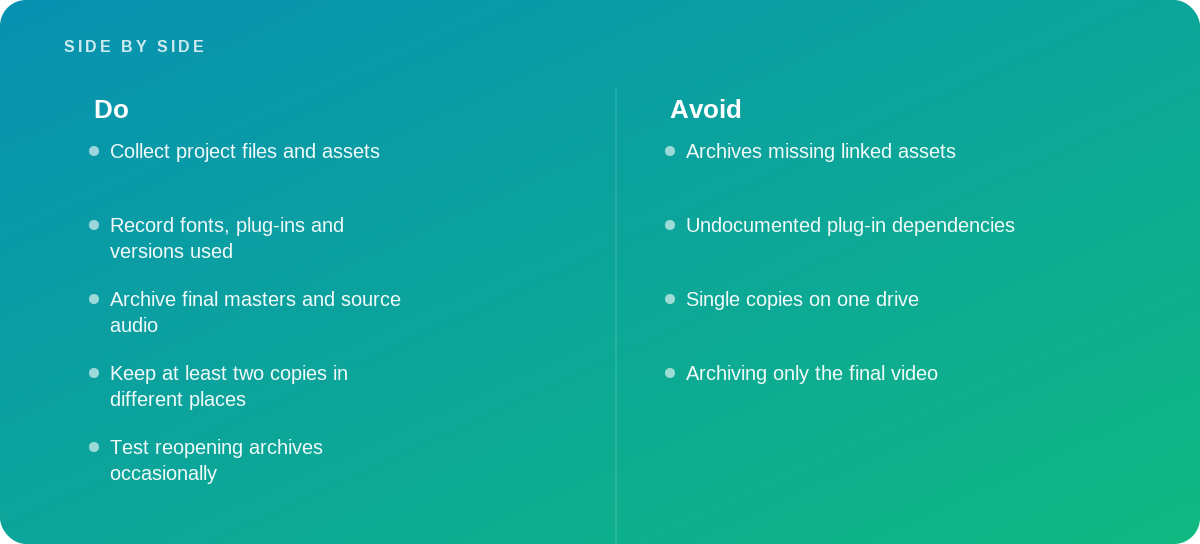
- What counts as the project. Every working file that produced the final deliverable belongs in the archive, not only the last one: After Effects, Premiere Pro, Cinema 4D, Blender, Illustrator, Photoshop and audio sessions. Leave out abandoned versions deliberately. Don't lose them by accident.
- How assets are gathered. Use the application's own collect or pack function so that every linked file is copied next to the project and relinked with relative paths. Hand-copying folders is how archives end up missing linked assets.
- How dependencies are recorded. Fonts, third-party plug-ins, scripts and the exact host application version often can't legally or practically be shipped in the archive. They still have to be listed, with versions and sources, so a future artist knows what to install.
- Which renders are kept. Archive the final masters in a high-quality mezzanine format, the delivered files as the client received them, and the source audio and music stems. Keeping only the final MP4 is the most common way an archive quietly fails.
- Where the copies live and how they're checked. Keep at least two copies in different places, on different kinds of media if you can, with checksums. Reopen a sample of archives on a clean machine now and then to prove they still work.
The rest of this briefing explains how to carry out each decision and why the obvious shortcuts fail. If you commission animation rather than produce it, the section on business implications near the end tells you what to ask a studio for. The same questions belong in any evaluation of which animation studio to hire.
Why Animation Archives Fail When a Client Comes Back
An animation project isn't a single file. A typical After Effects project is a small file, often a few megabytes, full of references to footage, images, vector artwork, audio, precomps, fonts and effects. Those references are file paths and names. When the project is closed and the drive it lived on is wiped, renamed or unmounted, the project file survives but its links don't. Reopening it gives you a timeline of placeholders.
The failure modes are predictable, and each one traces back to a habit that is easy to fix.
Missing linked assets
Assets often live outside the project folder: a shared stock library, a client's brand drive, a downloads folder, a freelancer's laptop, a cloud-synced directory that only downloads files on demand. The project works perfectly on the machine that made it because every path resolves. Copy the project folder alone and those external references break. Cloud-sync "online only" placeholders are especially treacherous: the file appears in the folder listing but has no data locally, so a copy made from that machine can silently contain empty or missing files.
Undocumented plug-in dependencies
Third-party effects such as particle systems, glow and lens effects, and 3D text or deformer tools store their settings inside the project. The host application can only display and render them if the same plug-in, at a compatible version, is installed. Open a project without the plug-in and the effect is flagged as missing. Some hosts keep the settings so the effect comes back once you install it. Others drop or zero them. Either way you need to know exactly which plug-in and which version, and years later that knowledge usually exists only in one person's memory.
Fonts that can't be found or legally reinstalled
Type is everywhere in motion graphics: titles, lower thirds, kinetic typography, captions. Text layers remember a font name, not the font file. When the font is missing, the application substitutes one, and line lengths, kerning and animated reveals shift. Commercial font licenses often don't allow the file to be redistributed inside an archive handed to a client, which is exactly why the font has to be recorded even when it can't be shipped.
Single copies on one drive
External drives fail, get reformatted, get lost in office moves or sit unpowered in a drawer for years. An archive that exists in one place is a bet that none of that will happen. Over a five-to-ten-year horizon, that is a bad bet.
Archiving only the final video
The final H.264 file is a delivery, not an archive. It can't be edited without re-encoding, it has no separate layers, it can't be re-timed for a new aspect ratio without cropping, and its audio is a finished mix with the voice and music baked together. If the voiceover needs a new line or the music license expires, a flattened MP4 gives you nothing to work with.
An archive is only as good as the least-documented dependency in it. A project that can't be reopened is not an archive, whatever the folder is called.
What Goes Into a Complete Animation Archive
A useful way to think about an archive is in four layers. Each layer answers a different question a future artist will ask.
Layer 1: Project files
These are the working documents of every application used: .aep for After Effects, .prproj for Premiere Pro, .c4d for Cinema 4D, .blend for Blender, audio sessions from your DAW, and the layered .psd and .ai source artwork. Save a final, clearly named version of each ("ACME_Explainer_v27_FINAL_ARCHIVE.aep" is ugly but unambiguous). Keep only the last version of each file unless earlier versions contain alternates the client might ask for, such as a rejected ending that was approved later for another use.
Layer 2: Collected assets
Everything the project files reference: footage, image sequences, stills, vector files, 3D models, textures, HDRIs, caches, audio and any proxies you rely on. The goal is a self-contained folder where every path in the project resolves relative to the project file. If your pipeline uses image sequences for renders or simulations, decide whether caches are worth keeping. A particle simulation that took hours to bake may be worth archiving. A cache you could regenerate in minutes probably isn't.
Layer 3: Dependency documentation
This is a plain-text or PDF manifest listing the host applications and exact versions, operating system, fonts (family, style, foundry, license holder), third-party plug-ins and versions, scripts and extensions, color settings, and anything unusual about how the project was set up: working color space, linear workflow settings, frame rate, resolution and any expressions that depend on external data files.
Layer 4: Masters and deliverables
These are the final high-quality masters, the files as delivered to the client, textless versions if produced, and the source audio: voiceover recordings, music stems, sound effects and the final mix. Masters are what you reach for when a client needs a new format but no creative change. Source audio is what you need when the words or the music change.
Alongside the four layers, add a short README at the top of the archive. It should say what the project is, who worked on it, the date of final delivery, which file is the "hero" project to open first, and where the manifest lives. It takes ten minutes to write and saves hours of archaeology later.
| Layer | Typical contents | Question it answers | What goes wrong without it |
|---|---|---|---|
| Project files | .aep, .prproj, .c4d, .blend, .psd, .ai, DAW sessions | How was this built? | Any change means rebuilding from the final video |
| Collected assets | Footage, stills, vectors, models, textures, caches, audio | What does the project point to? | Missing-media placeholders, broken links |
| Dependency manifest | App versions, fonts, plug-ins, scripts, color settings | What must be installed to open it? | Font substitution, missing effects, version errors |
| Masters and audio | Mezzanine masters, delivered files, textless versions, voice and music stems | What was delivered, and what can be re-cut without reopening? | Lossy re-encodes, no way to change voice or music |
Collecting Project Files in After Effects, Premiere Pro, Cinema 4D and Blender
Every major motion graphics application has a built-in way to gather a project and its assets. Using it is far more reliable than copying folders by hand, because the application knows every reference, including the ones buried in nested precomps, that you have forgotten.
After Effects: Collect Files and Reduce Project
In After Effects, the relevant commands live under File > Dependencies. Collect Files copies the project and every footage item it uses into a new folder, relinks them and writes a report. The Adobe Help Center's After Effects User Guide documents the options. Two of them matter most for archiving: whether to collect source files for all items or only for comps you select, and whether to reduce the project so unused items are removed first. The text report that Collect Files produces lists the effects and fonts the project uses. Keep that report in the archive, because it's the start of your dependency manifest.
A sensible After Effects sequence looks like this. Run Remove Unused Footage and Consolidate All Footage to clean duplicates. Use Reduce Project on a duplicate of the final project if you want to strip experiments. Check that nothing is still reported as missing. Then run Collect Files to a fresh folder on a different drive. Finally, close After Effects and open the collected copy from its new location to confirm that every item links. If any footage was rendered from another comp, such as a pre-rendered particle pass, make sure the source comp is in the project too, or that the render is treated as an asset in its own right.
Premiere Pro: Project Manager
Premiere Pro's File > Project Manager can collect files and copy them to a new location, or consolidate and transcode them. For archiving, collecting in the original formats is the safer default, because transcoding can change the look of camera footage and makes it harder to relink to originals later. If the edit uses Dynamic Link to After Effects compositions, collect the After Effects projects separately. Project Manager copies the linked .aep, but it doesn't gather that project's own footage.
Cinema 4D: Save Project with Assets
Cinema 4D's Save Project with Assets writes the scene file and copies textures and other referenced files into a "tex" folder beside it, rewriting paths. Watch for assets that come from content libraries, render-engine material libraries or absolute paths in third-party render settings. Those are the ones most likely to be missed. If you use a third-party renderer, note its version in the manifest, because renderer upgrades can change how materials look.
Blender: Pack Resources and relative paths
Blender can embed external files directly in the .blend with File > External Data > Pack Resources, or keep them external with Make Paths Relative and a tidy folder structure. Packing produces a single self-contained file, which is convenient for small projects but can make the .blend very large. Relative paths keep the file lean but depend on the folder structure staying intact. Either works as long as you test the result. Grease Pencil projects are usually more self-contained than footage-heavy scenes, but they still reference images, audio and linked library files. Our guide to 2D animation in Blender with Grease Pencil covers how those projects are typically structured. Linked library files, where one .blend links characters or assets from another, need special care, because the linked file must be archived too.
Hand-drawn and hybrid pipelines
Frame-by-frame work often spans several applications: roughs in one, clean-up and color in another, compositing in a third. Each stage has its own source files, and the archive should keep the layered drawings, not just the final composited frames. The workflow described in our frame-by-frame animation guide produces several of these intermediate stages. Decide at scoping time which of them are worth keeping, because layered drawing files add up quickly.
Insight: The collect command is only half the job. The other half is opening the collected copy somewhere else. A collect that ran without errors can still produce an archive that doesn't open cleanly if an asset was an online-only cloud placeholder, a linked file lived inside another project, or an expression reads an external data file by absolute path. The reopen test is what turns "collected" into "archived".
Documenting Fonts, Plug-ins and Software Versions
This is the layer studios skip most often, and the one that causes the most expensive surprises. Fonts and plug-ins usually can't be shipped with the archive, but they must be recorded.
What the manifest should contain
- Host applications: the name and full version number of every application used, for example After Effects with its major and minor version, Cinema 4D with its release number, and the render engine version. Include the operating system and version the project was finished on.
- Fonts: family and style names exactly as the application shows them, the foundry or source, the format (OpenType, TrueType), and who holds the license: the studio, the client, or an open license. Note whether fonts were activated through a subscription service, because those can disappear when a subscription lapses or a service retires a family.
- Plug-ins and effects: vendor, product name, version, and which comps or layers use them. A plug-in used on one layer is easy to replace. One used across forty comps is not.
- Scripts, extensions and templates: any rigging scripts, expression libraries, character rigs or panel extensions the project relies on, with versions and where to obtain them.
- Technical settings: project color working space, bit depth, frame rate, resolution, pixel aspect, audio sample rate and any linear-light or color management choices.
- External data: CSV or JSON files driving data-driven animation, audio files used to generate keyframes, and the paths expressions expect them at.
Why versions matter as much as names
Applications generally open files from older versions, but not files from newer ones. After Effects can save a copy back to the previous major version, but not arbitrarily far back. Plug-ins change their parameters between major releases, and render engines change shading. Knowing "we used a glow plug-in" is not enough. You need to know which glow plug-in at which version, so a future artist can either install that version or knowingly accept the differences of a newer one.
Handling fonts you can't ship
Where the license permits it, include the font files in a clearly labeled folder, with a note of the license. Where it doesn't, record the details and consider two extra safeguards. First, keep a textless master and a version of the key text layers converted to shapes (in After Effects, Create Shapes from Text) inside a separate, clearly labeled comp. That preserves the look even if the font becomes unavailable, though the text is no longer editable. Second, if the client owns the font license, say so in the manifest, so it's clear who needs to supply it for future edits.
Handling plug-ins you can't ship
Plug-ins are licensed software and should never be copied into an archive. For each third-party effect, record the vendor and version, and consider pre-rendering the affected elements as high-quality image sequences with alpha, archived alongside the live project. If the plug-in later becomes unavailable or incompatible, you can swap in the pre-rendered element and keep working. That is especially useful for heavy particle or simulation work, and for audio-reactive animation, where keyframes are often generated by a plug-in or script from the soundtrack and are hard to recreate by hand.
Final Masters, Stems and Source Audio
Final renders should be archived alongside projects, not instead of them. The two do different jobs. The project lets you change the work. The masters let you reuse it without reopening anything.
Choosing a mastering format
A master should be a high-quality intermediate file, not a compressed delivery file. In practice, that usually means a professional mezzanine codec such as Apple ProRes 422 HQ, or ProRes 4444 when you need an alpha channel. Avid DNxHR is a common alternative in Windows-centric pipelines, and a lossless or high-bit-depth image sequence (PNG, TIFF or EXR) suits high-end compositing. The choice depends on your pipeline and your clients' pipelines. What matters is that the master is visually lossless or lossless, at full resolution and frame rate, and in a widely supported format.
For long-term format choice, the Federal Agencies Digital Guidelines Initiative publishes technical guidance that cultural heritage institutions use to judge file formats and embedded metadata for preservation. Its focus is digitizing collections rather than commercial animation, but the underlying principles transfer well: prefer open or widely documented formats, avoid proprietary formats that only one application reads, embed descriptive metadata, and verify files with checksums.
What to render for the archive
- The approved master: full resolution, full quality, with final audio.
- Delivered files: the exact files the client received, such as web MP4s, social cuts and broadcast files, so you can prove what was delivered.
- A textless or clean master: the same edit without on-screen text, supers or captions, which makes localization and updates far cheaper.
- Key elements with alpha: logos, animated characters or complex effects rendered on transparent backgrounds, where reuse is likely.
- Caption files: SRT or WebVTT sidecar files, if captions were produced.
Source audio is not optional
Archive the raw voiceover recordings (including alternate takes the client approved), the music as licensed, sound effects, and the final mix as separate stems: dialogue, music and effects. Uncompressed WAV at the project's sample rate and bit depth, commonly 48 kHz and 24-bit for video, is the usual choice. Keep the music license documentation with it. Terms can limit duration, territory or media, and a future edit may need to check them.
Audio matters most on character work. If a line of dialogue changes, lip sync animation has to be redone for that line. That can only happen efficiently if the original recording, the timing and the mouth-shape setup survive in the archive.
- Collect Files
- An After Effects command that copies a project and all of its footage items into one folder and relinks them, producing a report of effects and fonts used.
- Mezzanine master
- A high-quality, lightly compressed or lossless file (such as ProRes 422 HQ) used as the source for creating delivery files, rather than for distribution itself.
- Stems
- Separate audio mixes for dialogue, music and effects, which can be recombined or replaced without affecting the other elements.
- Checksum
- A short fingerprint (such as MD5 or SHA-256) calculated from a file's contents; if a later recalculation doesn't match, the file has changed or been corrupted.
- Fixity
- The property of a file remaining unchanged over time, verified by comparing checksums at intervals.
- Relative path
- A file reference defined relative to the project file's location, so the project still finds its assets when the whole folder moves.
- Dependency manifest
- A document listing everything a project needs installed to open correctly: application versions, fonts, plug-ins, scripts and settings.
Storage Strategy: Copies, Locations, Media and Fixity
An archive needs more than one copy, and those copies need to be independent. Two copies on two drives that sit on the same shelf protect against drive failure, but not fire, theft or flood. Two copies in the same cloud account protect against almost nothing if that account is compromised or closed.
A practical copy strategy
The widely used 3-2-1 rule of thumb calls for three copies of the data, on two different types of media, with one copy off site. For most small and midsize studios, a realistic version looks like this:
- Copy 1, near-line: a network storage system or large internal array in the studio, organized by client and project, for quick restores.
- Copy 2, off site: a cloud storage bucket, ideally with versioning or object lock so files can't be silently overwritten or deleted, or a second set of drives kept at another location.
- Copy 3, cold, optional but valuable: LTO tape or offline drives for long-term retention, especially for high-value or regulated work.
At a minimum, keep at least two copies in different places. That baseline is achievable for any studio.
Media choices and their trade-offs
External hard drives are cheap and familiar, but mechanical drives left unpowered for years can fail to spin up, and consumer drives aren't designed as archival media. SSDs are fast, but their long-term unpowered data retention depends on the device and conditions, so they're a poor choice as the only cold copy. LTO tape is designed for long-term storage and is cost-effective at scale, but it needs a drive, software and someone who knows how to use them, and LTO drives are only backward compatible for a limited number of generations. Cloud storage removes hardware management but adds ongoing fees, and retrieval costs and times vary a lot by storage class. Colder tiers are cheaper to hold and slower or costlier to restore.
| Storage option | Strengths | Weaknesses | Best role |
|---|---|---|---|
| Studio NAS or RAID array | Fast access, easy browsing, shared by the team | Single location; RAID is not a backup | Near-line working archive |
| External hard drives | Low cost, simple, portable | Mechanical failure, easily lost, need periodic spin-up and checks | Second or third copy, rotated off site |
| Cloud object storage | Off site by design, versioning, no hardware to manage | Ongoing fees, restore costs and delays on cold tiers, upload time for large projects | Off-site copy |
| LTO tape | Designed for long retention, low cost per terabyte at scale | Needs drive and expertise; limited backward compatibility across generations | Cold, long-term copy for larger archives |
Checksums and fixity
Copying a file isn't the same as copying it correctly. Generate checksums (MD5 is common and fast; SHA-256 is stronger) for every file when the archive is created, store the checksum list inside the archive, and verify it after every copy and at intervals afterward. Tools that write checksums alongside copies are standard in camera-data workflows and work just as well for animation archives. The BagIt packaging convention, widely used in digital preservation, wraps a folder with a manifest of checksums so anyone can check it's complete. Adopting that kind of structure costs little and makes silent corruption detectable.
Naming and indexing
An archive nobody can find is no better than one that doesn't exist. Use a consistent naming convention: client, project, year and job number, for example "2026_ACME_ProductExplainer_J1042". Keep a simple index, even a spreadsheet, recording where each copy lives, the date archived, total size, the checksum-verification dates and the date of the last reopen test.
A backup you have never restored is a hope, not a plan. Reopening a sample of archives on a clean machine is the only proof they work.
Testing Restores: How to Prove an Archive Reopens
Test reopening archives occasionally. It's the step most studios skip, and the one that reveals every other problem. A restore test isn't a formality. It's a dress rehearsal for the day a client calls with an urgent edit.
What a good restore test looks like
- Pick a sample. Choose at least one archive per quarter, rotating across clients, applications and years. Favor older archives and ones made by people who have since left.
- Restore from the off-site copy. Pull the archive from the copy you'd rely on in a disaster, not the convenient near-line one. That tests the storage as well as the contents.
- Verify checksums. Confirm every file matches the manifest before opening anything.
- Open on a clean machine. Use a workstation that didn't create the project and doesn't have the original drive paths mounted. Install only what the dependency manifest lists.
- Check links, fonts and effects. Note every missing item, font substitution and missing-effect warning. Each one is a gap in the manifest or the collection.
- Render a short section. Render ten seconds or so from a complex part of the project and compare it with the archived master. Differences point to version or plug-in drift.
- Record the result and fix the archive. Update the manifest, add missing assets if they can still be found, and log the test date in the index.
What to do when a test fails
A failed test is useful information, not a disaster, as long as it happens before a client needs the file. If assets are missing, check other copies and the original working storage while they may still exist. If a plug-in version is unavailable, decide whether to pre-render the affected elements or document the substitution. If the host application version can no longer be installed, open the project in the oldest supported version you have, save a migrated copy, and archive that alongside the original. Failures that repeat across archives point to a process problem, such as a step missing from the close-out checklist, rather than a one-off mistake.
Migrating older archives
Software moves on. Every few years, consider migrating high-value archives: open the project in a current version, relink and check everything, save a new copy and archive it next to the original with a note. Don't overwrite the original, because migration can change behavior in subtle ways. Keep both, and record which version produced which file.
Insight: The reopen test measures your process, not your storage. If a restore turns up missing fonts on one project, the fix is one entry in one manifest. If it turns up missing fonts on three projects in a row, the fix is a line in your close-out checklist, so the gap stops recurring on every future job.
Worked Example: Archiving a 90-Second Product Explainer
The following is an illustrative example, not a real client project. The sizes and times are realistic ranges for this kind of work, not measured benchmarks.
A studio finishes a 90-second 2D product explainer at 1920x1080, 30 fps, for a software company. The pipeline used Illustrator for design, After Effects for animation with two third-party plug-ins (a glow effect and a character-rigging tool), Premiere Pro for the final edit and captions, and a DAW for the voiceover edit and mix. A subscription service supplied the typeface. Music was licensed from a stock library.
Step 1: Close-out and collection
The lead animator cleans the After Effects project, removing unused footage and consolidating duplicates, then runs Collect Files. The collected folder includes the .aep, 140 Illustrator files, two PNG screen captures, the voiceover and the music. The Collect Files report lists both plug-ins and the typeface. The Premiere Pro project is gathered with Project Manager, and the DAW session is saved with its audio copied into the session folder.
Step 2: Manifest and README
The producer writes a one-page manifest: After Effects, Premiere Pro and DAW versions; the macOS version; the typeface family, weights used and the fact that it was activated through a subscription; both plug-ins with vendor and version; color working space; frame rate; and the location of the character rig script. A README names the hero .aep file and says the character rig must be installed before opening.
Step 3: Renders
The team renders a ProRes 422 HQ master with final mix, a textless ProRes master, the character on a transparent background in ProRes 4444 for reuse in social cutdowns, and keeps the delivered MP4s and the SRT caption file. Audio stems (VO, music, effects) are exported as 48 kHz, 24-bit WAV files.
Step 4: Package, checksum and copy
The whole folder is checksummed, copied to the studio NAS and uploaded to a cloud bucket with versioning enabled. Both copies are verified against the checksum list.
| Archive component | Illustrative size | Notes |
|---|---|---|
| After Effects project and collected assets | 2 to 4 GB | Vector artwork is small; screen recordings add most of the weight |
| Premiere Pro project, captions, DAW session | 1 to 2 GB | Includes voiceover takes and session audio |
| ProRes 422 HQ master (90 seconds, 1080p) | 2 to 3 GB | Size varies with frame rate and image complexity |
| Textless master and alpha elements | 3 to 6 GB | ProRes 4444 with alpha is larger than 422 HQ |
| Audio stems, delivered files, manifest, README | Under 1 GB | Small but essential |
| Total per copy | Roughly 8 to 16 GB | Double it for two copies |
The payoff, eighteen months later
The client rebrands and needs the explainer updated with a new logo, a revised price and a 9:16 version for social. The studio restores the archive, installs the documented plug-in versions, finds that the subscription font has been retired, and uses the shapes-converted text comp as a visual reference while the client supplies a licensed replacement. The logo swap and price change are a few hours of work. The vertical version reuses the alpha character renders and the textless master for the background plates. Without the archive, the same request would have meant rebuilding scenes from the final MP4, and the voiceover couldn't have been rebalanced for the shorter cut.
The example also shows why scoping matters. Because the studio knew at the outset that a vertical version was likely, it produced the alpha character renders during production rather than after the fact. Our article on scoping animation projects covers how to raise those questions before production starts.
What It Means for the Business: Cost, Contracts and Ownership
Archiving has a small, predictable cost and a large, unpredictable payoff. Businesses that commission animation should treat it as part of the deliverable, not an optional extra.
The cost side
The direct cost is labor at close-out, plus storage. Close-out for a straightforward 2D project is typically a matter of hours: cleaning the project, collecting, writing the manifest, rendering extra masters and verifying copies. Complex 3D, character or multi-application projects take longer. The 3D animation pipeline, for example, often involves caches, texture libraries and render-engine dependencies that each need attention. Storage costs depend on volume, media type and cloud tier. The main drivers are how much footage and how many image sequences a project contains, and how many copies you keep. Ask for the figures rather than assuming them.
The payoff side
The payoff shows up when the work is revised: a product update, a new market, a rebrand, a legal change, a new platform format. Each of those becomes a quick edit instead of a rebuild. There's also a less visible benefit: consistency. Campaign sequels, series and templated content look like they belong together when they're built from the same archived assets and rigs.
Contracts and ownership
Archive questions belong in the contract, not a follow-up email. Agree on these points at the start:
- Who keeps the archive, and for how long. Many studios keep projects for a defined period. If you expect revisions years later, ask for that period in writing, or take delivery of the archive yourself.
- What's included in source delivery. Project files, collected assets, masters, stems, the manifest. Our practical guide to delivering animation source files covers what a complete handover package looks like.
- License boundaries. Fonts, plug-ins, stock footage and music have their own licenses. The archive should say who holds each license, and the client should know which ones they would need to acquire to edit the project in house or with another vendor.
- Retrieval terms. If the studio holds the archive, agree how quickly it can be restored and whether restoration is billed.
The archive also carries the history of approvals. Keeping the final approved review notes and the version that was signed off in the archive means a future team knows what the client actually agreed to. A structured client review process for animation makes that record easy to capture.
When to Bring in Help With Archiving Animation Projects
Bring in help when campaigns are likely to be revised later. That covers more work than people expect: brand explainers, product demos for software that ships updates, onboarding videos, regulated content that changes with guidance, and any series where later episodes reuse earlier assets. Regulated sectors are a good example. The approval history and exact wording in healthcare explainer animation often need to be kept alongside the source files, because a revision months later has to show what changed and why.
Signs you need a more formal archiving process, whether in house or through a partner:
- You can't say with confidence where the source files for last year's campaign are, or whether they open.
- Past freelancers or departed staff built projects that nobody else has opened.
- Small revision requests regularly turn into partial rebuilds.
- Your only copies are on external drives in one office.
- Projects rely on plug-ins or fonts that nobody has documented.
A capable animation and motion graphics partner should be able to describe its archive process in specific terms: which collect functions it uses, what goes in the manifest, which masters it renders, where copies live, how it verifies them and how often it test-restores. If the answer is "we keep everything on a drive," treat that as a risk to manage, not a detail.
Insight: The best time to decide how a project will be archived is before production starts. Choices like keeping fonts licensable, avoiding one-off plug-ins where an alternative exists, rendering alpha elements that are likely to be reused, and holding assets in one project folder from day one cost almost nothing up front and make close-out quick.
Where this comes from
- Adobe Help Center — After Effects User Guide
- Federal Agencies Digital Guidelines Initiative — Technical Guidelines for Digitizing Cultural Heritage Materials
The figures and practices above come from the sources listed.
Working on something like this?
We take on Motion Graphics & Animation work for teams who want it done once, properly. Tell us what you are building and we will tell you honestly whether we are the right studio for it. Start a project.
Where to go next
Spotted something wrong? Report an error on this page. We correct on the page and say what changed.