A Practical Guide to Animated WebP and APNG
Learn how animated WebP and APNG compare with GIF, when to use each, how to encode and optimize them, keep transparency intact and handle email fallbacks.
 MediaScaleUp Editorial Team

Animated WebP and APNG are the two image formats that let a looping animation behave like an ordinary image on a web page while escaping almost every limitation of the GIF. Both carry full 24-bit color with an 8-bit alpha channel, both compress far more efficiently than GIF for most content, and both play in every modern desktop and mobile browser. If your site still leans on GIFs for product loops, UI demos, animated icons or looping hero details, animated WebP and APNG are usually the better container for the same frames.
This guide is for two readers. The first is the marketer, product owner or web lead who has to decide what format the design team delivers and what the developers ship. The second is the motion designer or front-end developer who actually exports, encodes and embeds the files and wants to know which settings matter. We start with what the formats are and how they differ from GIF, move through support and format choice, then get into encoding, transparency, delivery, email and quality control, with a worked example that shows how the decisions add up on a real-sized asset.
One caveat runs through everything that follows: these formats are excellent on websites and unreliable in email. Most of the practical skill lies in knowing where each one belongs, keeping a GIF fallback where it is still needed, and comparing real file sizes instead of assuming one format always wins.
- Animated WebP Lossy or lossless frames, with full alpha transparency, in a single file
- APNG Animated PNG with full 24-bit color and 8-bit alpha, always lossless at the container level
- Browser support Both play in current Chrome, Edge, Firefox and Safari on desktop and mobile
- Email support Inconsistent across clients; keep a GIF fallback for newsletters
- Best fit Short, looping, silent web animations that need to act like images
- When to switch to video Longer clips, photographic motion or anything with many unique frames
What animated WebP and APNG actually are
Both formats are extensions of still-image formats that already existed, which explains a lot about how they behave.
Animated WebP
WebP is Google's image format, built on a RIFF container. A still WebP holds a single image compressed either with a lossy codec derived from VP8 video intra-frame coding or with a separate lossless codec usually called VP8L. The animated variant adds an animation header chunk (ANIM), which stores the loop count and a background color, and a sequence of frame chunks (ANMF). Each frame chunk carries its own offset, dimensions, duration, blending method and disposal method, plus the compressed image data for that frame.
Three details matter in practice. First, each frame can be lossy or lossless independently, so an encoder can use lossless compression for a flat UI frame and lossy compression for a photographic one inside the same file. Second, lossy frames can still carry an alpha channel, stored in a separate alpha chunk that can itself be compressed losslessly or with some quantization. Third, frames do not have to cover the whole canvas: a good encoder writes only the rectangle that changed since the previous frame, which is where much of the size advantage over naive encoding comes from.
APNG
APNG, or Animated Portable Network Graphics, extends PNG with three extra chunk types: an animation control chunk (acTL) that records the number of frames and plays, a frame control chunk (fcTL) for each frame's size, offset, delay, disposal and blending, and frame data chunks (fdAT) that hold the compressed pixels for every frame after the first. The clever part of the design is backward compatibility. The first frame is stored as a normal PNG image, so any decoder that does not understand APNG simply shows that frame as a still. That makes the choice of first frame an editorial decision, not an afterthought.
APNG uses the same DEFLATE compression as PNG, so it is lossless by nature. It can store truecolor with alpha, grayscale or an indexed palette, and the indexed mode is where much of the practical size reduction comes from when the artwork allows it.
- Frame rectangle
- The sub-region of the canvas that a frame actually updates; smaller rectangles mean smaller files.
- Disposal method
- What happens to a frame's area before the next frame is drawn: left in place, cleared to transparent, or (in APNG) restored to the previous state.
- Blend method
- Whether a new frame is alpha-composited over what is already on the canvas or replaces those pixels outright.
- Keyframe (in WebP encoding)
- A frame encoded as a full, independent image rather than as a changed rectangle; encoders insert them periodically so decoding can start cleanly.
- Loop count
- The number of times an animation plays; zero conventionally means loop forever.
- Alpha channel
- Per-pixel transparency with up to 256 levels, as opposed to GIF's on-or-off transparency.
- Quantization
- Reducing the number of distinct colors or values in an image to save space, at some cost in fidelity.
Why they beat GIF, and where the advantage shrinks
GIF has three structural limits. Each frame is limited to a palette of 256 colors, transparency is binary (a pixel is either fully visible or fully invisible), and its LZW compression is weak compared with anything designed since. Those limits produce the familiar GIF look: dithering noise in gradients, banding in shadows, and jagged, haloed edges wherever a transparent element sits over an unknown background. Our guide to getting animated GIFs right covers how to work within those limits when GIF is genuinely required.
Animated WebP and APNG remove all three limits. The practical results are cleaner gradients, soft anti-aliased edges that sit correctly on any background, and, most of the time, smaller files for equal or better quality.
| Property | GIF | Animated WebP | APNG |
|---|---|---|---|
| Colors per frame | Up to 256 from a palette | Full 24-bit | Full 24-bit, or an indexed palette if you choose |
| Transparency | 1-bit, on or off | 8-bit alpha, including on lossy frames | 8-bit alpha |
| Compression | Lossless LZW (lossy only via pre-processing) | Lossy, lossless or mixed per frame | Lossless DEFLATE; lossy only via palette reduction before encoding |
| Fallback in old decoders | Not applicable | None; the image fails to display | First frame shows as a still PNG |
| Browser support today | Universal | All modern browsers | All modern browsers |
| Email support | Near universal, with some clients showing only the first frame | Inconsistent | Inconsistent |
The advantage is not uniform. For flat, limited-palette artwork such as a simple icon or a two-color loader, a well-optimized GIF can be close in size to the alternatives, and sometimes an APNG saved in truecolor mode will be larger than the GIF it replaced. For photographic or gradient-heavy content, lossy animated WebP tends to win by a wide margin, because it is using a real image codec rather than a palette. That is exactly why the good-practice rule is to compare file sizes rather than choose on reputation.
Browser, platform and tool support for animated WebP and APNG
For websites, support is no longer the obstacle it was a few years ago. Both formats play in current versions of Chrome, Edge, Firefox and Safari, on desktop and on iOS and Android. The Can I use support tables for animated WebP and APNG are the place to confirm exact versions for your audience, and the MDN Web Docs image file type and format guide summarizes each format's capabilities, MIME types and recommended uses in one reference.
Support outside browsers is patchier, and that is where projects get caught out:
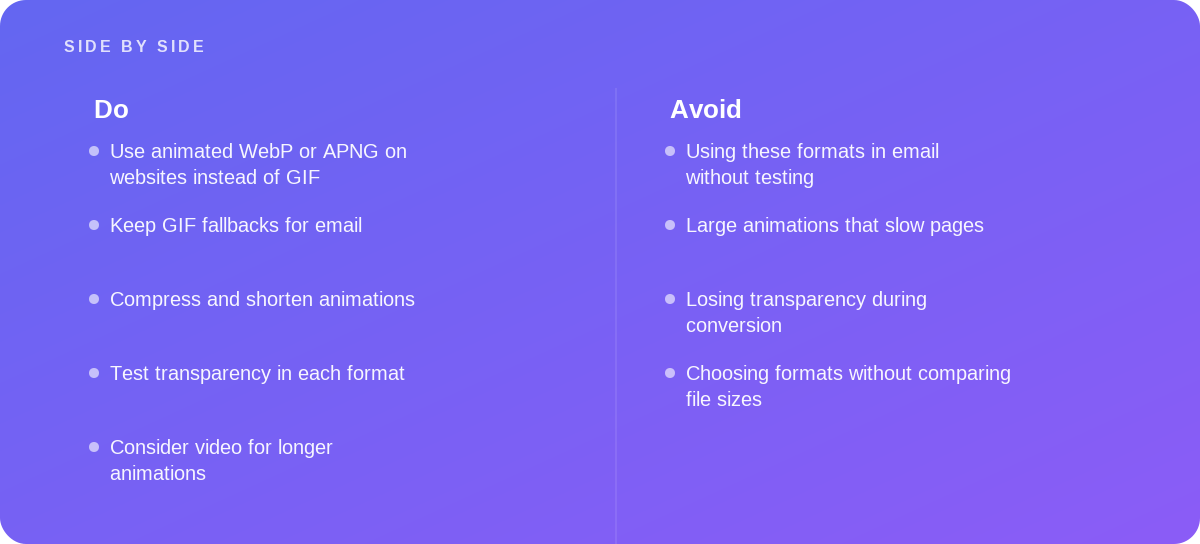
- Email clients. Support for both formats varies between clients and even between the web, desktop and mobile versions of the same client. Some render the animation, some show a still, and some show a broken image. GIF remains the safe default.
- Content management systems. Most current platforms accept WebP uploads, but some image pipelines resize or re-encode uploads and silently flatten an animation to its first frame. APNG is especially vulnerable because it carries a .png extension, and a thumbnailer that treats it as a still PNG will discard every frame after the first.
- Social platforms and ad networks. Most social platforms convert uploaded animations to video or reject formats they do not list. Ad platforms publish their own accepted file lists, and you should follow those exactly.
- Design and office software. Desktop apps, presentation tools and chat clients vary in whether they play either format. A file that animates in the browser may show as a still in a slide deck.
Warning: An animated file can arrive intact in the browser and still reach visitors as a still image if something in between re-encodes it. Check the published URL, not just the file you exported.
- Upload a test file to your CMS and download the delivered version to confirm it still animates.
- Check whether your image CDN transforms animated files; some strip animation unless a specific option is set.
- Confirm the server sends the right Content-Type: image/webp for WebP and image/apng or image/png for APNG.
Choosing between animated WebP, APNG, GIF, video and SVG
Format choice is a decision about content type, destination and length, in that order. The table below is the starting framework we use; the final call should still come from comparing real exports.
| Situation | Usually best | Why |
|---|---|---|
| Short web loop with photographic or gradient content | Lossy animated WebP | A real image codec handles tones and texture far more efficiently than a palette |
| Flat UI or illustration loop needing crisp edges and transparency | Lossless or mixed animated WebP, or palette APNG | Clean edges without compression artifacts; compare both |
| Transparent sticker-style animation where lossless is required | APNG | Pixel-exact frames and a still-frame fallback |
| Email newsletter | GIF | The only animated format with dependable email support |
| Anything longer than several seconds, or with sound | Video (MP4 or WebM) | Video codecs use motion prediction across frames and are much smaller at length |
| Vector logo, icon or line animation that must scale | Animated SVG or code-driven animation | Resolution-independent and often tiny; can be styled and controlled |
When video is the better answer
Animated image formats encode each frame largely as a picture of its own, with at most a changed rectangle relative to the previous frame. Video codecs predict motion across frames, which is far more efficient once an animation runs longer than a few seconds or when much of the frame changes at once, such as a camera move or a full-screen product spin. A muted, looping, autoplaying video element with the playsinline attribute behaves much like a GIF on the page and is often a fraction of the size. The trade-off is that video cannot be dropped into every place an image can: it needs a video element rather than an img tag, it does not work as a CSS background image, and some platforms treat it differently.
When vector is the better answer
If the artwork is made of flat shapes and lines, as logos, icons and simple infographics often are, rendering it as frames of pixels throws away its best property. Our article on the decisions that matter in animated SVG explains when vector animation beats raster, and the same thinking applies to animated logos and stings, where a crisp scalable mark usually matters more than format convenience.
WebP or APNG when both would work
When the content suits either, animated WebP is the default for most web use because it offers lossy compression and usually produces the smaller file. Choose APNG when you need guaranteed pixel-exact frames, when a still first frame is a useful fallback, or when the destination specifically asks for it. Apple's iMessage sticker format, for example, accepts APNG for animated stickers, a use we cover in our guide to animated iMessage stickers.
Preparing the source animation before you encode
Most oversized animated images are oversized before the encoder ever sees them. The biggest savings come from decisions made in the animation itself: pixel dimensions, frame rate, duration and how much of the frame moves.
Dimensions
File size scales roughly with the number of pixels that change per frame, so dimensions matter more than any encoder setting. Export at the largest size the image will actually be displayed, multiplied by the device pixel ratio you want to support. An animation shown at 400 CSS pixels wide needs 800 pixels for sharp rendering on typical high-density screens; exporting at 1,600 because the source composition was that size doubles the width and roughly quadruples the pixel count for no visible gain. For many product loops, serving a 1x and 2x version with srcset is worth the extra export.
Frame rate
Browsers can display animated images at high frame rates, but every extra frame costs bytes. Many web loops look smooth at 15 to 24 frames per second, and simple UI transitions often hold up at 12 to 15. Motion with fast camera moves or large objects crossing the frame needs more; a blinking cursor or a slowly pulsing glow needs far fewer. Where the motion allows, vary the timing per frame instead of holding a constant rate: a two-second pause at the end of a loop is one frame with a two-second duration, not forty identical frames.
Duration and loop design
Shorter is almost always better. A seamless three-second loop that repeats reads as intentional and costs a third of a nine-second sequence. Design the loop so the last frame flows into the first, and look for holds and repeated sections that the encoder can represent cheaply. If the story genuinely needs ten or more seconds, that is a strong sign the asset should be video.
How much of the frame moves
Because both formats can store only the rectangle that changed, animations where motion is confined to a small area compress dramatically better than full-frame motion. A static product shot with an animated badge in one corner is cheap; the same product rotating in place is expensive. Designers who know this compose for it, keeping backgrounds still and avoiding subtle full-frame effects such as film grain, noise or slow gradient drifts, which force every pixel to change on every frame.
Tip: Remove animated noise, grain and light leaks from any composition destined for an animated image format. They are nearly invisible at web sizes but make every pixel change on every frame, which defeats changed-rectangle optimization and can multiply file size several times over.
Encoding animated WebP: tools and the settings that matter
Several tools produce good animated WebP files. The reference encoder library, libwebp, ships command-line tools including img2webp, which builds an animation from a sequence of still frames, and gif2webp, which converts an existing GIF. FFmpeg can also write animated WebP through its libwebp-based encoder, which is convenient if your pipeline already exports video. Many image optimization services and design tools offer WebP export too, but check whether they expose the settings below; some default to lossless or to a fixed quality that is far from ideal.
The settings worth understanding
- Lossy, lossless or mixed. Lossy mode is the right choice for most photographic or gradient content. Lossless preserves every pixel and suits flat artwork. Mixed mode lets the encoder pick per frame, which is often the best of both for UI animations that combine flat panels with photographic content.
- Quality. In lossy mode, the quality factor runs from 0 to 100. There is no universal right number; start in the 70s and adjust by eye at display size. In lossless mode, the same parameter controls compression effort rather than fidelity.
- Method or effort. A setting from 0 to 6 trades encoding time for smaller files. For assets encoded once and served many times, use the highest effort your pipeline can tolerate.
- Keyframe spacing. The kmin and kmax options in the libwebp tools control how often full frames are inserted. More keyframes make seeking and decoding robust; fewer usually mean smaller files.
- Minimize size. An option in the libwebp tools that tries alternative encodings of each frame and keeps the smallest. It is slow but often worthwhile for hero assets.
- Loop count and frame duration. Set the loop count explicitly (zero for infinite) and check frame durations, particularly when converting from GIF, whose timing is stored in hundredths of a second.
- Alpha quality. For lossy frames with transparency, alpha can be compressed separately. Keep alpha lossless or near it when edges matter, because alpha artifacts show up as fringing.
- Export clean frames Render a PNG sequence with alpha at final display dimensions and final frame rate, with grain and noise removed.
- Encode a lossy baseline Build a lossy animated WebP at a middle quality with high encoder effort and record the file size.
- Encode lossless and mixed variants Build the same animation in lossless and mixed modes and record both sizes.
- Review at display size Compare the variants side by side in a browser at the size and background they will actually appear on, looking at edges, gradients and text.
- Step quality down Lower the quality of the best-looking lossy variant in small increments until you see a difference, then step back up one notch.
- Check timing and looping Confirm the loop count and frame durations match the source, especially any holds at the end of the loop.
- Record the settings Save the command or preset used so the asset can be re-encoded consistently when the design changes.
Converting existing GIFs
Converting a GIF library to animated WebP is a quick win, but understand what you get. The source GIF has already been reduced to 256 colors per frame with dithering, and a lossless conversion will faithfully preserve that dithering, which is noisy and compresses poorly. Lossy conversion usually produces a smaller file but cannot restore the detail the GIF discarded. Where the original project files or a video master still exist, re-exporting from those gives a noticeably better result than converting the GIF.
Encoding APNG without bloated files
APNG is lossless, so its file size is governed by how compressible the frames are and by how well the encoder uses changed rectangles, disposal and blending. The main tools are FFmpeg's APNG muxer, the open-source APNG Assembler (apngasm) for building files from frame sequences, and optimizers such as apngopt that re-encode an existing APNG more efficiently. Several design and animation tools export APNG directly, with varying levels of optimization.
Getting size under control
- Reduce colors where the art allows. Truecolor with alpha is the most expensive mode. If the animation is flat illustration, quantizing to an indexed palette before assembly can cut size dramatically while keeping soft alpha edges, because PNG palettes can carry per-entry transparency. Check gradients carefully after quantization.
- Use frame optimization. Make sure the tool writes only changed regions and chooses disposal and blend operations intelligently. An unoptimized APNG that stores every frame at full canvas size can be many times larger than it needs to be.
- Run a dedicated optimizer. Passing the assembled file through an APNG optimizer often yields a meaningful reduction at no quality cost, since it is still lossless.
- Keep the first frame meaningful. Because non-supporting viewers show frame one, choose a frame that communicates the subject on its own, not a blank or mid-transition frame.
APNG is rarely the smallest option for photographic content. If a truecolor APNG comes out several times larger than a lossy WebP that looks the same at display size, that is the format telling you it is the wrong fit for that asset.
Keeping transparency intact through conversion
Transparency is where animated WebP and APNG most clearly beat GIF, and also where conversions most often go wrong. The failure modes are predictable, so they can be tested for.
Common transparency failures
- Alpha flattened to a background color. Some export paths composite the animation over white or black before encoding. The file looks fine on a matching page background and wrong everywhere else.
- Halos and fringes. Semi-transparent edge pixels that were rendered against one background carry that color with them. A logo animated over black and exported with straight alpha incorrectly handled can show a dark fringe on a light page.
- Lossy alpha artifacts. Aggressive alpha compression in lossy WebP can produce stepped or blotchy edges. Keep alpha lossless when edges are prominent.
- Disposal errors. If disposal is set to leave previous frames in place where it should clear them, moving transparent elements leave trails. This shows up when one tool's output is re-muxed by another.
- Binary transparency from a GIF source. Converting a transparent GIF gives you GIF's hard-edged transparency in a new container. The soft edges have to come from the original artwork.
Warning: Always test transparent animations on at least three backgrounds before sign-off: white, black and the actual page color or image they will sit on. An asset reviewed only on a checkerboard in a design tool can hide fringes and flattening that become obvious on the live page.
A reliable alpha workflow
Render the frame sequence as PNGs with an alpha channel directly from the animation software, rather than exporting a video and keying it later. Check that your renderer is producing the alpha type the encoder expects; mixing premultiplied and straight alpha is the usual cause of dark or light edges. Encode, then view the result in a browser over the test backgrounds. If you must go through video as an intermediate, use a codec that carries alpha, such as ProRes 4444, rather than a format that silently drops it.
Worked example: replacing a hero GIF on a product page
The following is an illustrative example, a composite built to show the decision process; the file sizes are representative estimates of the kind of differences you will typically see, not measurements from a specific project, and your own figures will depend on the artwork.
A software company's product page uses a looping GIF in its hero: a 1,200 by 800 pixel screen recording of the app, 6 seconds long at 25 frames per second, for 150 frames. The GIF is around 9 MB. It is displayed at 600 by 400 CSS pixels, has visible dithering in the interface's gradient buttons, and is the largest single item on the page.
Step 1: Fix the source
The first gains come before any format change. The display size is 600 by 400, so a 2x export is 1,200 by 800 and the dimensions are already appropriate for high-density screens; a 1x version at 600 by 400 is added for standard screens with srcset. The designer shortens the loop to 4 seconds by removing a redundant scroll and cuts the frame rate to 20 frames per second, which is smooth enough for UI motion. The end-of-loop pause becomes a single frame held for 1.5 seconds. Total frames drop from 150 to roughly 60 unique frames. A subtle grain overlay applied in the edit is removed.
Step 2: Encode and compare
| Version (2x, 1,200 by 800) | Illustrative file size | Visual result at display size |
|---|---|---|
| Original GIF, 150 frames | About 9 MB | Dithered gradients, banding |
| Re-exported GIF, 60 frames, optimized | About 3 to 4 MB | Still dithered, fewer frames |
| APNG, truecolor, optimized | About 4 to 6 MB | Pixel-perfect, but heavy |
| Animated WebP, lossless | About 2 to 3 MB | Pixel-perfect |
| Animated WebP, mixed mode | About 1 to 1.5 MB | Indistinguishable from lossless at display size |
| Animated WebP, lossy, quality in the 70s | About 0.6 to 1 MB | Clean; faint softening on small text on close inspection |
| MP4 (H.264), muted loop, for comparison | Under 0.5 MB | Clean, but needs a video element |
Step 3: Decide
The team chooses mixed-mode animated WebP because the small interface text stays crisp and the file lands around the 1 MB mark at 2x, with the 1x version far smaller. APNG is ruled out for this asset because it is several times larger for no visible benefit. Video would be smaller still, and it remains the right answer if the demo grows longer, but the team wants the loop to behave as an image inside an existing component that only accepts img elements. A GIF fallback is not added for the website, since every browser in the analytics supports WebP, but a separate 600-pixel GIF at a reduced frame rate is exported for the launch email.
The point of the example is the order of operations: fix dimensions, duration, frame rate and noise first, then compare formats with real files, then decide using both size and appearance at display size.
Delivering animated images on the page
A well-encoded file can still hurt page performance or accessibility if it is embedded carelessly. These are the delivery details that matter.
Markup and fallbacks
Where you need to support an older browser or a specific embedded environment, use the picture element with a source of type image/webp and a GIF or APNG in the img fallback. Browsers pick the first source they support. For current audiences, many sites now serve animated WebP directly in an img element. Either way, always set width and height attributes so the browser reserves space and the layout does not shift when the image loads.
Loading behavior
Animated images below the fold should use loading="lazy" so they do not compete with critical content. An animated image that is the largest element in the first viewport will affect how quickly the page appears to load, so keep hero animations lean, and consider showing a lightweight still poster and swapping in the animation after the page has loaded if the file is large. Animated images also consume CPU while playing; a page with a dozen looping animations visible at once can feel sluggish on lower-end phones even when total bytes are reasonable.
Motion sensitivity and accessibility
Some visitors set their operating system to reduce motion. With the picture element, a source with media="(prefers-reduced-motion: reduce)" can serve a still image to those users. Accessibility guidance also expects users to be able to pause, stop or hide content that moves automatically for more than five seconds alongside other content, so long-running loops either need a control or should be short enough not to need one. Give each animated image meaningful alt text that describes what it demonstrates, not just "animation".
Server and CDN configuration
Serve WebP with the image/webp content type and APNG with image/apng or image/png. If you use an image CDN that negotiates formats based on the browser's Accept header, confirm how it handles animated inputs; some convert animated GIFs to animated WebP automatically, which is helpful, while others output only the first frame unless configured. Set long cache lifetimes with versioned file names, since these assets rarely change once published.
- Exported at display size times the target pixel ratio, with a 1x version where it helps
- Frame rate, duration and holds reviewed; grain and noise removed
- Lossy, lossless and mixed WebP compared against APNG and GIF using real exports
- Transparency checked on white, black and the live page background
- Loop count and frame timing match the source
- Width and height set; below-the-fold animations lazy-loaded
- Reduced-motion alternative and meaningful alt text in place
- Published URL checked to confirm the CMS or CDN did not strip the animation
- GIF fallback prepared for any email or third-party destination
Email, ads and other destinations beyond the website
The web is where animated WebP and APNG shine. Almost everywhere else, you need to check the destination's rules before choosing a format.
Email client support for both formats is inconsistent, and the email audience is spread across clients you do not control. The practical rule is simple: send GIFs in email unless you have tested the specific alternative format in the clients your list actually uses, and have decided that a still or broken image in the rest is acceptable. Even with GIFs, design for the clients that show only the first frame by making that frame carry the message on its own, with the headline and call to action visible without playback. Keep email GIFs small in dimensions and frame count, since large files load slowly on mobile connections and some clients clip long messages.
Display advertising
Ad networks publish strict specifications for file types, weights and animation length, and those rules override general best practice. Many animated display units are built as HTML5 creatives rather than animated images; our guide to HTML5 animated banner ads covers that route, including how to plan animation within tight file-weight budgets.
Messaging, stickers and apps
Messaging platforms and app stores each specify their own formats and limits. APNG appears in some sticker ecosystems, while others prefer WebP or their own formats. Treat each platform's specification as the brief, and budget for exporting several variants of the same animation.
Documents and presentations
Slide software and document tools vary widely in what they will play. For decks that travel between people and machines, a GIF or an embedded video is usually the safer choice, even though the same asset on a website should be WebP.
Advanced practice: pipelines, automation and quality control at scale
Once a team produces more than a handful of animated images, consistency matters more than any individual export. The goal is a repeatable path from the animation master to every delivered variant.
Keep a master, not a GIF
Store the animation master as a lossless frame sequence with alpha or as a high-quality intermediate video with alpha, alongside the project files. Every delivery format, whether WebP, APNG, GIF or video, is then an export from that master. Teams that keep only the published GIF find themselves converting from a degraded source every time requirements change.
Script the encode
Command-line encoders make it straightforward to script exports: one command produces the 1x and 2x WebP files, another the email GIF, another a poster still for reduced motion. Scripting removes the variation that creeps in when different people use different export dialogs, and it makes re-encoding a whole library painless when settings improve. Record the exact encoder version and settings with each batch.
Set size budgets
Agree on file-size budgets by placement, such as a ceiling for hero animations, a lower one for inline demonstration loops and a much lower one for icons. There is no universal figure; budgets depend on your page weight targets and audience connections. What matters is that a budget exists, so an oversized export is caught before publication rather than after a performance review.
Review at the right size and on real devices
Quality decisions made on a large monitor at 200 percent zoom lead to over-encoded files. Review at actual display size in a browser, on at least one high-density phone and one ordinary laptop screen. Watch the whole loop several times; artifacts in lossy animation often appear only on particular frames, and timing problems show up only across repeats.
Tip: Keep a small reference page on your staging site that shows every new animated asset over its real background, with its file size and format printed beneath it. It turns format and quality review into a two-minute check for designers, developers and approvers alike.
Know when to bring in help
Optimizing animated content well sits between motion design and front-end performance, and many teams have depth in only one of the two. If your pages carry many animations, if you are migrating a large GIF library, or if animation weight is showing up in performance reports, it is worth involving specialists who can fix the problem at the source. Our web animation and animated GIF service handles exactly this kind of work, and the broader animation and motion graphics team can redesign loops so they are cheaper to deliver in the first place. For more on individual techniques, the motion graphics and animation articles cover related formats and use cases.
Verdict On websites, animated WebP should be your default replacement for GIF, with lossy or mixed mode for most content and lossless for flat art that must stay exact. Reach for APNG when you need pixel-perfect frames, a still-frame fallback or a platform that asks for it, and compare its size honestly, because it can be heavy. Keep GIFs for email and other destinations with uncertain support, switch to video once an animation runs long, and fix dimensions, frame rate and duration before touching encoder settings.
Where this comes from
- MDN Web Docs — Image file type and format guide
- Can I use — Animated WebP images
The figures and practices above come from the sources listed.
Working on something like this?
We take on Motion Graphics & Animation work for teams who want it done once, properly. Tell us what you are building and we will tell you honestly whether we are the right studio for it. Start a project.
Where to go next
Spotted something wrong? Report an error on this page. We correct on the page and say what changed.