How to Get Object Removal in Video Right
Removing unwanted objects from moving footage, such as signs, microphones, logos or people in the background.
 MediaScaleUp Editorial Team
Why does it matter?
Object removal saves reshoots, but it is much harder in video than stills because fills must stay consistent across frames.
What are the numbers?
- Content-Aware Fill After Effects can fill removed areas in video
- Object Removal DaVinci Resolve includes an object removal effect
- Clean plates frames without the object make removal easier
- Difficulty moving cameras and complex backgrounds increase work
What should I do?
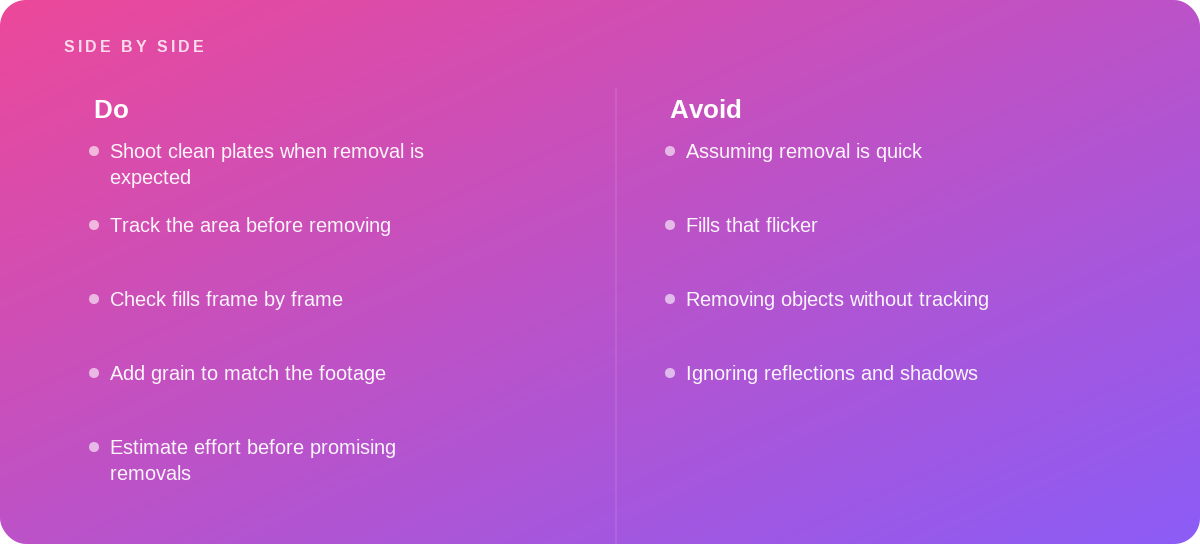
- Shoot clean plates when removal is expected
- Track the area before removing
- Check fills frame by frame
- Add grain to match the footage
- Estimate effort before promising removals
What should I avoid?
Avoid:
- Assuming removal is quick
- Fills that flicker
- Removing objects without tracking
- Ignoring reflections and shadows
When should I get help?
Short answer Bring in help when brand logos or crew must be removed from footage.
Where this comes from
- Adobe Help Center — After Effects User Guide
- Blackmagic Design — DaVinci Resolve Reference Manual
The figures and practices above come from the sources listed.
Working on something like this?
We take on Video Editing & Production work for teams who want it done once, properly. Tell us what you are building and we will tell you honestly whether we are the right studio for it. Start a project.
Where to go next
Spotted something wrong? Report an error on this page. We correct on the page and say what changed.